
Introduction
Once you have your Framework Laptop 13 Pro set up following the Quick Start Guide, you’re ready to install your preferred OS. With the latest release of NixOS, everything works pretty smoothly. You can check our Linux page for additional Linux compatibility notes.
NOTE: This is a Compatible Community Supported Linux Distribution. Learn more here.
Tools
No tools specified.
Parts
-
-
First, download NixOS from NixOS' website. NixOS has a detailed installation guide that you can follow. We'll go through the steps in this Guide assuming you have a simple installation scenario of a fresh install on a blank drive.
-
Download balenaEtcher as a tool to create the USB installer from the ISO. balenaEtcher is available for MacOS. Install it.
-
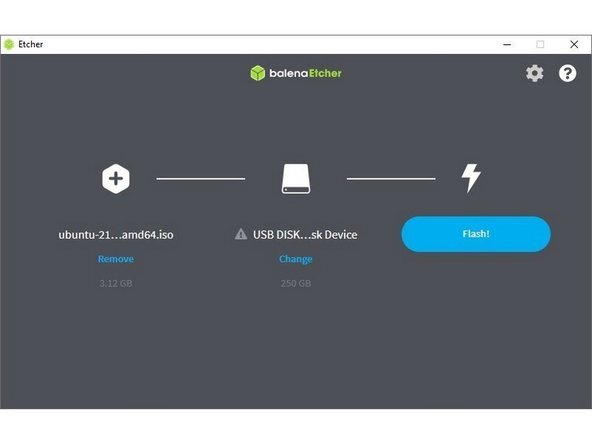
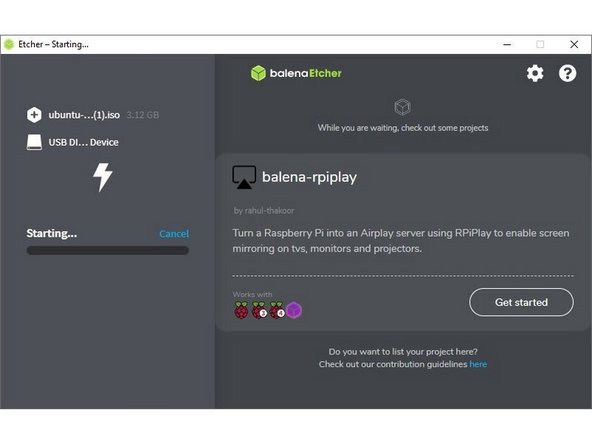
Launch balenaEtcher. Insert your USB drive (8GB or larger). Click on "Flash from file" and select the NixOS iso that you downloaded. Click on "Select target" and choose your USB drive. Click "Flash" and wait a minute or two for it to complete.
-
Once the USB drive creation is complete, you can close balenaEtcher and eject the USB drive from your OS.
-
-
-
First, download NixOS from the NixOS website. NixOS has a detailed installation guide that users can follow. This Guide will walk through a basic setup that automatically uses an entire disk.
-
Download Rufus as a tool to create the USB installer from the ISO. The first item in this list will be a link to install installer for the latest version. Install Rufus using this.
-
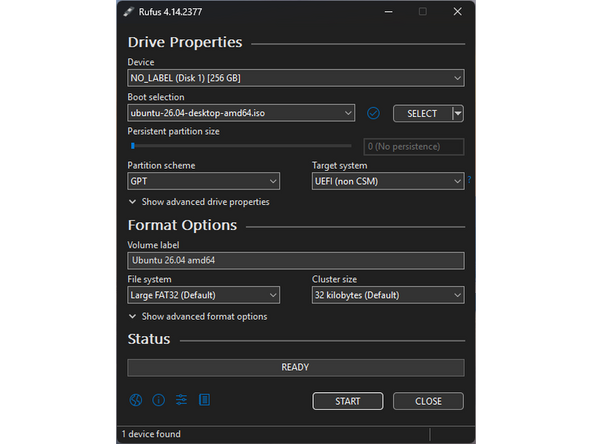
Open Rufus, from the Device drop-down, select the USB flash drive stick.
-
In order to use devices like external hard drives, external solid state drives, or the Framework Storage Expansion Card to create a live USB, List USB Hard Drives must be enabled under Show advanced drive properties.
-
Use the Select Button next to Boot selection to choose the downloaded NixOS ISO.
-
Set Partition scheme to GPT to ensure the live USB is properly recognized at boot.
-
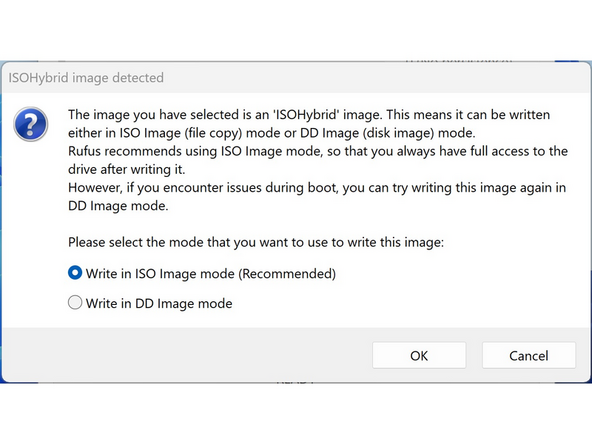
Click Start. A window will pop up to prompt for a choice between dd image mode and ISOHybrid image mode. Select ISOHybrid image mode then OK.
-
-
-
To install NixOS, Secure Boot must be disabled! By default NixOS will not boot with Secure Boot enabled. Please refer to our explanation of Secure Boot to learn more
-
To disable secure boot:
-
Boot into BIOS by tapping F2 just before the Framework splash screen.
-
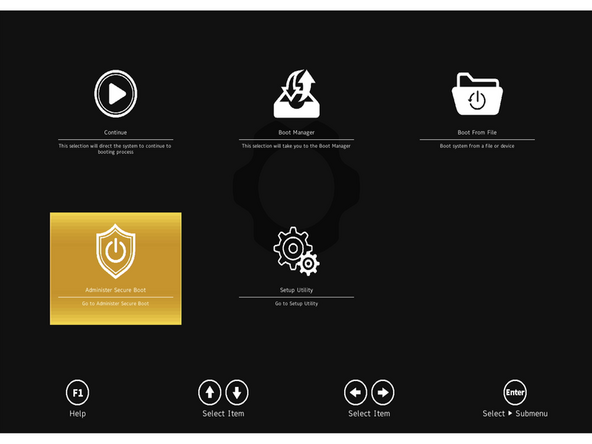
Arrow down to Administer Secure Boot. Press enter.
-
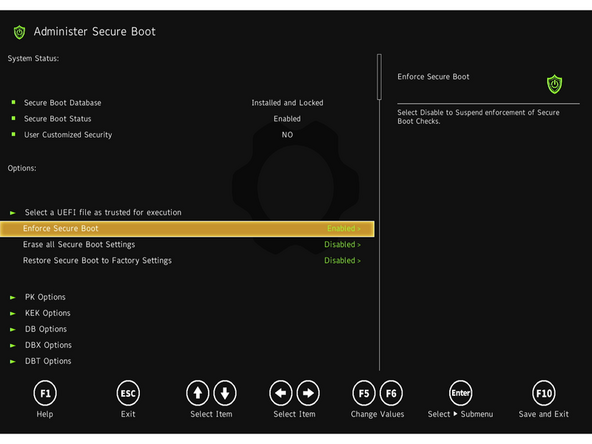
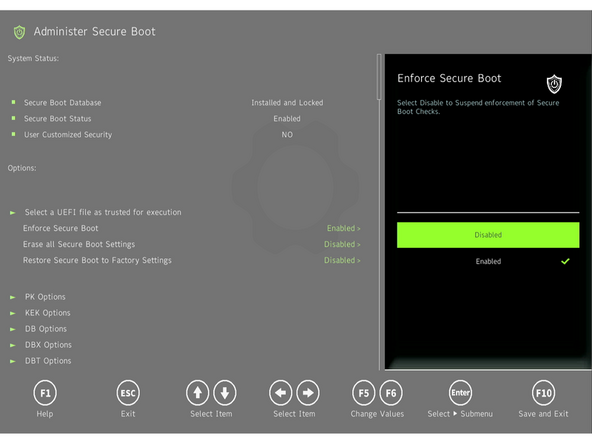
Arrow down to Enforce Secure Boot. Press enter, select Disabled, and press enter.
-
Press F10 to save and reboot. With Yes selected, press Enter.
-
To enable Secure Boot again, repeat the above steps but select Enable this time.
-
-
-
Insert the USB drive into the powered off Framework Computer, and then power on. Immediately after the power light comes on begin tapping the F12 key before the Framework logo is visible.
-
If the computer does not have an existing OS installed, tapping F12 is not necessary and the system will automatically boot the Live USB.
-
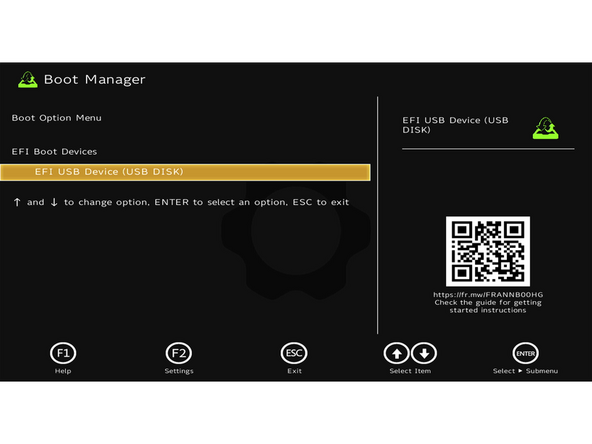
Use the arrows to select the Live USB, typically named "EFI USB Device (USB Disk)" and press enter to boot from it.
-
Hit Enter again to boot into and install NixOS.
-
-
-
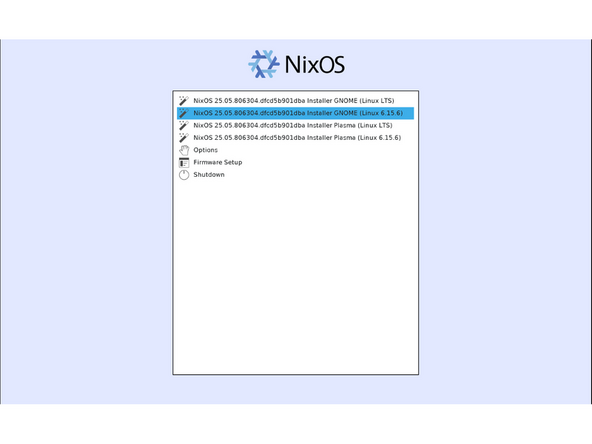
When the installer first displays a list of kernels to choose from, select the the NOT LTS kernel. And for the sake of this guide, we will assume you've selected GNOME.
-
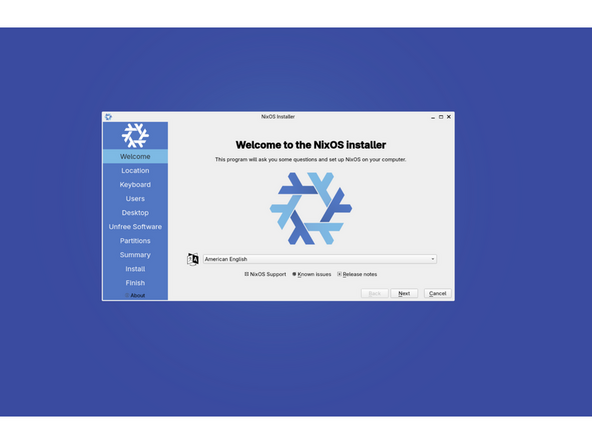
When the installer appears, you will be asked to connect to a network. Connect to wi-fi. It will cycle through the checking process again, then allow you to select your language and press the next button.
-
Select your location keyboard and then setup your user account.
-
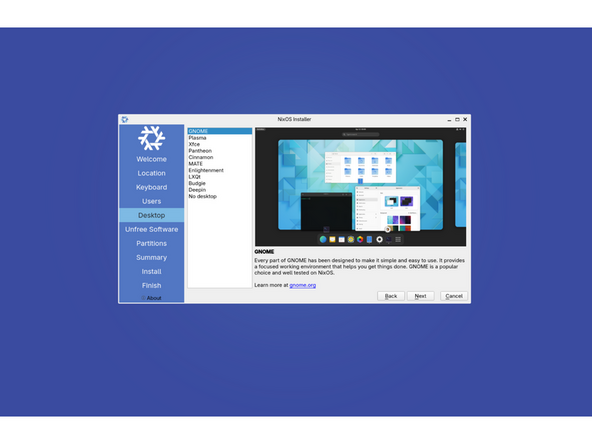
Next, you will want to choose your desktop - as mentioned previously, for the sake of this guide, we will assume GNOME.
-
-
-
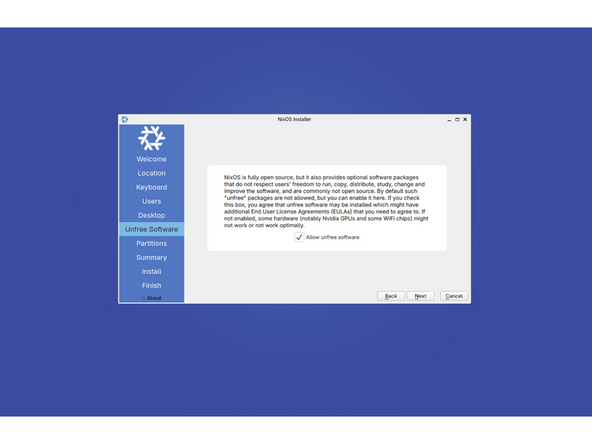
Next you will be asked if you would like to have access to non-free software. This is recommended for most users, but if you understand it can affect access to proprietary blobs and related, you can elect to not choose it.
-
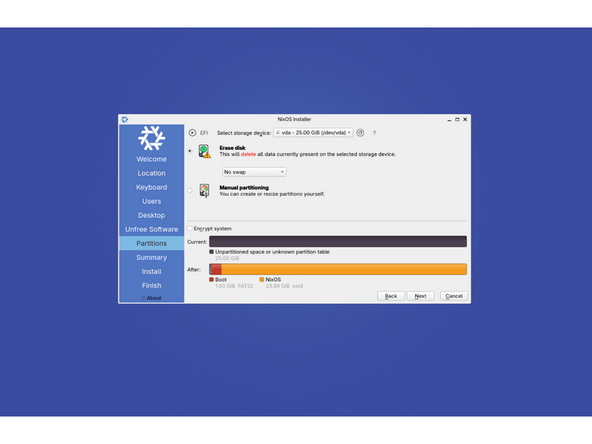
The next option is to choose your partition setup. For most people, the desired choice will be to erase disk. Advanced users, may instead elect for manual partitioning.
-
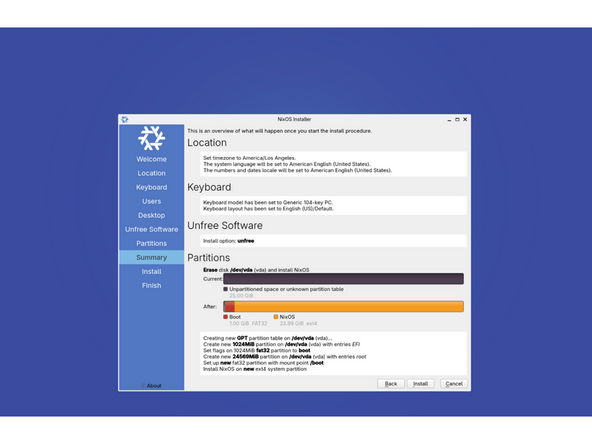
And now, we arrive at the summary screen where you can determined if the settings are what you would like. And you can press the install button to begin writing your selections to the drive.
-
-
-
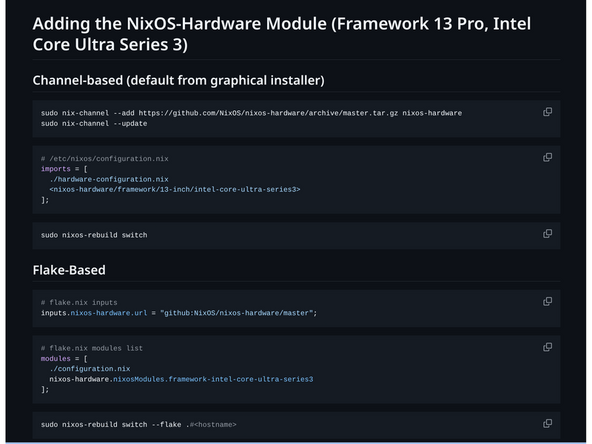
Framework hardware quirks and fixes for NixOS are maintained in the nixos-hardware project, which isn't part of NixOS by default. Add the module for your CPU generation.
-
Add the channel to make sure full functionality is in place:
-
Framework hardware quirks and fixes for NixOS are maintained in the nixos-hardware project. For the exact commands to add the module, covering both channel-based (default installer) and flake-based setups, please see our reference guide linked here.
-
The above link provides for channel-based or flake-based inclusion, depending on your preference.
-
-
-
How to check the BIOS version. Go to and click upper left corner where you see the horizontal line, search terminal and launch it. Please follow the step below:
-
nix-shell -p lshw dmidecode --run "clear && sudo dmidecode | grep -A3 'Vendor:\|Product:' && sudo lshw -C cpu | grep -A3 'product:\|vendor:'"
-
If you have Intel Core Ultra Series 3, you can check (Coming soon) for the latest firmware.
-
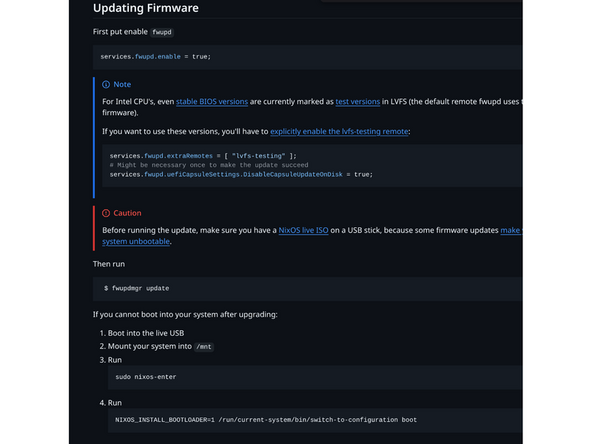
IMPORTANT: Per the instructions above, we do NOT recommend updating BIOS and firmware using various GUIs. We recommend using fwupdmgr as provided in the step above. Using GUIs can potentially create issues that would not be present using fwupdmgr directly.
-
-
-
If you need additional help, feel free to visit our active support community.
-
We also recommend this amazing newcomer guide for NixOS newcomers called Zero to Nix.
-
Enjoy using NixOS on your Framework Laptop 13 Pro! If you have any questions or run into any issues, we recommend bringing them to the Community in the Linux NixOS topic. Members of the Framework team participate in discussions there.
Enjoy using NixOS on your Framework Laptop 13 Pro! If you have any questions or run into any issues, we recommend bringing them to the Community in the Linux NixOS topic. Members of the Framework team participate in discussions there.