Introduction
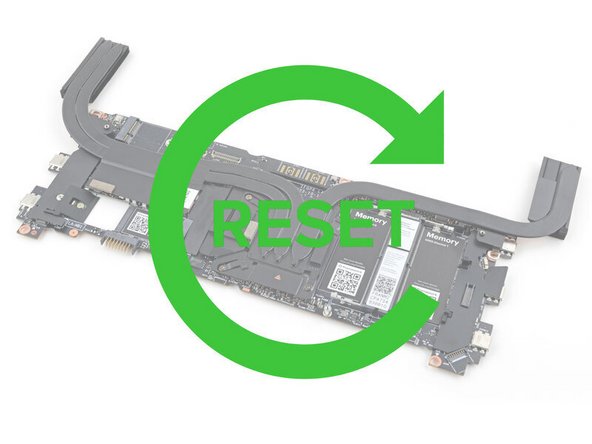
Follow this guide to reset the Mainboard in your Framework Laptop 16.
Resetting the Mainboard will set the Laptop's BIOS settings to their factory default. This might be necessary if your Laptop doesn't boot properly or if you're installing new hardware.
This procedure is irreversible. Make sure you have your BIOS settings documented if you want to restore them afterwards.
Tools

Parts
No parts specified.
-
-
Unplug all cables and fully shut down your laptop.
-
-
-
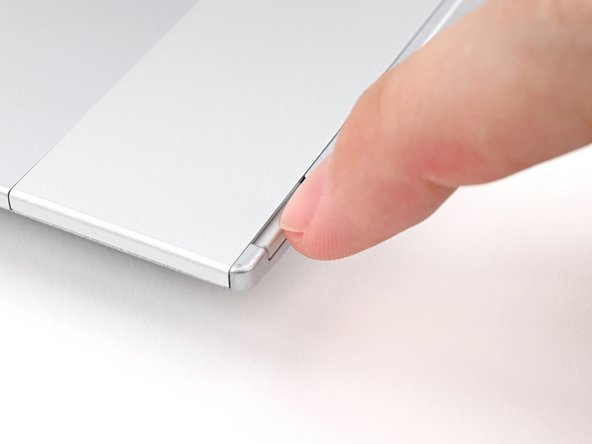
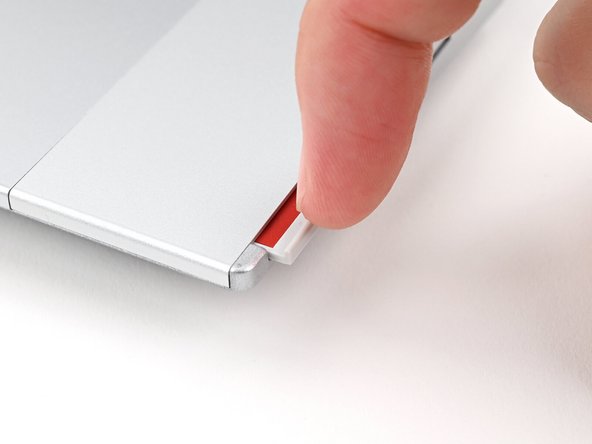
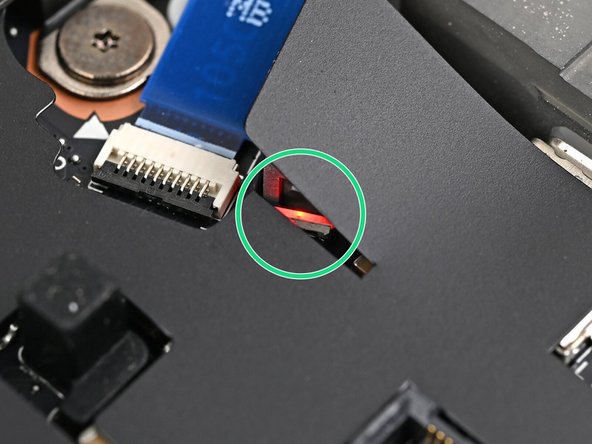
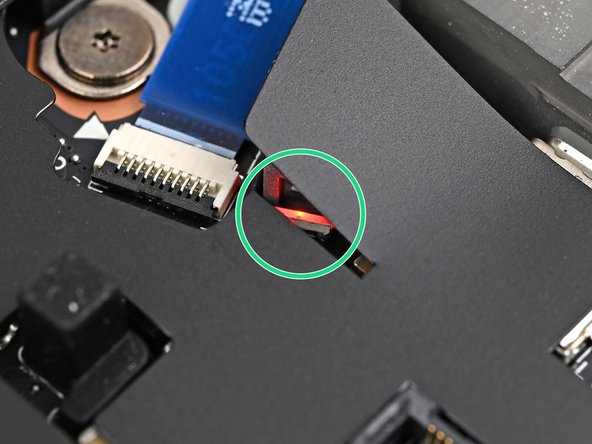
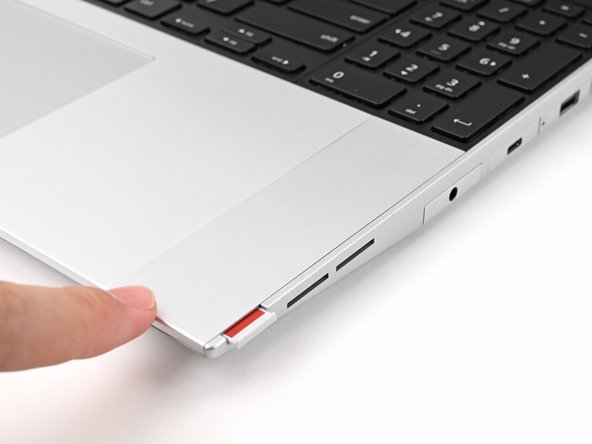
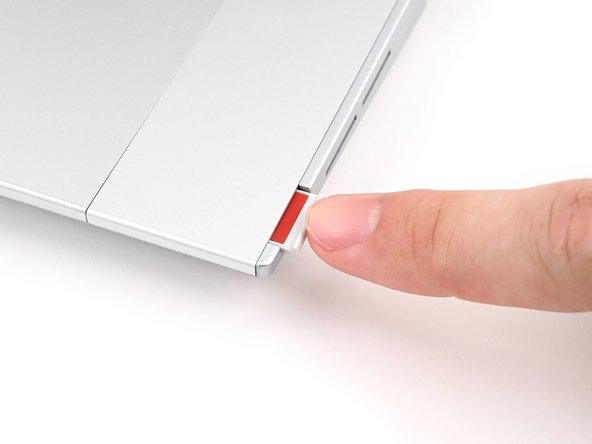
Use your fingernail to pull out the two Input Module latches and unlock them.
-
The latch will show red if it's unlocked.
-
-
-
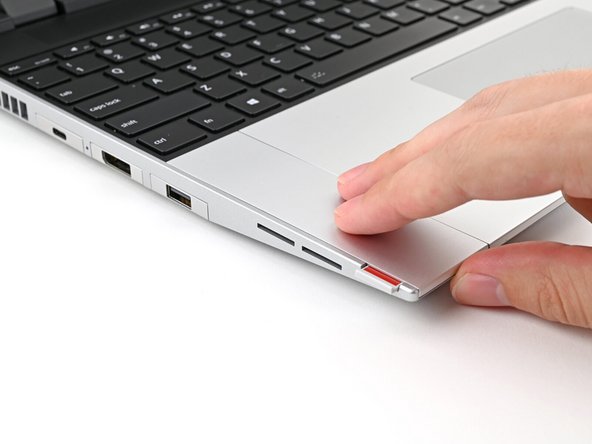
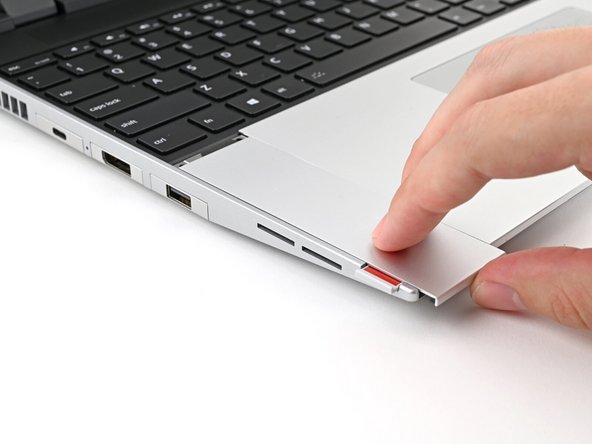
Use your fingers to slide the Touchpad Spacer toward the bottom edge of the laptop and unclip it.
-
If you're having trouble, check if the corresponding Input Module latch is properly unlocked.
-
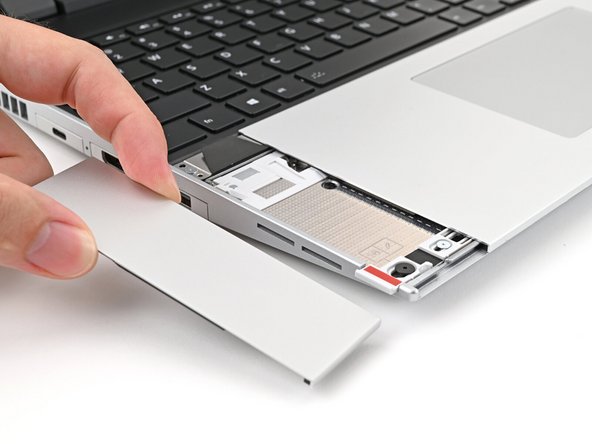
Lift the Touchpad Spacer off the laptop and remove it.
-
-
-
Repeat the same procedure for the other touchpad spacer.
-
-
-
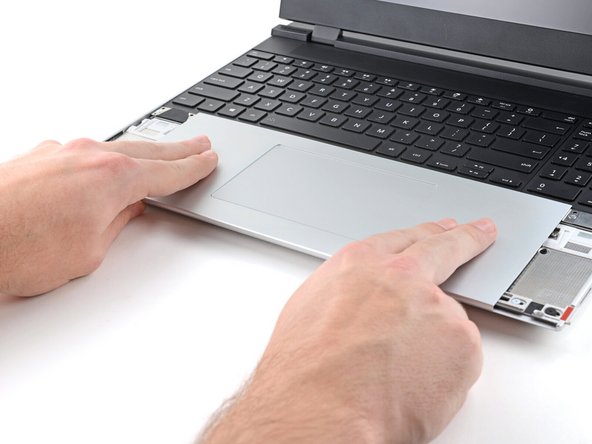
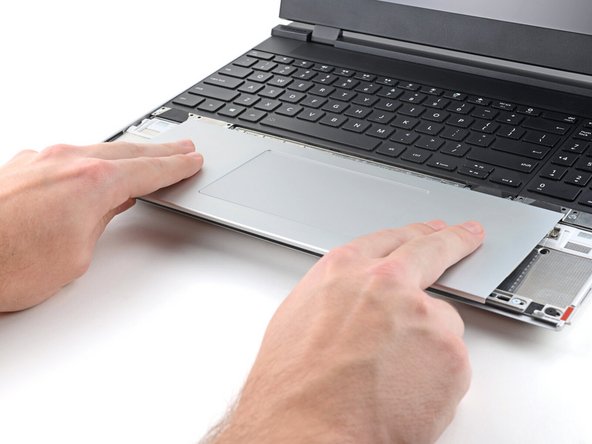
Use your fingers to slide the Touchpad Module toward the bottom edge of the laptop and disconnect it.
-
If you're having trouble, check if the Input Module latches are properly unlocked.
-
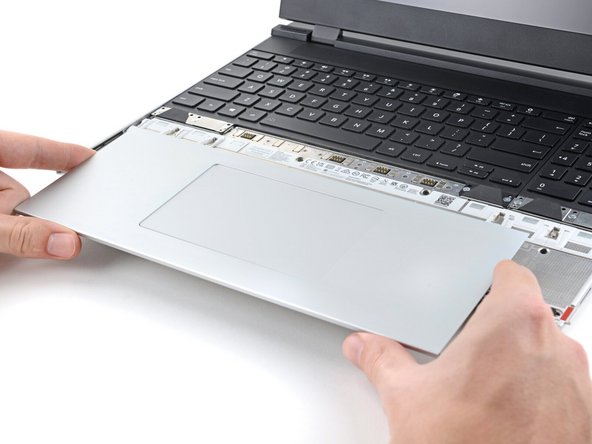
Lift the Touchpad Module and remove it.
-
-
-
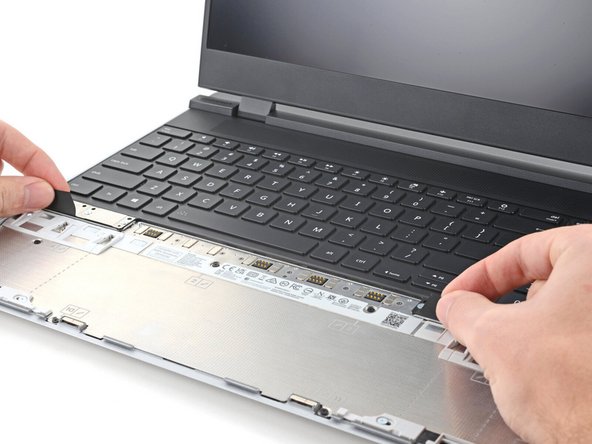
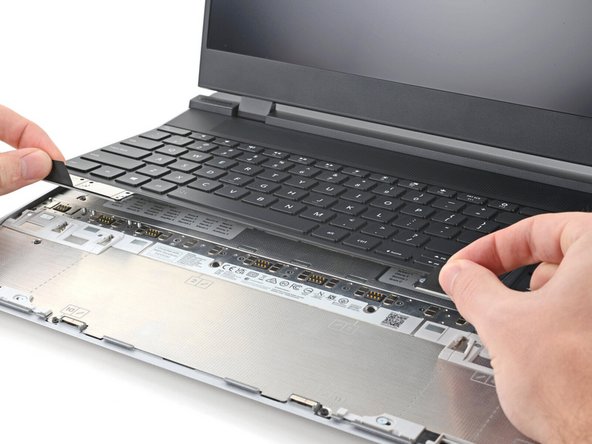
The keyboard is held in place with strong magnets. Apply gradually increasing force to avoid having the keyboard violently eject.
-
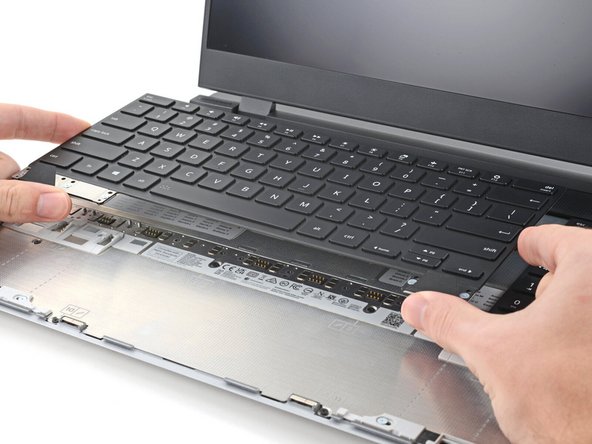
Grip the two pull tabs along the bottom of the keyboard and lift until its magnets release.
-
Remove the keyboard.
-
-
-
Your Input Module(s) might be different, but the procedure to remove them is the same.
-
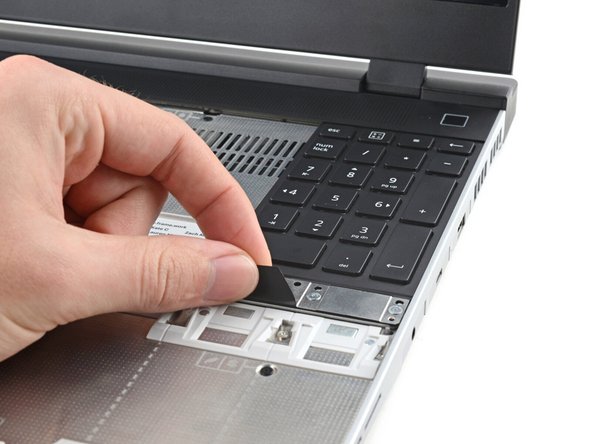
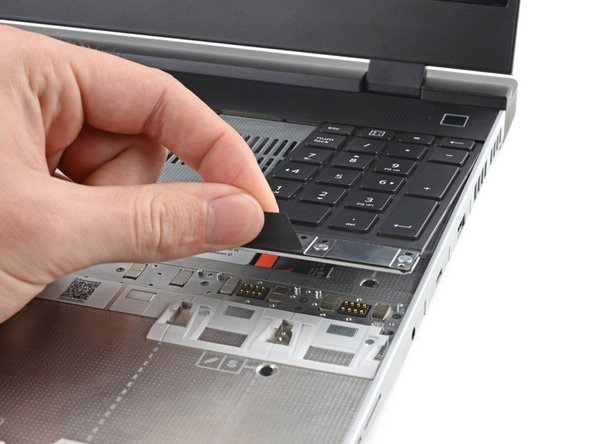
Grip the pull tab at the bottom of the Input Module and lift until its magnets release.
-
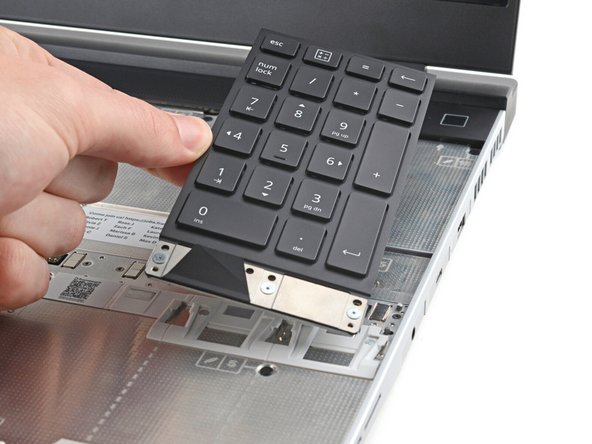
Remove the Input Module.
-
Repeat for any remaining Input Modules.
-
-
-
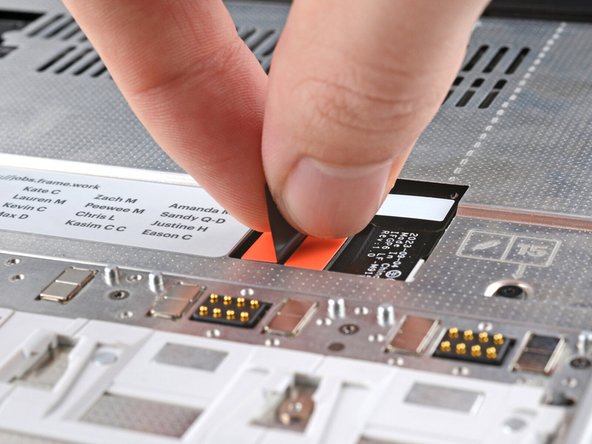
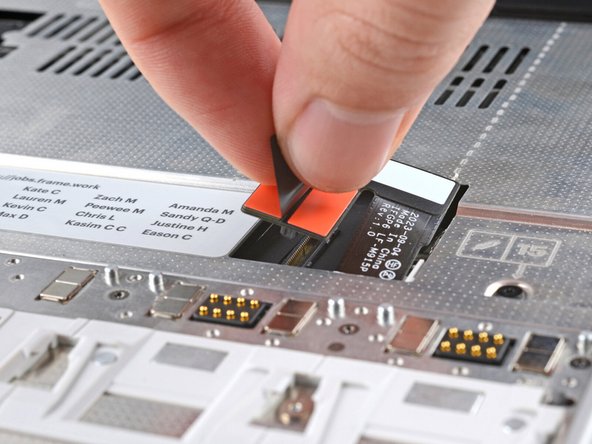
Grip the black pull tab on the Mid Plate cable press connector and lift up to disconnect it.
-
-
-
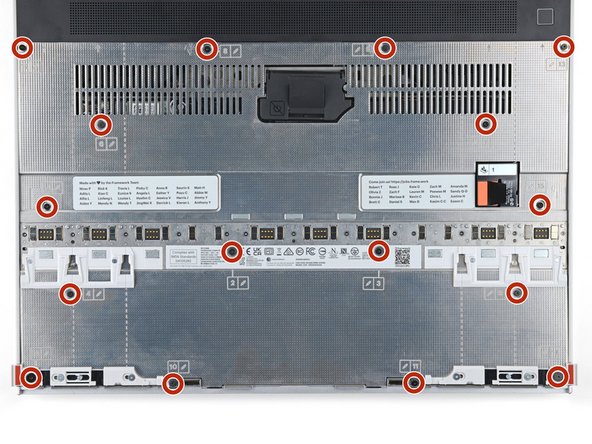
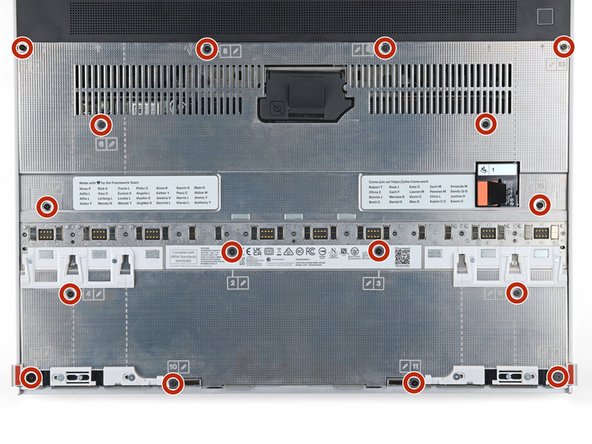
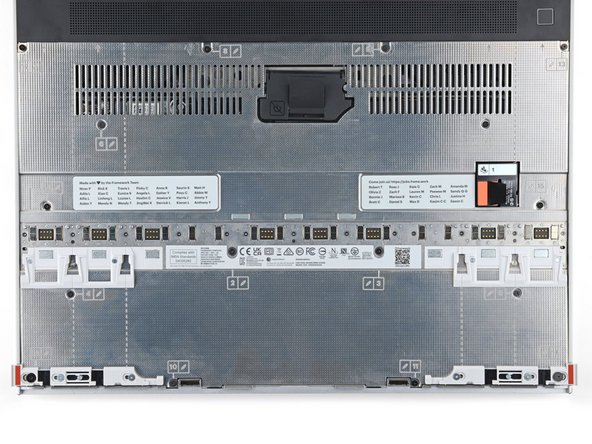
The Mid Plate screws are ordered from 2–17 (number 1 is the press connector). You don't have to follow the order, but you can use it to help keep track of the screws you've loosened.
-
Use your Framework Screwdriver to loosen the 16 captive T5 Torx screws securing the Mid Plate.
-
-
-
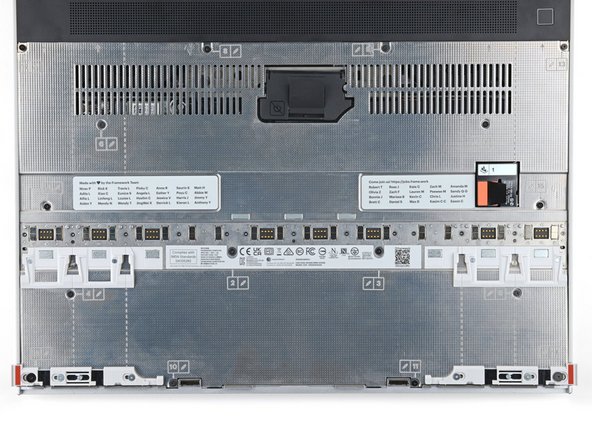
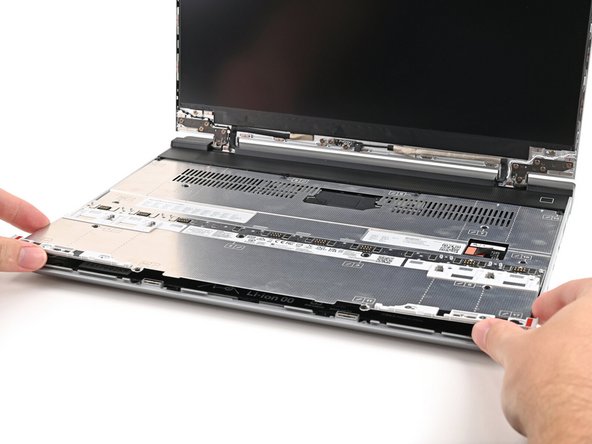
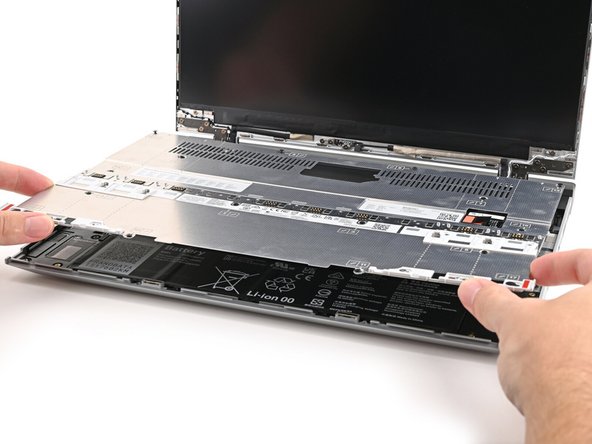
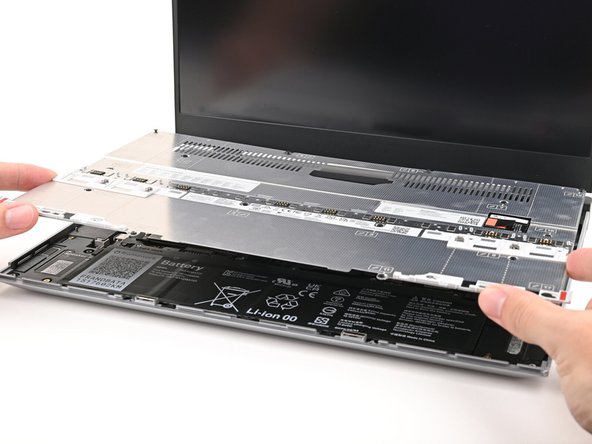
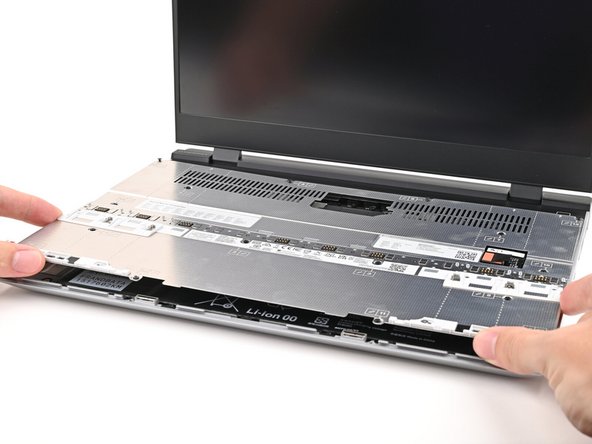
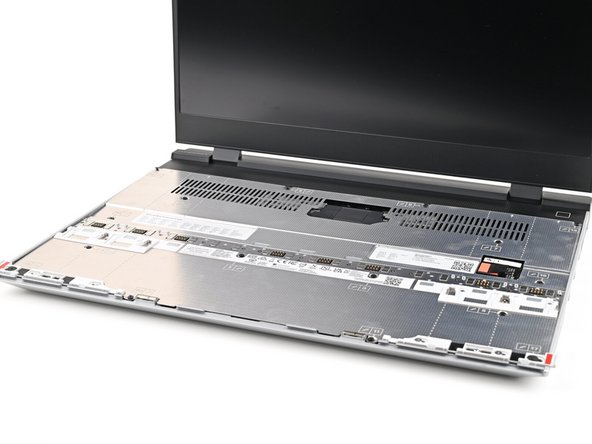
Use your fingers to lift the Mid Plate off the laptop and remove it.
-
-
-
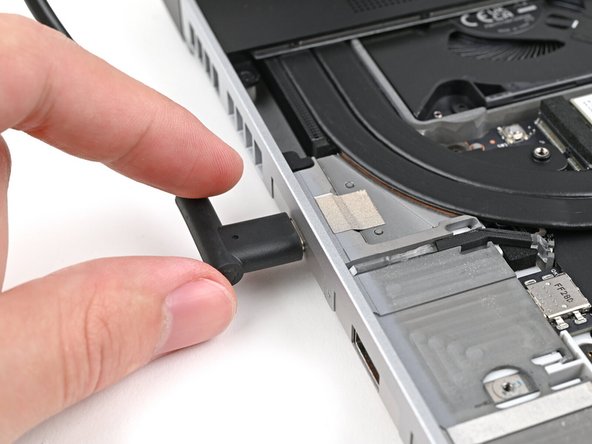
Plug the laptop into a power source.
-
The red status LED near the right Expansion Card slots should blink continuously. If this LED isn't blinking, the laptop isn't receiving power correctly—try another USB-C port.
-
Don't proceed unless the LED is blinking.
-
-
-
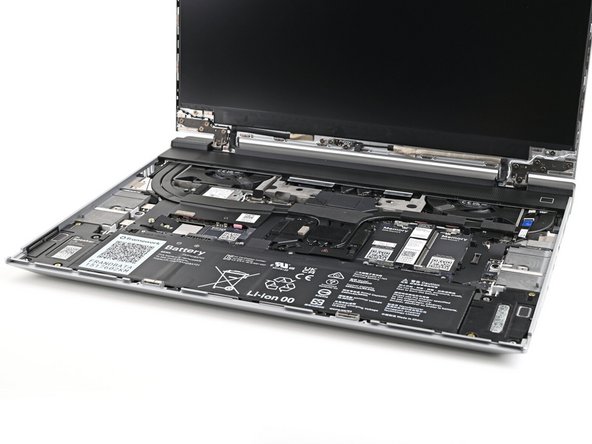
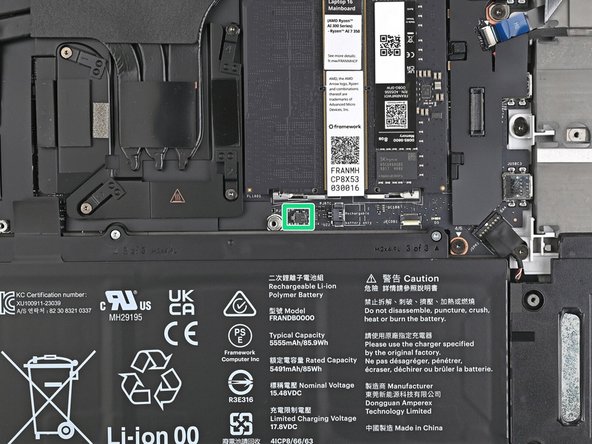
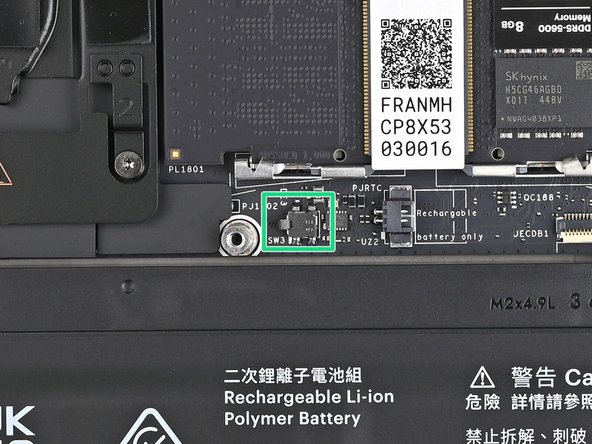
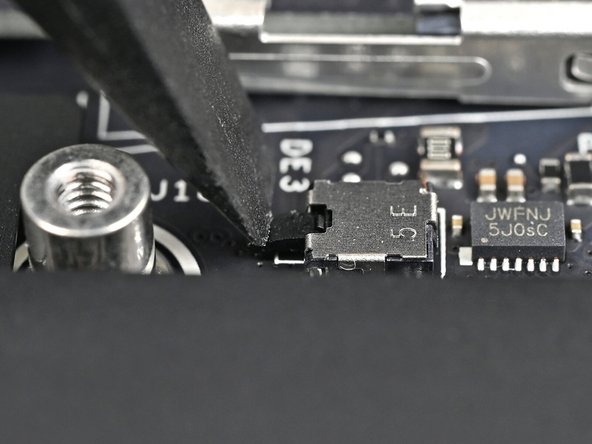
Locate the chassis open switch below the memory.
-
This switch is a sensor that detects if the Mid Plate has been removed. It's a small silver block with a black toggle tab.
-
-
-
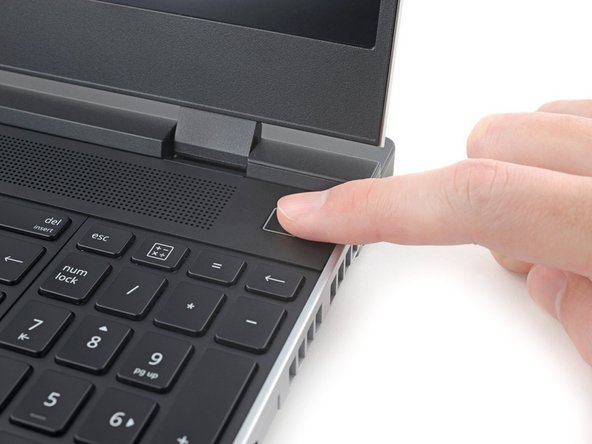
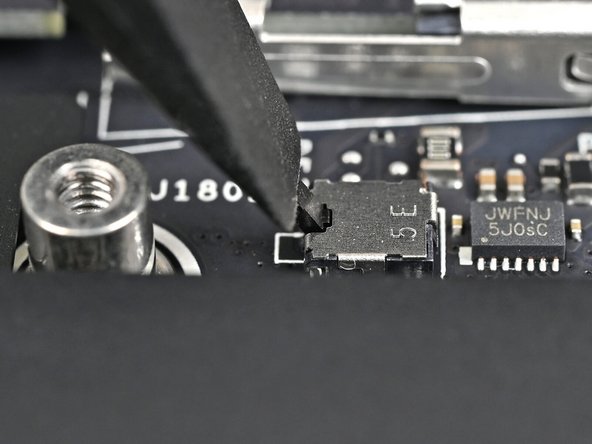
Use your finger or the flat end of a Framework Screwdriver to press the chassis open switch 10 times:
-
Press and hold the switch down for two seconds.
-
Release the switch and wait for the indicator LED to resume blinking.
-
Repeat the process 10 times total.
-
-
-
Congratulations on completing disassembly! The remaining steps will show how to reassemble your Framework Laptop.
-
-
-
Place the Mid Plate on the laptop, making sure it sits evenly on its alignment pegs.
-
-
-
Use your Framework Screwdriver to tighten the 16 captive T5 Torx screws in order (starting with 2) to secure the Mid Plate evenly.
-
-
-
Align the Mid Plate cable press connector over its socket and press down to connect it.
-
-
-
Your Input Module(s) might be different, but the procedure to remove them is the same.
-
Align the top edge of the Input Module with the top edge of the laptop.
-
Lay the Input Module on the laptop and let the magnets pull the keyboard into place
-
Make sure the Input Module is seated properly on its alignment pegs and sits flush with the edges of the laptop.
-
Repeat for any remaining Input Modules.
-
-
-
Align the top edge of the keyboard with the top edge of the laptop.
-
Lay the keyboard on the laptop and let the magnets pull the keyboard into place
-
Make sure the keyboard is seated properly on its alignment pegs and sits flush with the edges of the laptop.
-
-
-
Place the Touchpad Module flat on its cutout so its clips are properly aligned.
-
Press the Touchpad Module down and slide it into place so it lines up evenly with the bottom edge of the laptop.
-
-
-
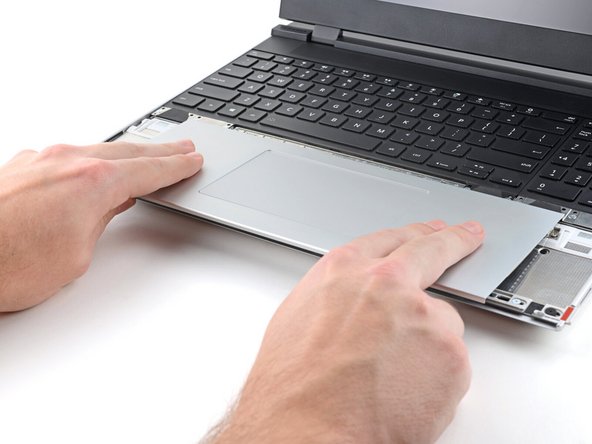
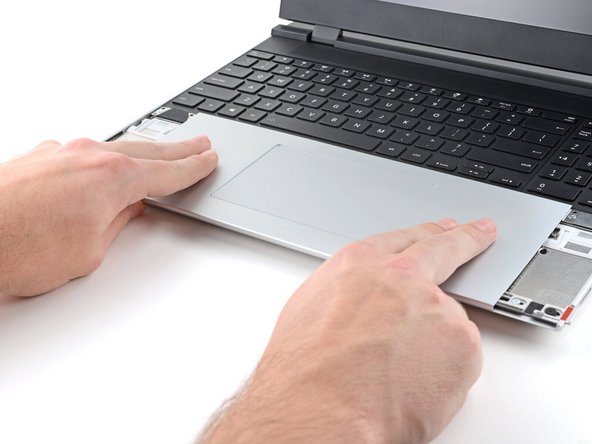
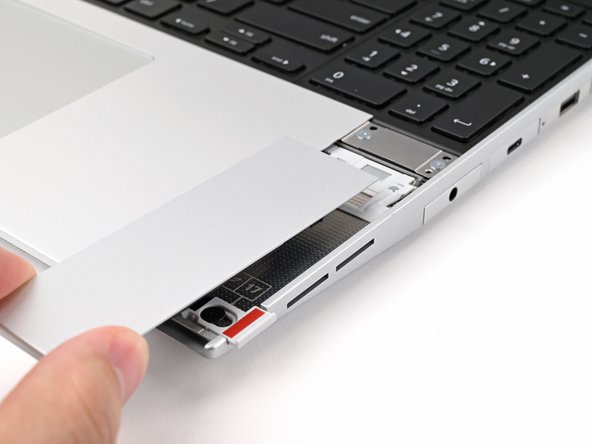
Place the Touchpad Spacer over its spot on the laptop with the bottom edge overhanging slightly.
-
Slide the Touchpad Spacer towards the top of the laptop to secure it.
-
Repeat the same procedure for the other Touchpad Spacer.
-
-
-
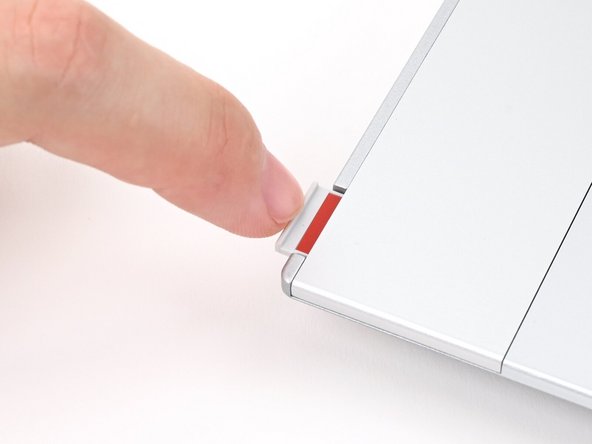
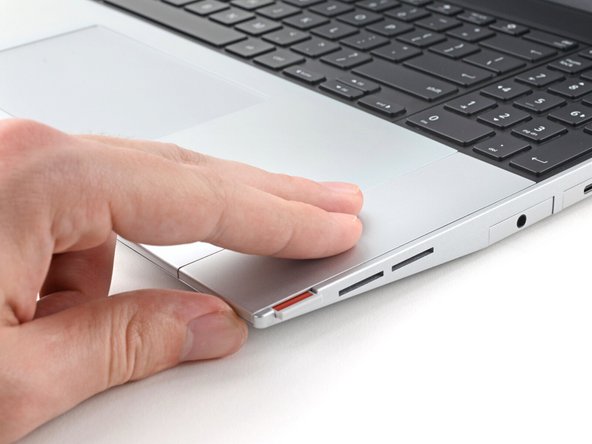
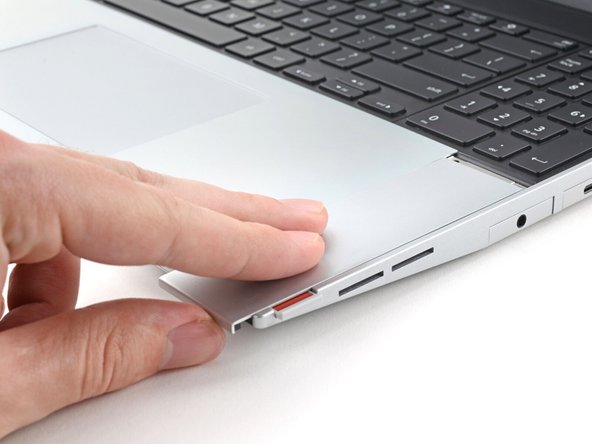
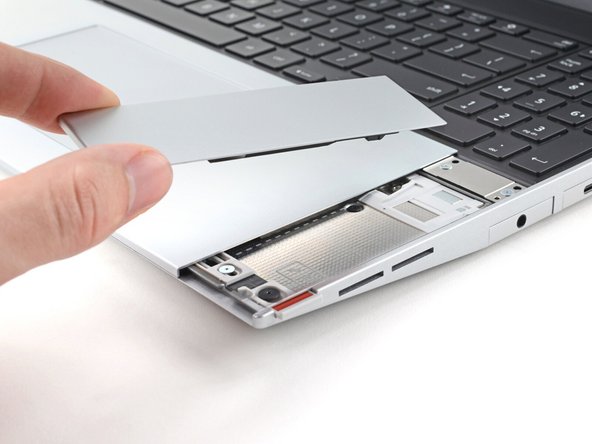
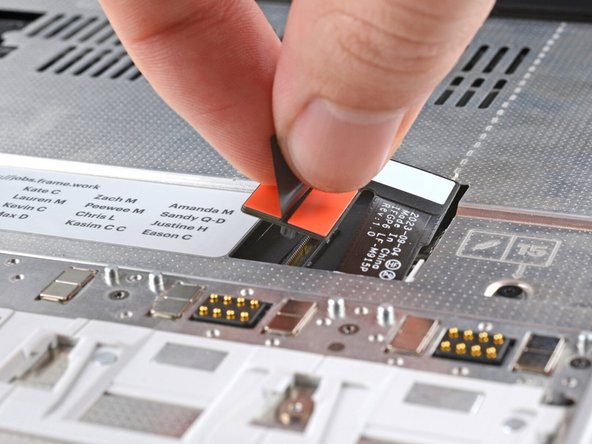
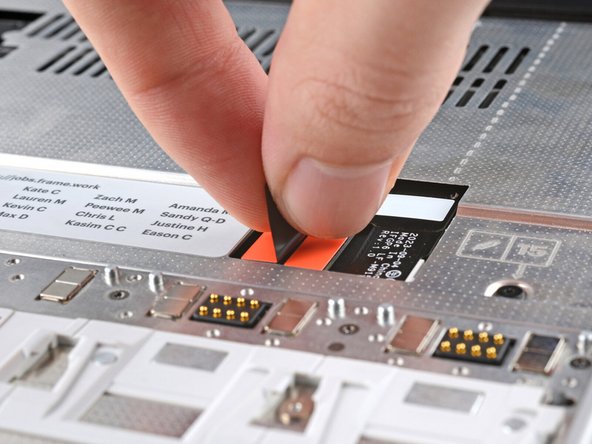
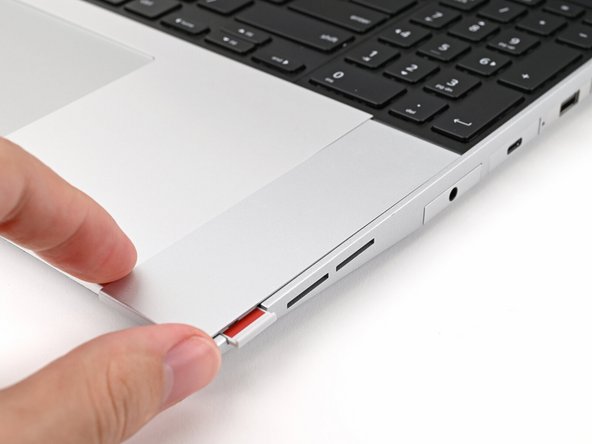
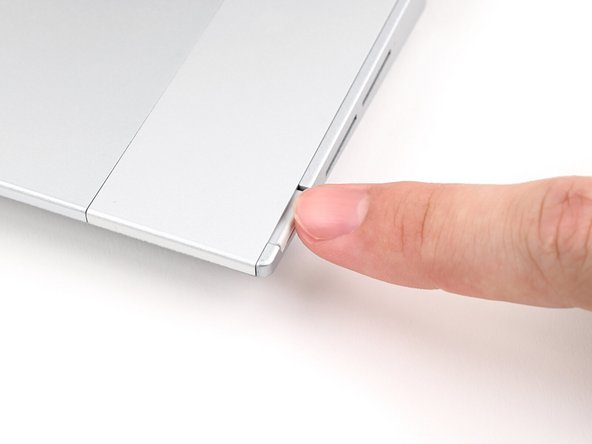
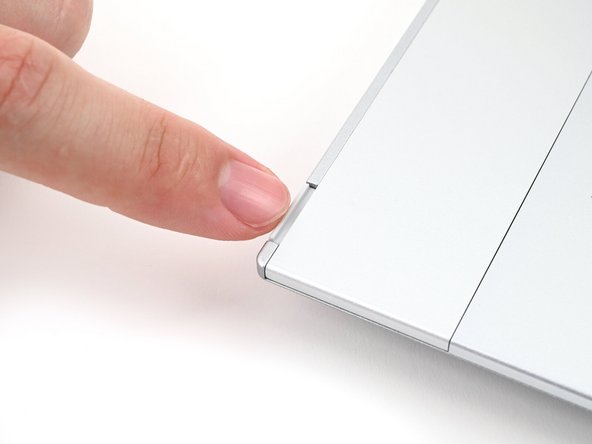
Push the Input Module latches back into place to lock them.
-
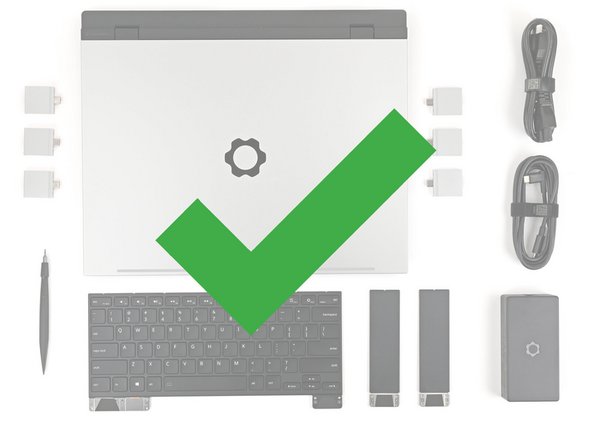
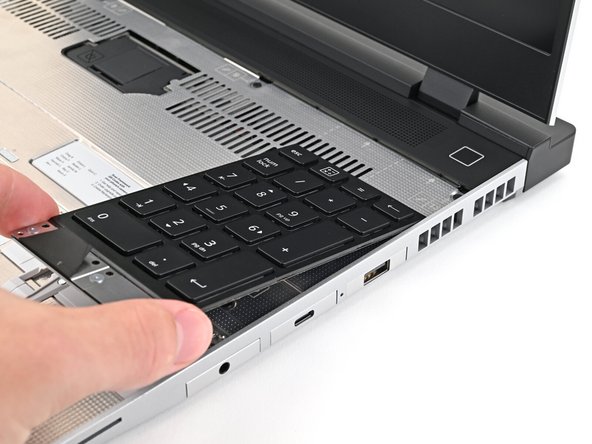
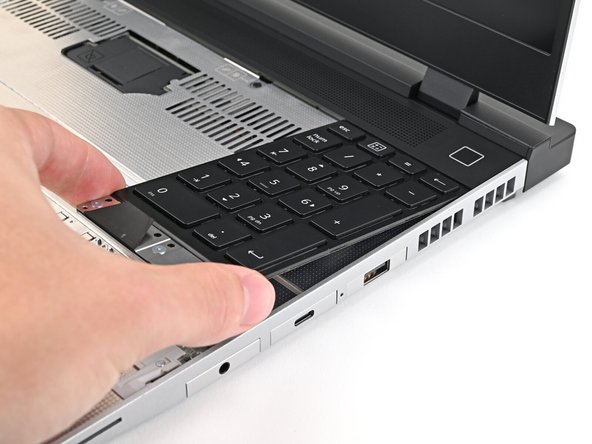
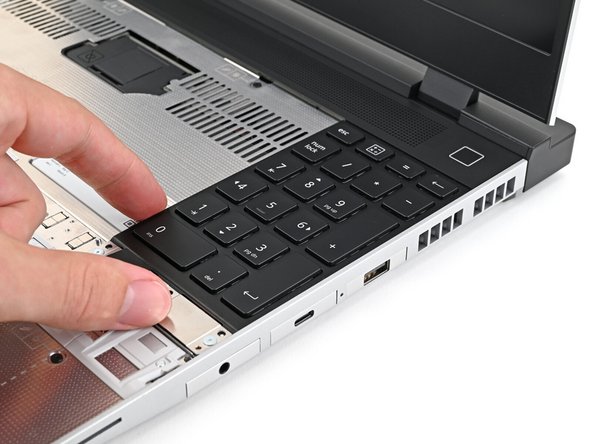
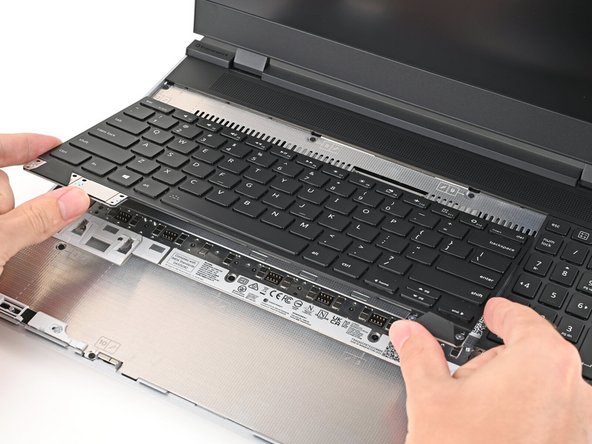
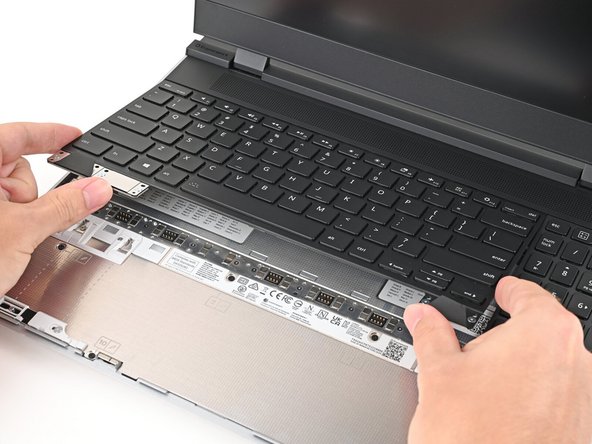
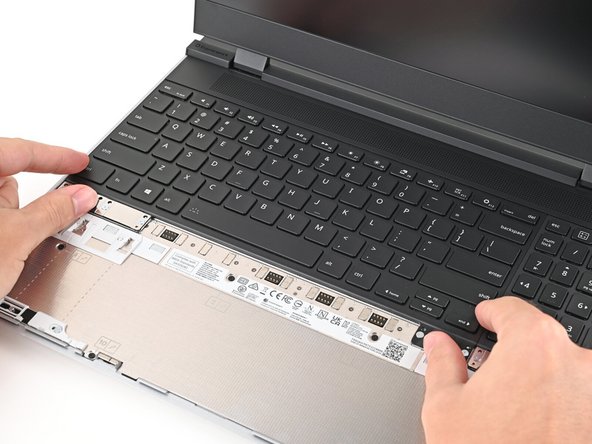
You finished fixing your Framework Laptop!
If you need help, contact Framework support.
You finished fixing your Framework Laptop!
If you need help, contact Framework support.

