Introduction
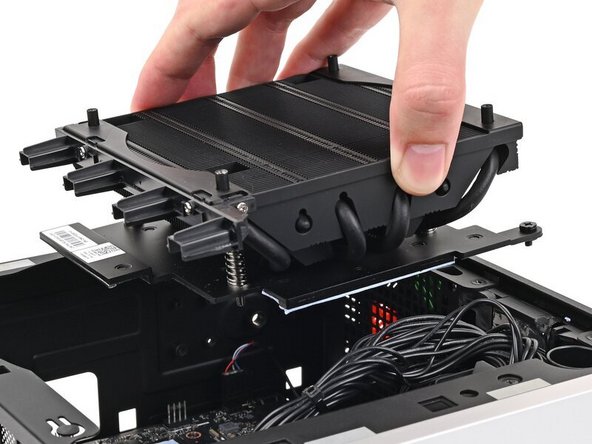
Use this guide to remove and replace the Heatsink in your Framework Desktop.
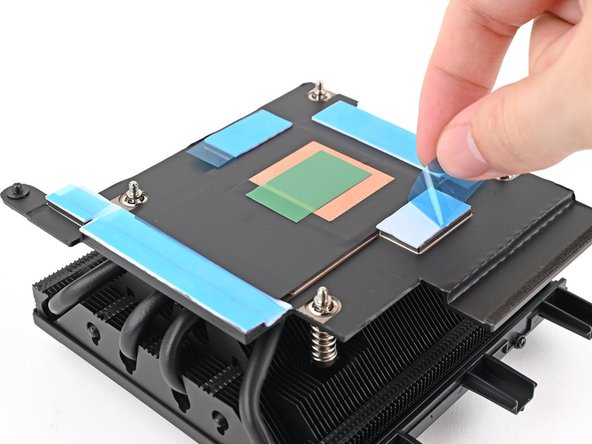
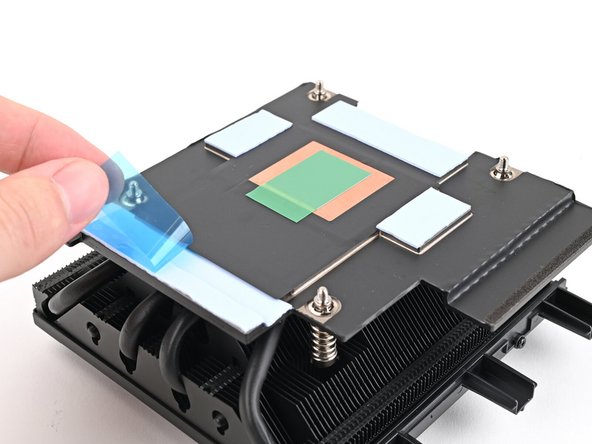
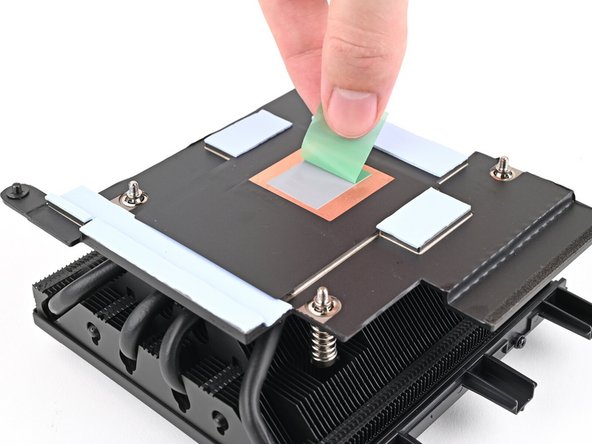
The replacement Heatsink comes pre-installed with thermal pads.

Parts
No parts specified.
-
-
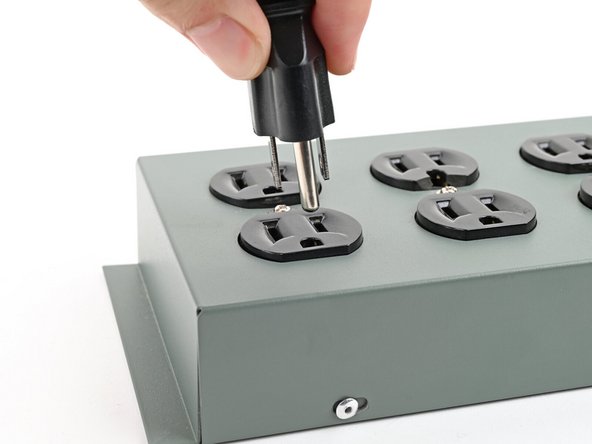
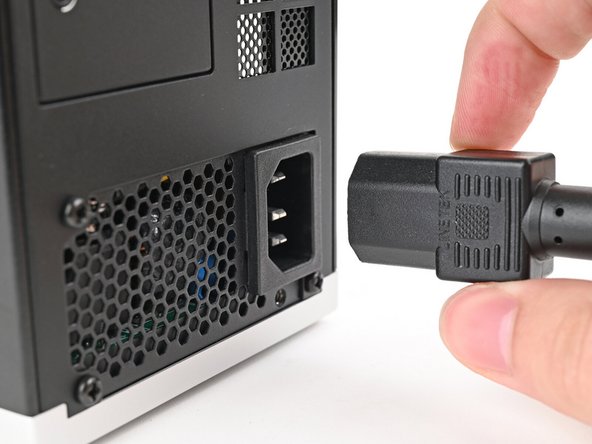
Before you begin repairs, shut down your Desktop from the operating system and unplug it.
-
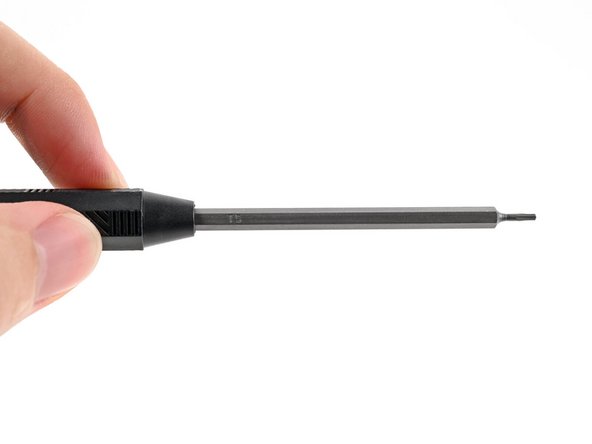
Make sure your Framework Desktop Screwdriver has the T5 Torx bit (labeled as T5) facing outwards. If it's not, pull the bit out and flip it.
-
-
-
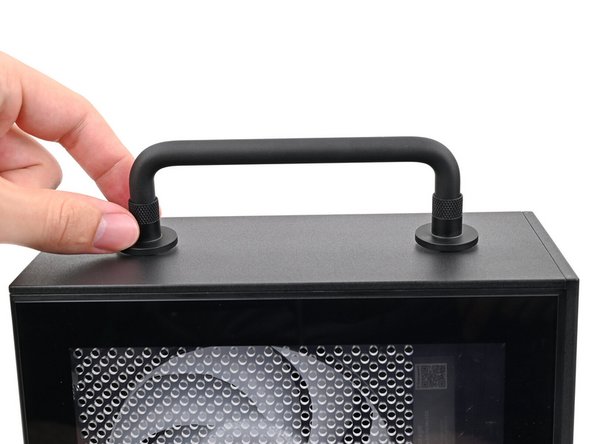
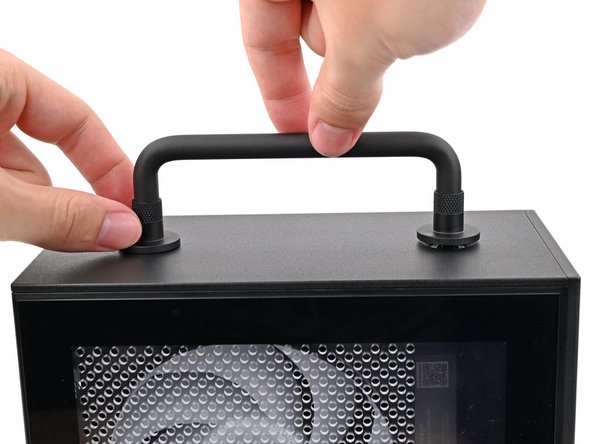
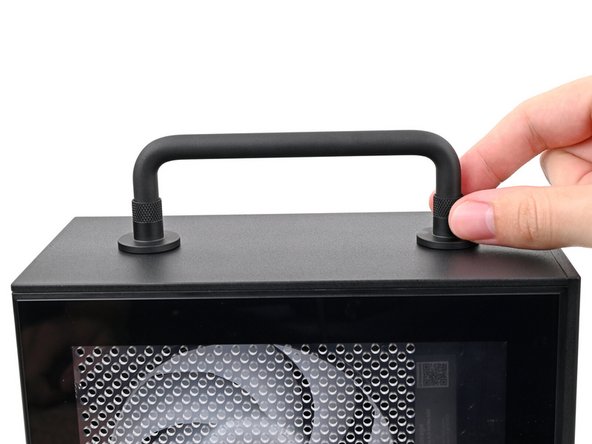
If you installed the Handle on your Desktop, follow this step. Otherwise, skip it.
-
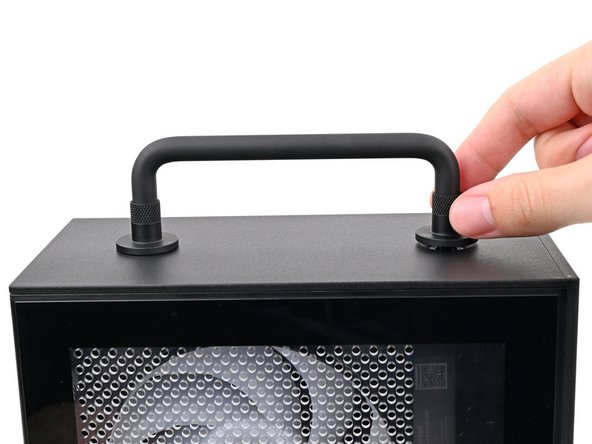
Rotate the Handle's screw threads counterclockwise on both sides until it comes free.
-
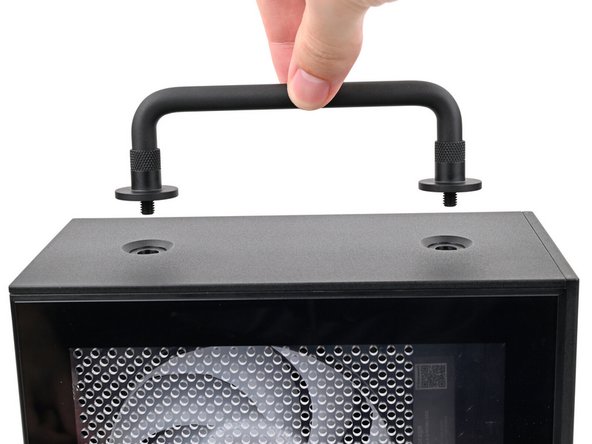
Remove the Handle.
-
-
-
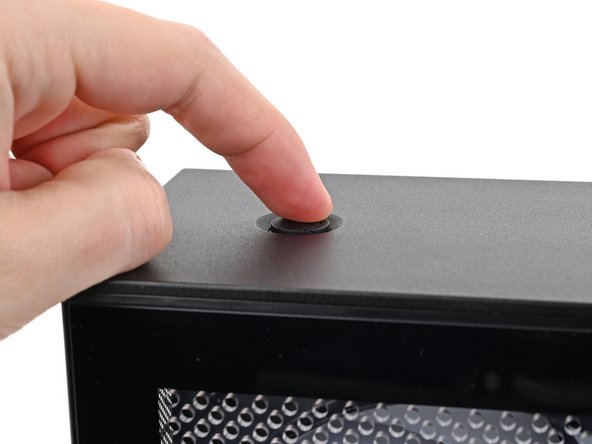
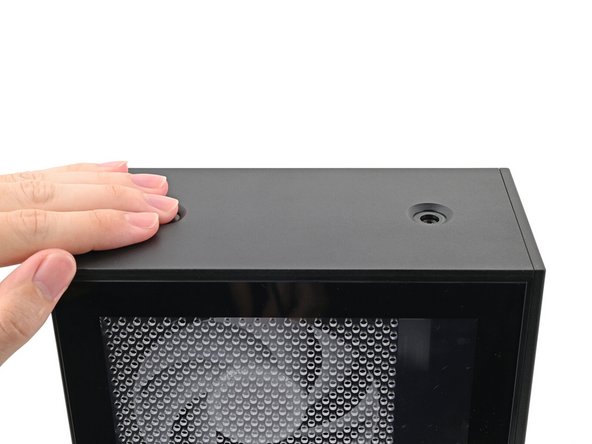
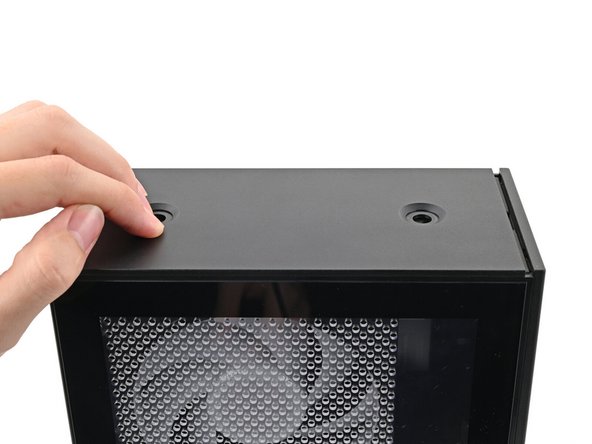
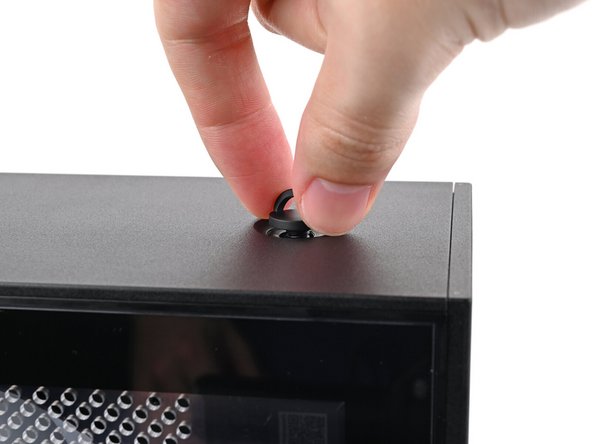
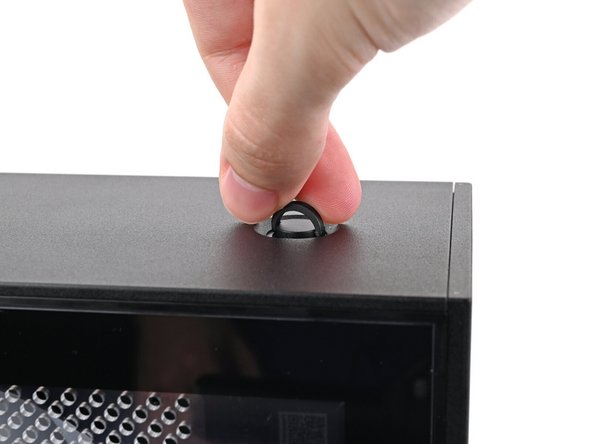
Use your finger to lift up the two D-rings on the Top Panel screws.
-
-
-
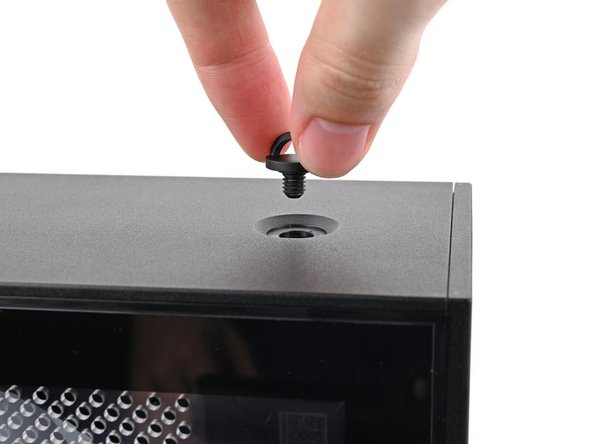
Use your fingers to twist the screw counter-clockwise and loosen it.
-
Remove the Top Panel screw.
-
-
-
Repeat the same procedure for the other Top Panel screw.
-
-
-
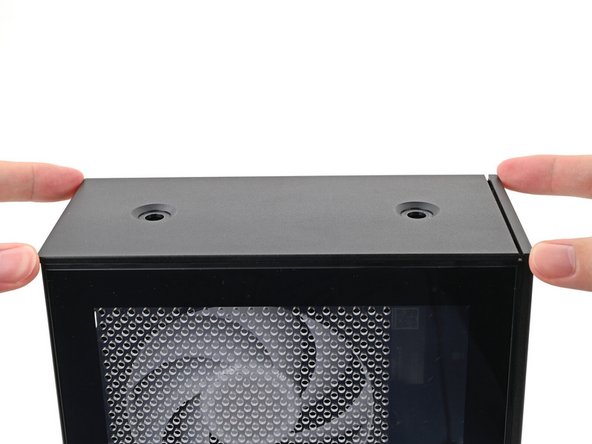
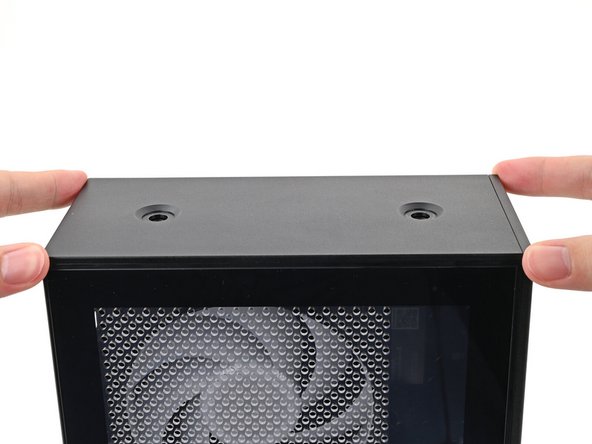
Slide the Top Panel towards the rear of the computer to release the clips securing it to the chassis.
-
If you're having a hard time gripping the Top Panel, use the screw holes to get a better handhold.
-
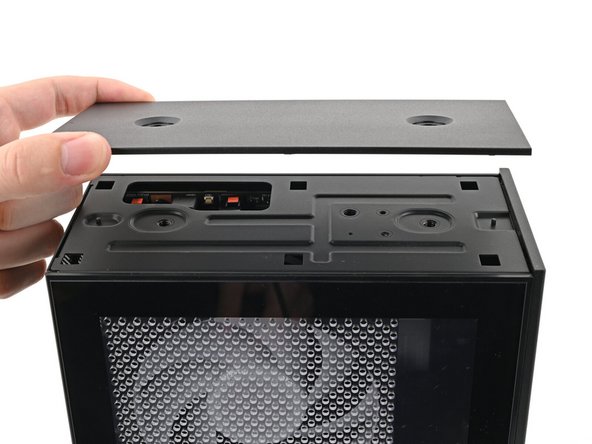
Lift the Top Panel off the chassis and remove it.
-
-
-
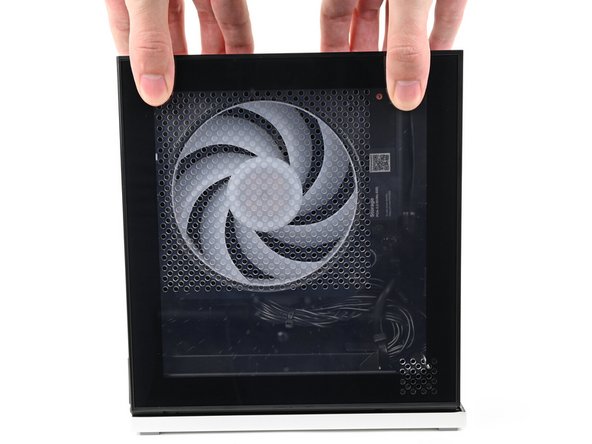
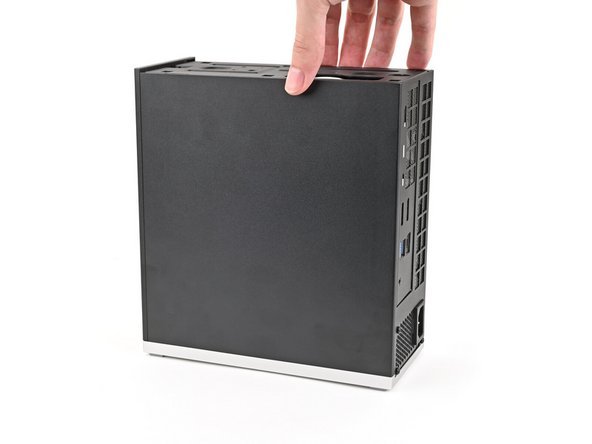
Use your fingers to grip the top of the Left Panel and slide it upward to release its clips.
-
Remove the Left Panel.
-
-
-
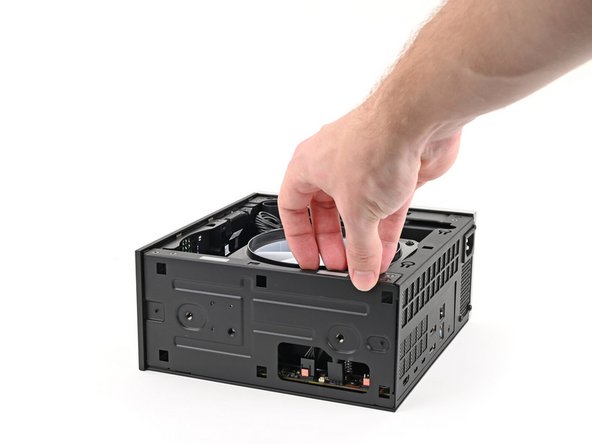
Lay down the Desktop on its side so the fan is facing upward.
-
-
-
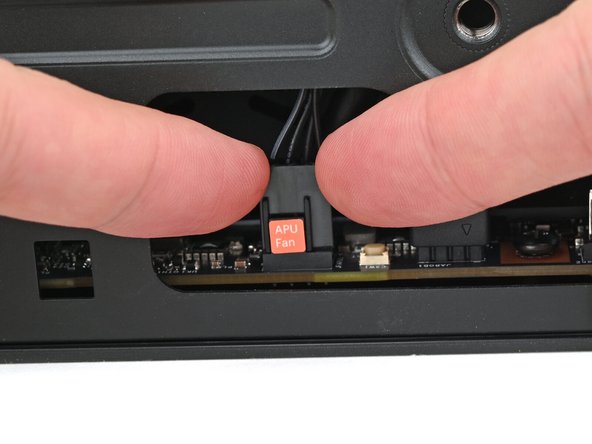
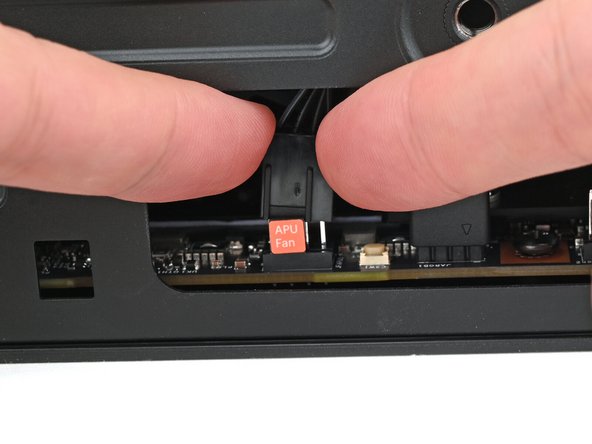
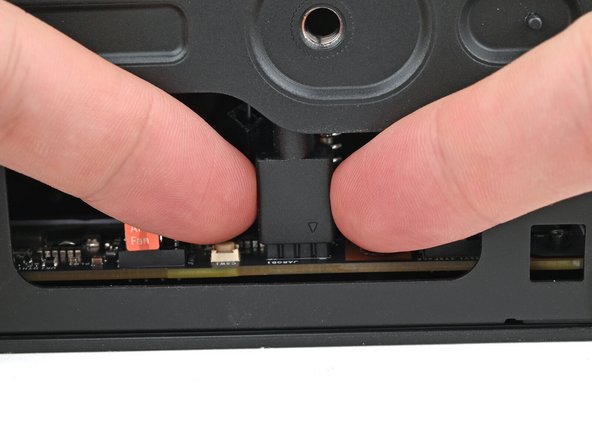
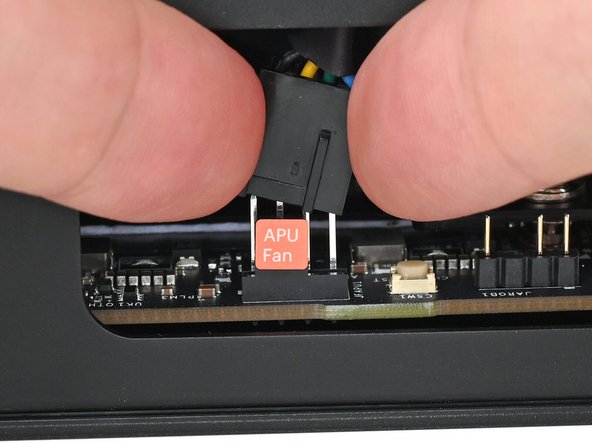
Use your fingers to lift the APU fan cable connector off its four‑pronged socket on the Mainboard.
-
-
-
If you aren't using an RGB fan, then skip this step.
-
Use your fingers to lift the fan RGB cable connector off its three‑pronged socket on the Mainboard.
-
-
-
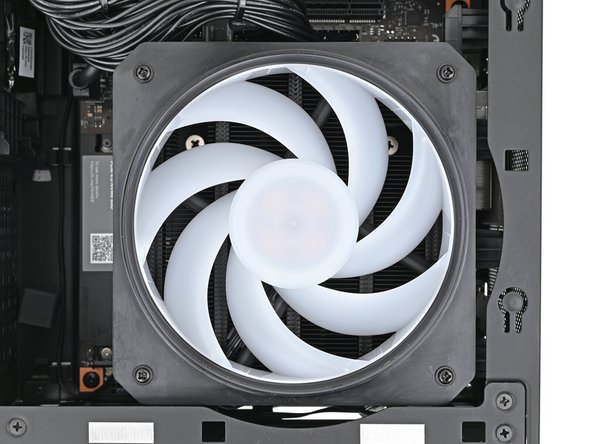
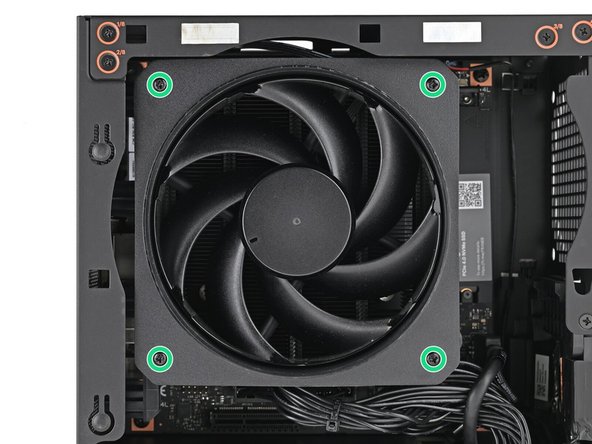
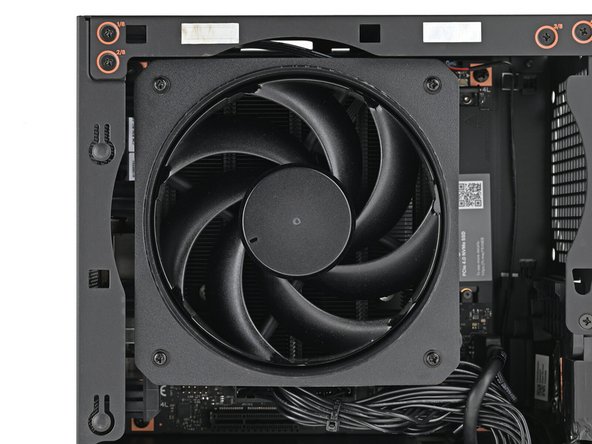
Use your Framework Desktop Screwdriver to remove the four 27.3 mm‑long Phillips screws securing the CPU fan and fan duct.
-
-
-
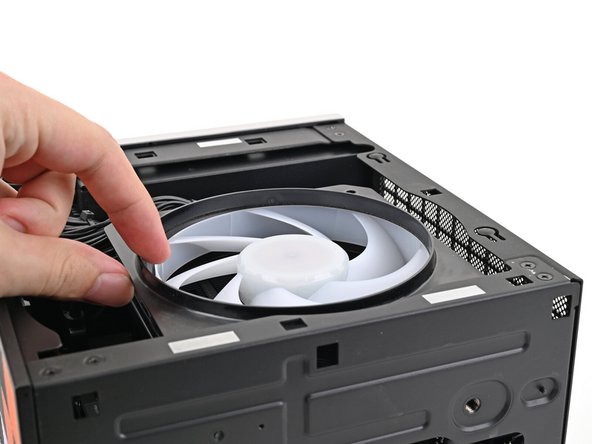
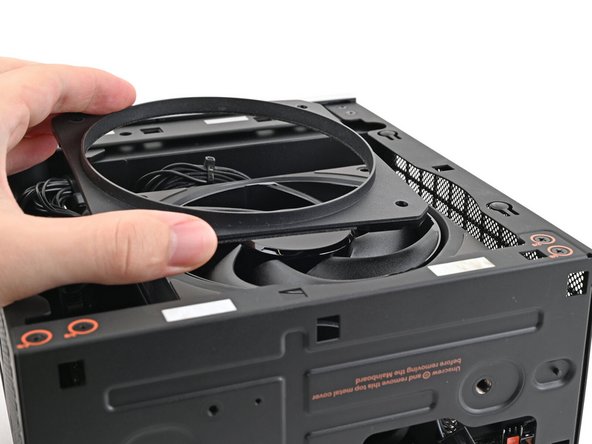
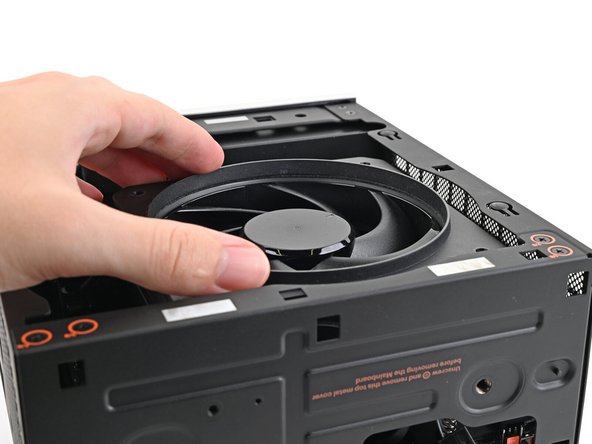
Lift the fan duct off the fan and remove it.
-
-
-
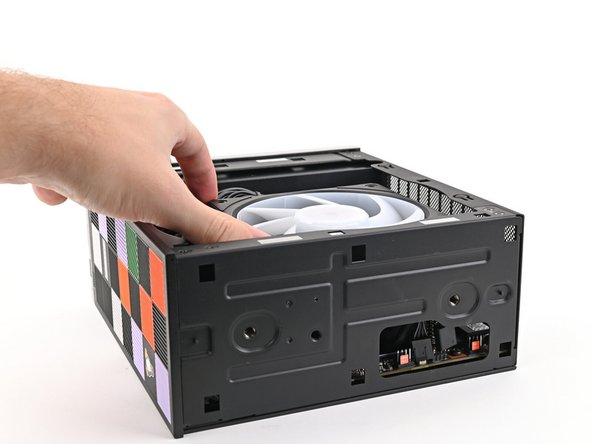
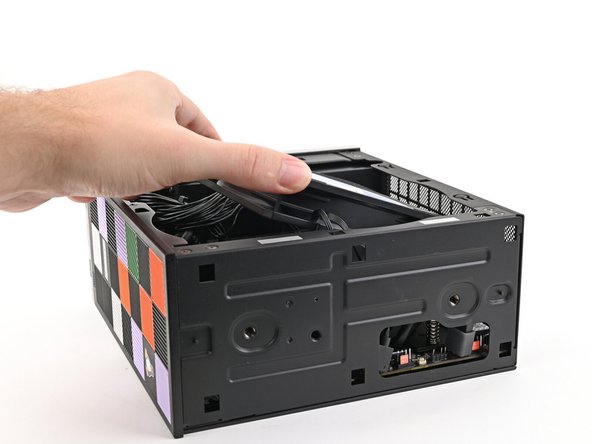
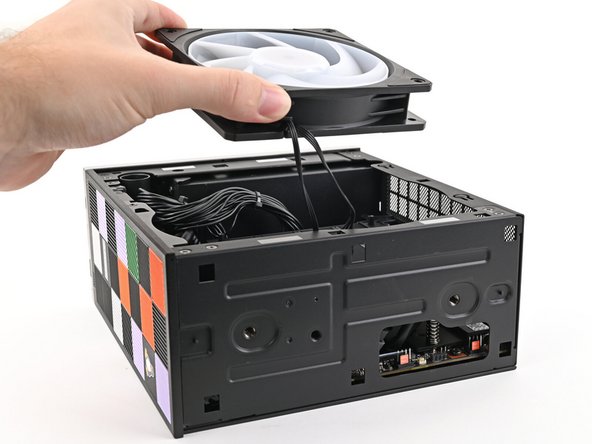
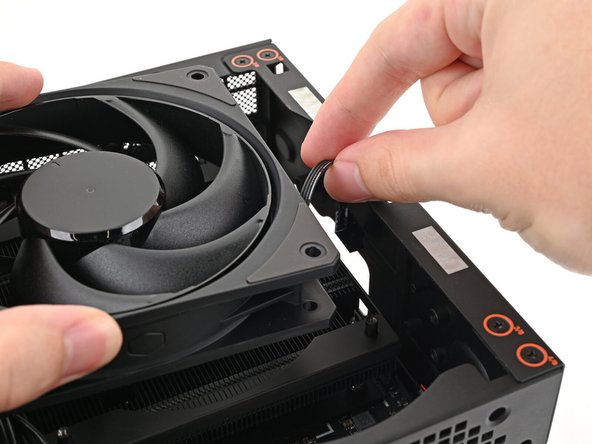
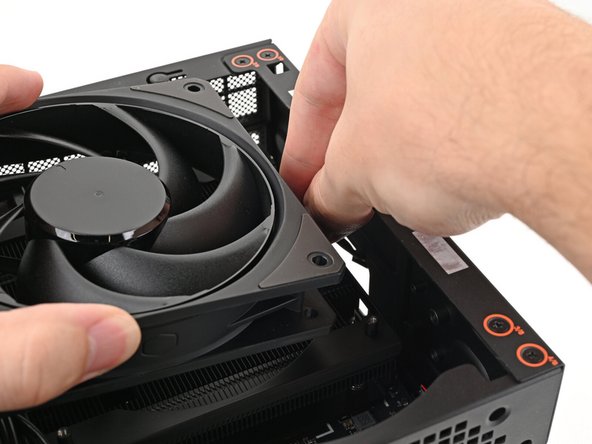
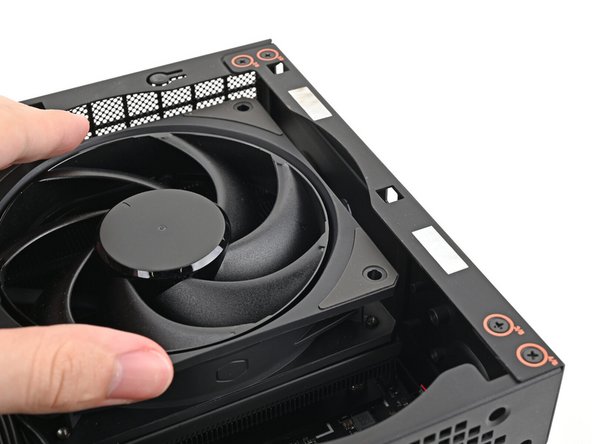
Lift the fan out of the chassis, making sure the cables thread through the side of the heatsink.
-
-
-
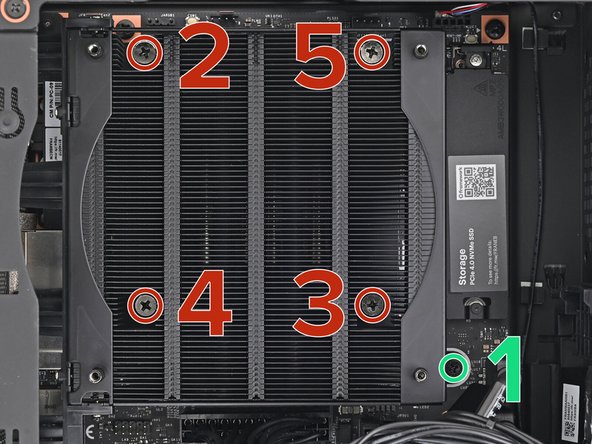
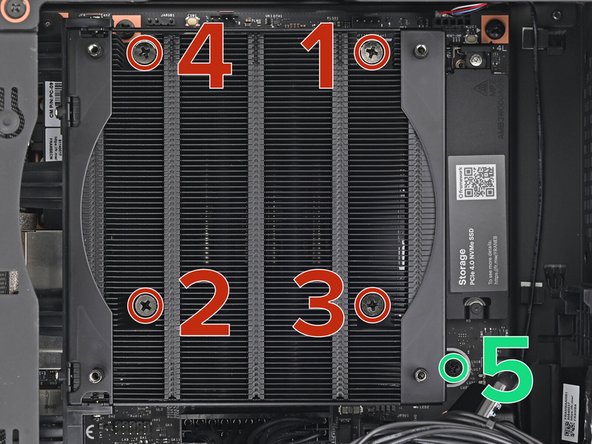
Use your Framework Desktop Screwdriver to loosen the final captive Phillips screw jutting out under the Primary Storage.
-
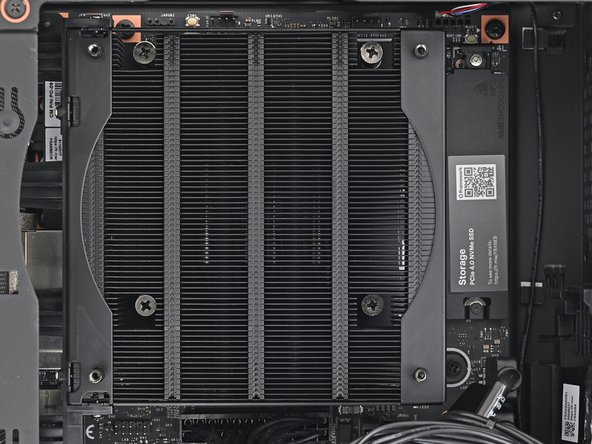
Use your Framework Desktop Screwdriver to loosen the four captive Phillips screws securing the Heatsink in an "X" pattern starting with the top left screw.
-
Only loosen the screws a few turns at a time to avoid applying uneven pressure to the APU.
-
In order: top left → bottom right → bottom left → top right
-
-
-
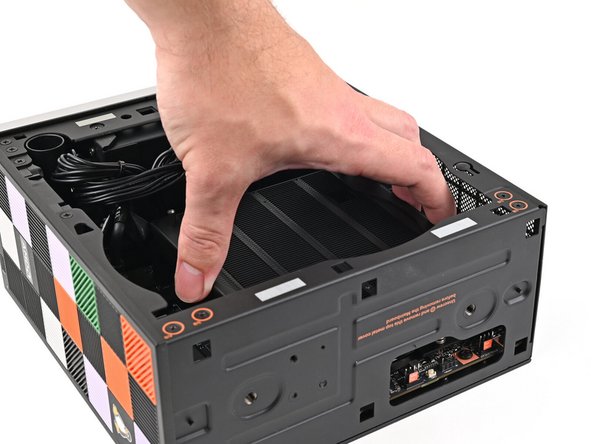
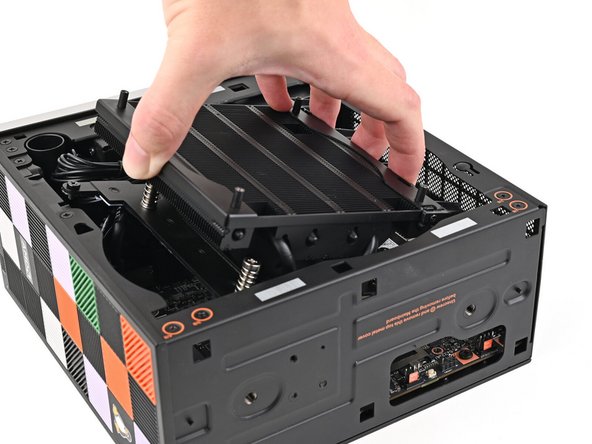
Lift the Heatsink and tilt it up towards the front of the Desktop to navigate it out of the chassis.
-
When handling the Heatsink, grab from the left and right sides (sides facing Front Panel & Back IO) as to prevent bent fins and possible damage to the Heatsink.
-
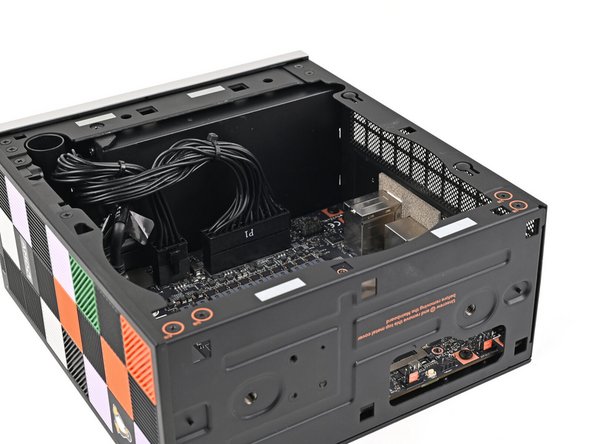
Remove the Heatsink.
-
-
-
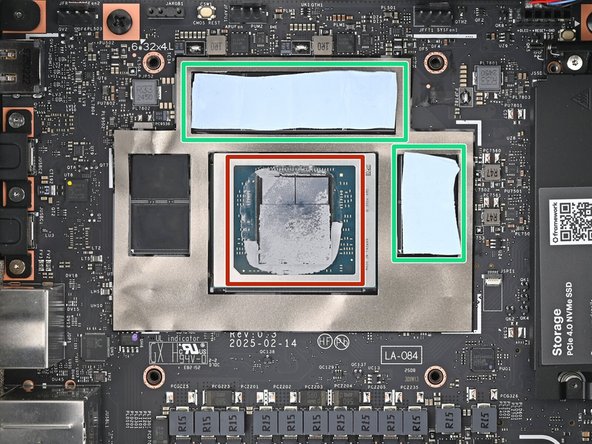
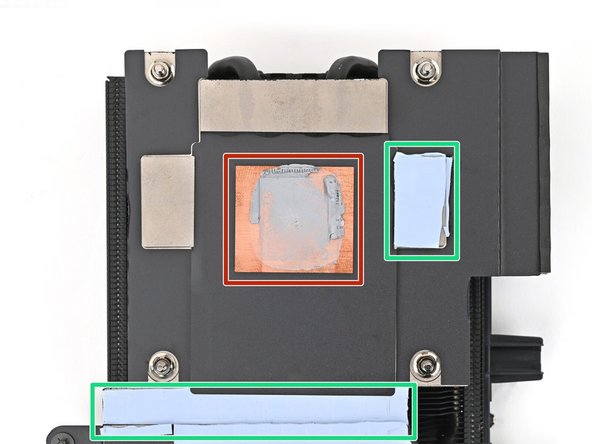
There are two types of thermal pads in the Desktop:
-
One thin, grey pad covering the back of the APU
-
Four thicker, blue pads covering the memory and power management
-
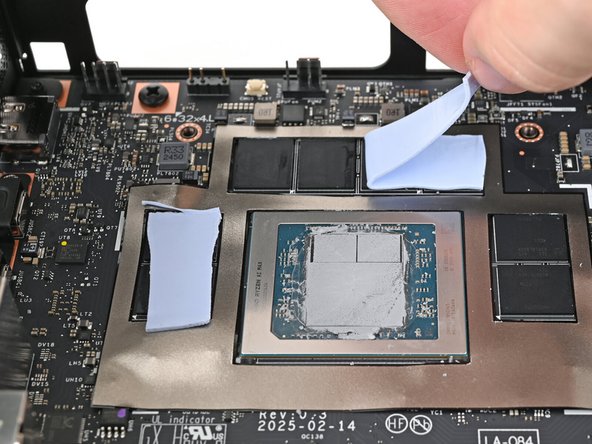
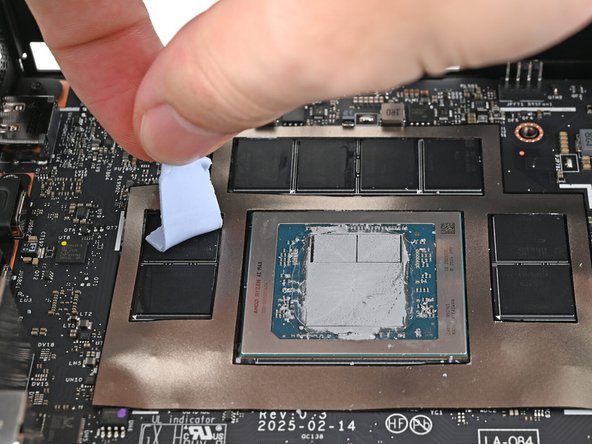
Upon removing the Heatsink, the thicker pads will stick to either the bottom of the Heatsink or to the Mainboard. Since replacement Heatsinks come with pre-installed thermal pads, you just need to clean off the pads that remain on the Mainboard.
-
Follow the next two steps to remove the thermal pads remaining on the Mainboard.
-
-
-
Use your fingers to peel off the thermal pads from the memory and power management.
-
-
-
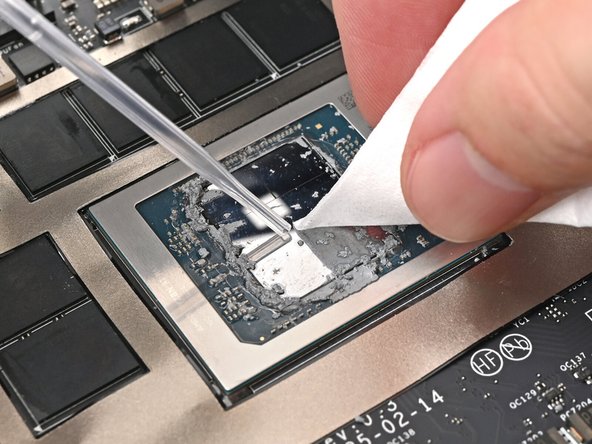
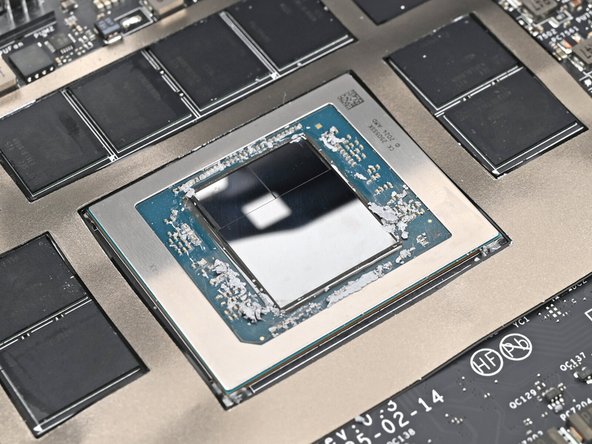
Apply a few drops of isopropyl alcohol (>90%) to the APU and use a coffee filter or a lint-free cloth to wipe away any residue.
-
-
-
Congratulations on completing disassembly! The remaining steps will show how to reassemble your Framework Desktop.
-
-
-
Remove the liners covering the thermal pads on your replacement Heatsink.
-
-
-
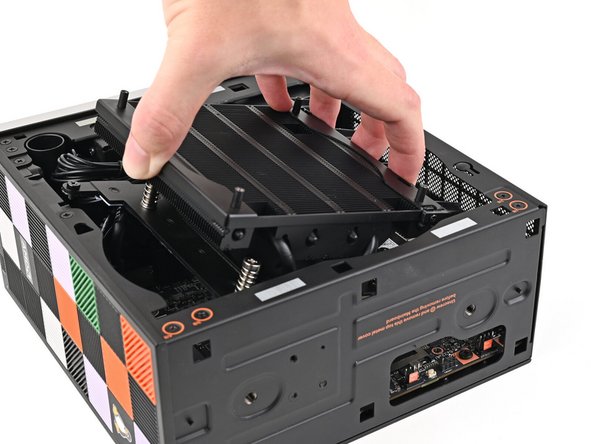
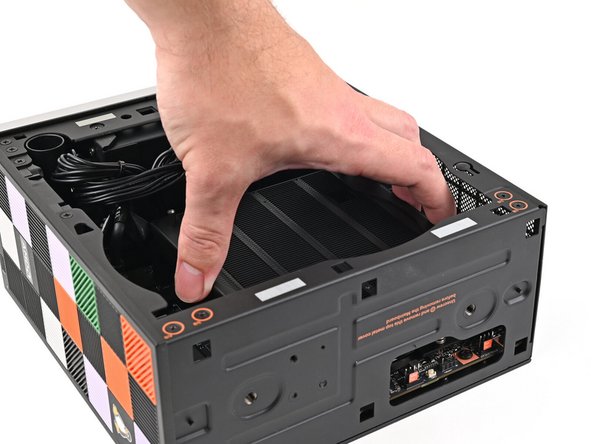
Tilt the Heatsink down towards the rear of the Desktop and place it into its slot on the Mainboard.
-
When handling the Heatsink, grab from the left and right sides (sides facing Front Panel & Back IO) as to prevent bent fins and possible damage to the Heatsink.
-
-
-
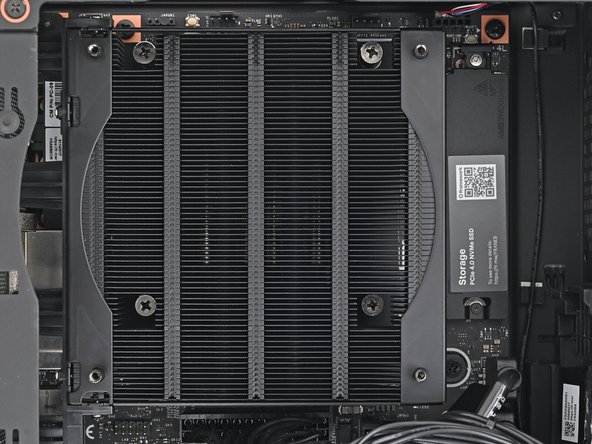
Use your Framework Desktop Screwdriver to tighten the four captive Phillips screws securing the Heatsink in an "X" pattern starting with the top right screw.
-
Only tighten the screws a few turns at a time to evenly compress the APU and thermal pads.
-
In order: top right → bottom left → bottom right → top left
-
Use your Framework Desktop Screwdriver to tighten the captive Phillips screw jutting out under the Primary Storage.
-
-
-
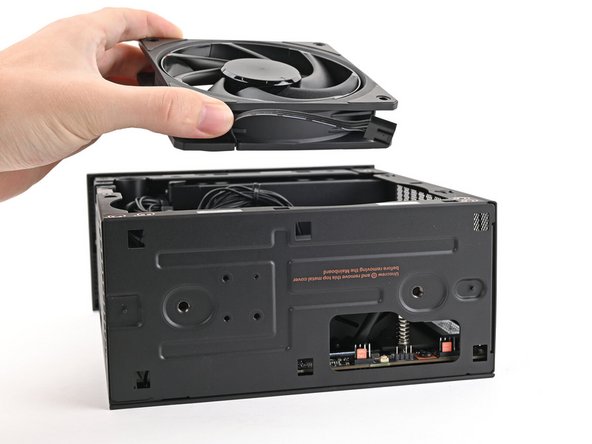
Orient the fan so its label is facing downward and the cable(s) is pointing towards the top of the computer.
-
If your fan has an arrow indicating airflow direction, make sure it's pointed towards the heatsink.
-
If you're using a different fan, orient it such that the fan is blowing towards the heatsink, not away.
-
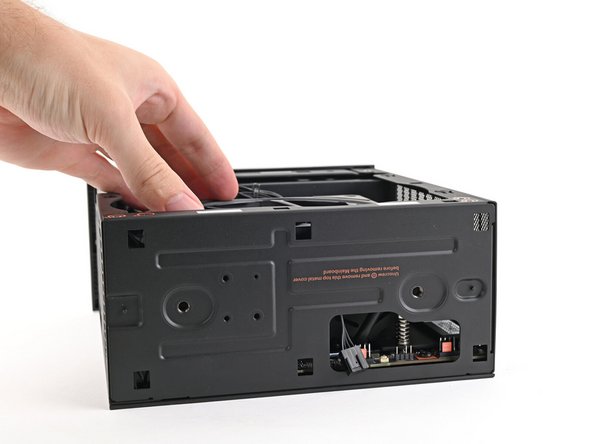
Lay the fan on top of the heatsink, making sure the cables are routed so they poke out of the hole on the top of the computer.
-
-
-
If the cables aren't routed properly, lift the fan up slightly and use your fingers to reposition the cables over the side of the heatsink.
-
If you're installing an RGB fan, make sure the "male" end of the RGB cable is covered and set aside in the corner of the chassis.
-
-
-
Lay the fan duct on top of the fan with the lip facing upward.
-
Align the screw holes on the fan duct with the ones on the fan.
-
-
-
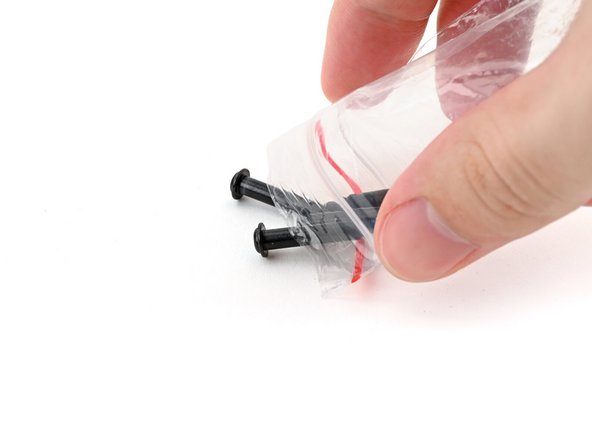
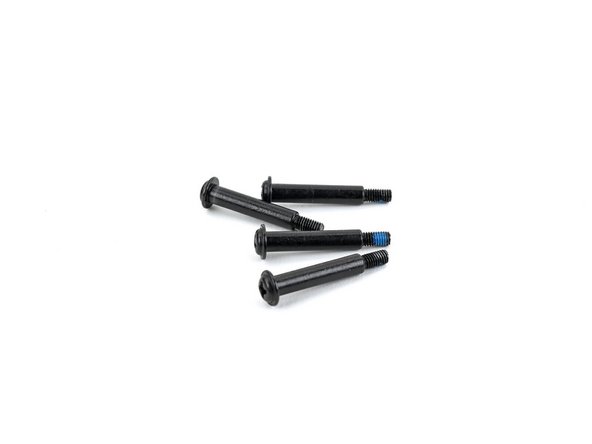
(if new) Remove the fan screws from their packaging and make sure there are four screws total.
-
-
-
Use your Framework Desktop Screwdriver to install the four 27.3 mm‑long Phillips screws securing the CPU fan and fan duct.
-
-
-
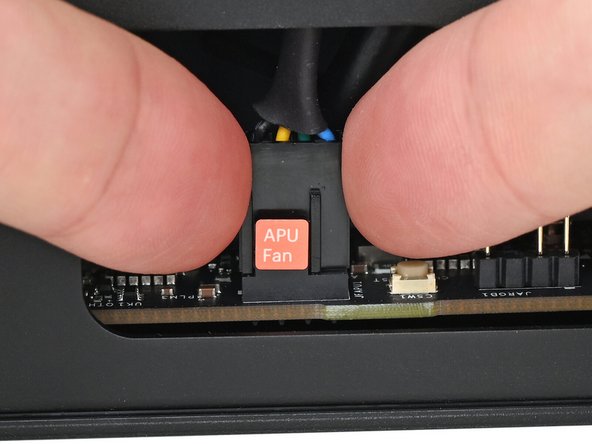
Orient the main fan cable so its two vertical lines are facing you.
-
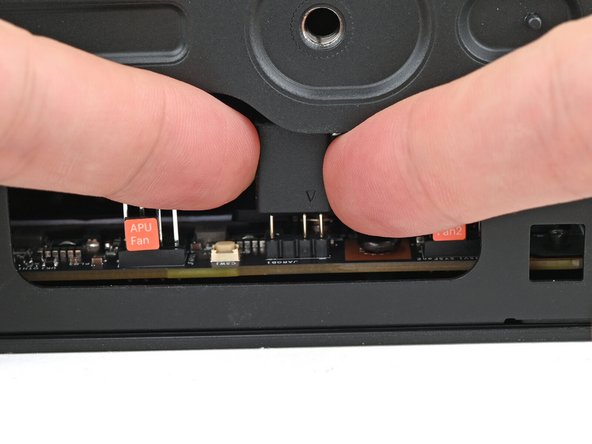
Slide the main fan cable over the four-pronged connector labeled "APU Fan," making sure the orange label slots between the vertical lines.
-
-
-
If you aren't using an RGB fan, then skip this step.
-
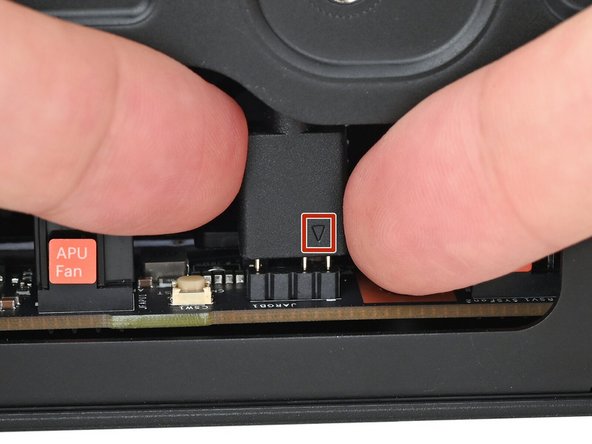
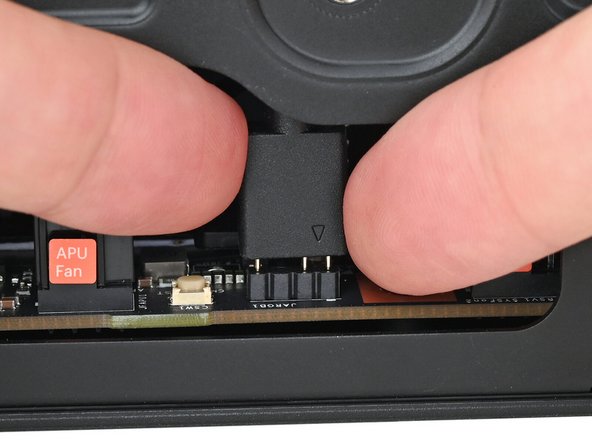
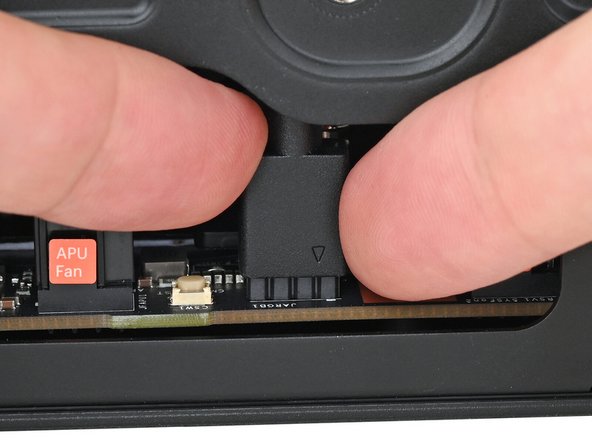
Orient the RGB cable so the arrow is facing you.
-
Use your fingers to slide the RGB cable over the three pronged connector located to the right of the "APU Fan" connector.
-
-
-
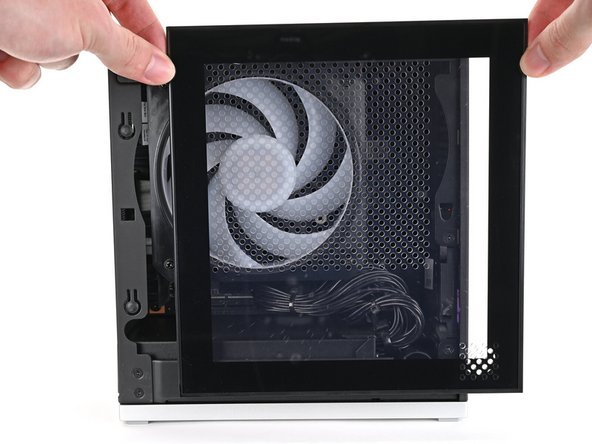
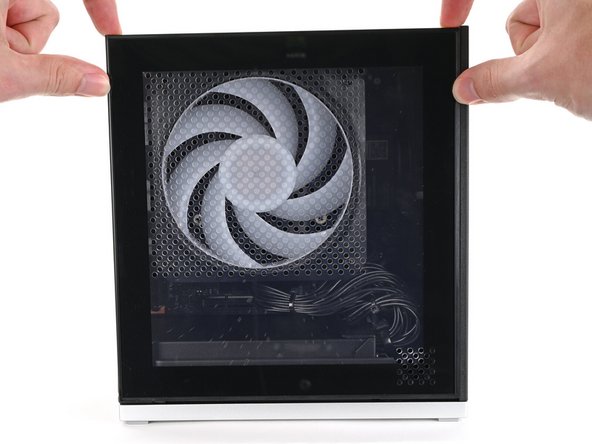
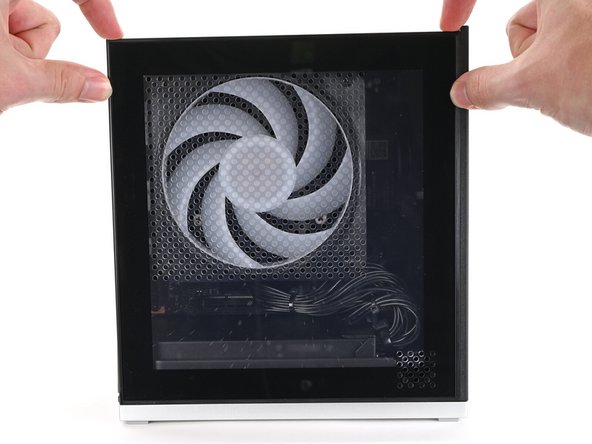
Slide the Left Panel onto the left edge of the chassis and press it flat to ensure its clips are slotted into place.
-
There should be a small gap between the bottom of the Left Panel and the silver base.
-
Push the Left Panel towards the base of the computer to close the gap and engage the clips.
-
-
-
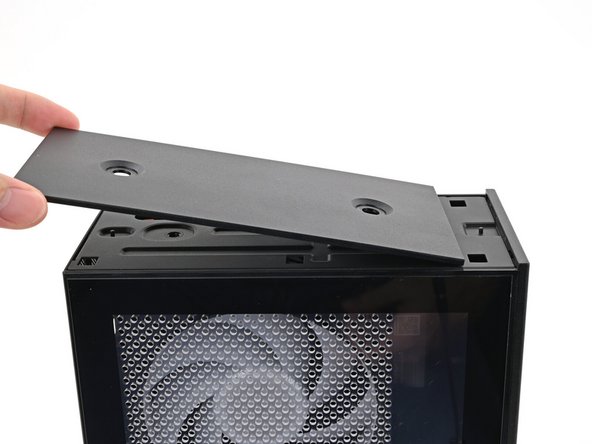
Orient the Top Panel so its arrow is pointing towards the rear of the computer.
-
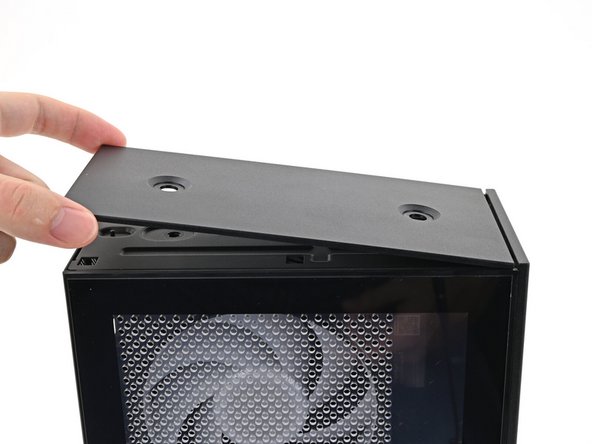
While holding the Top Panel at a slight downward angle, slide it across the top of the chassis (from rear to front) until you feel its clips catch.
-
There should be a small gap between the Top Panel and the front of the Desktop.
-
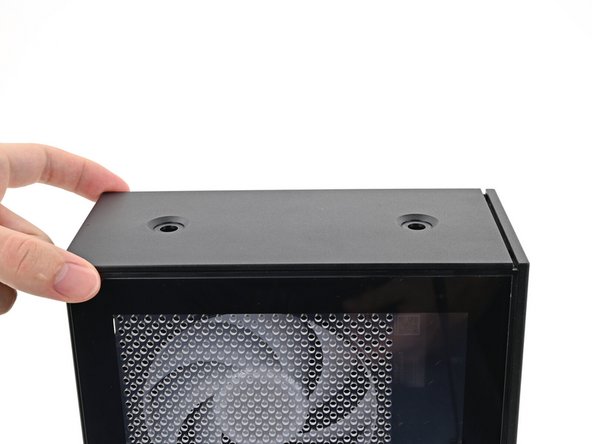
Lay the Top Panel flat on the chassis to align the remaining clips.
-
-
-
While securing the computer with one hand, use the other hand to slide the Top Panel towards the front of the computer to close the gap and engage the clips.
-
-
-
If you're installing the Handle on your Desktop, follow this step. Otherwise, skip it.
-
Place the Handle over the Top Panel screw holes.
-
While holding the Handle in place, twist the screw threads on both sides clockwise until they're snug on the Top Panel.
-
-
-
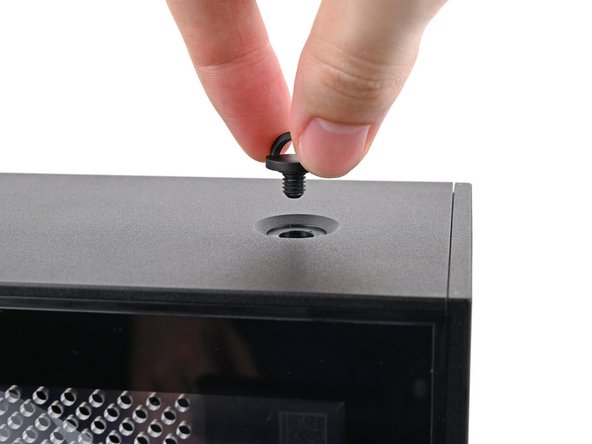
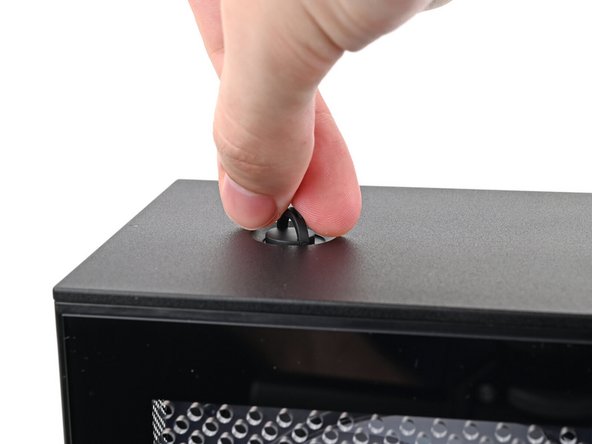
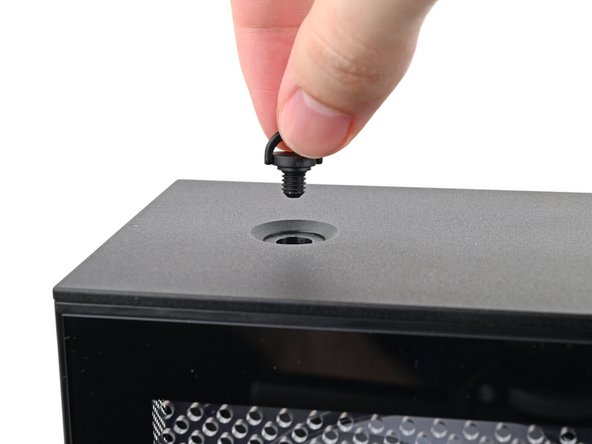
Insert the top panel screw into its hole and twist clockwise until it feels snug.
-
-
-
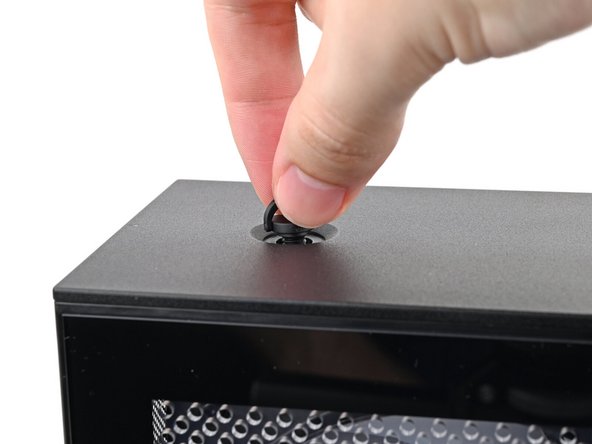
Repeat the same procedure for the other top panel screw.
-
-
-
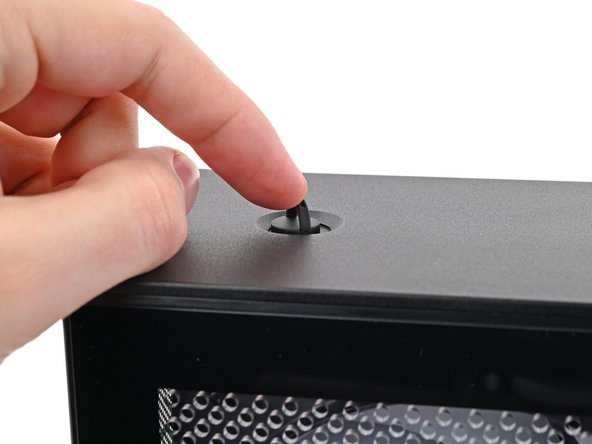
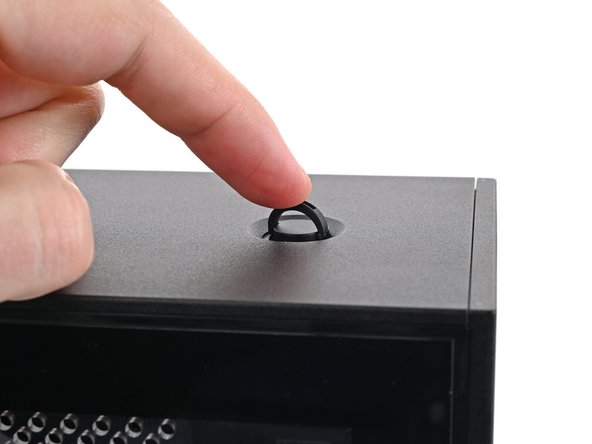
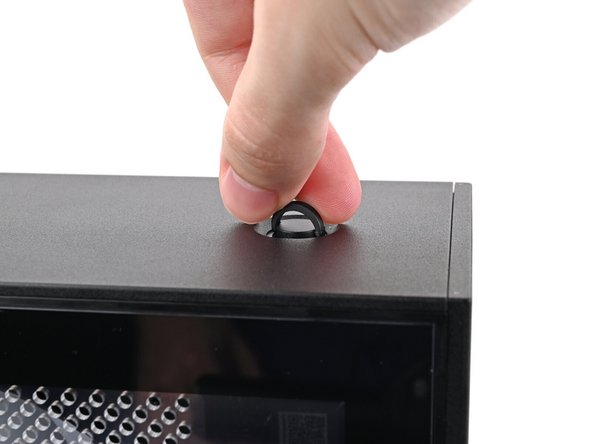
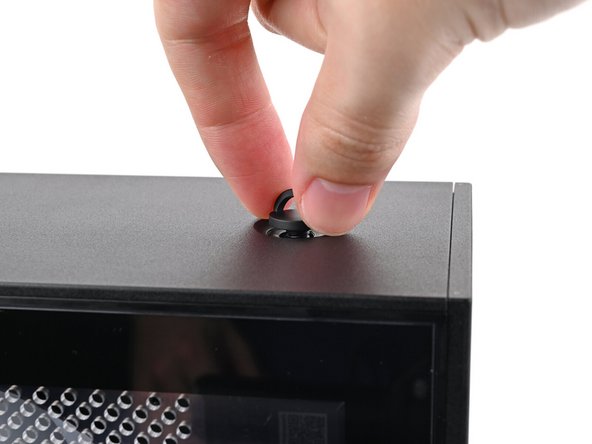
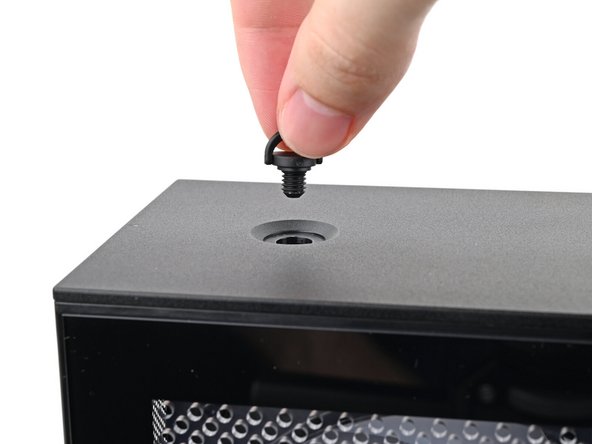
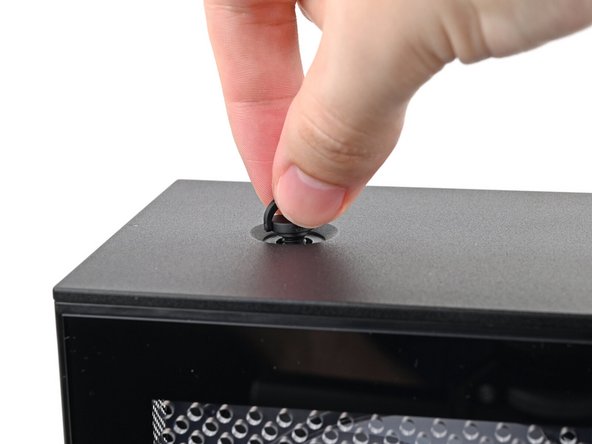
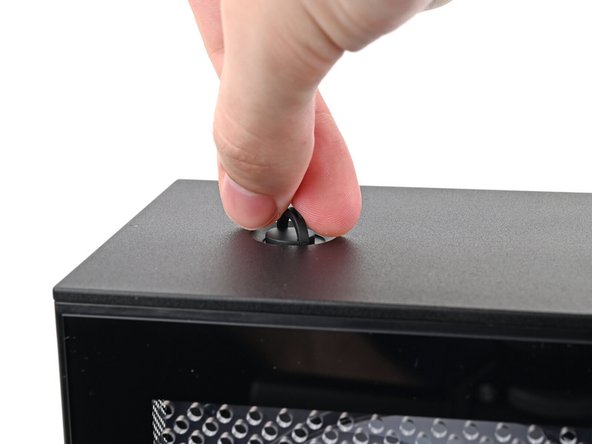
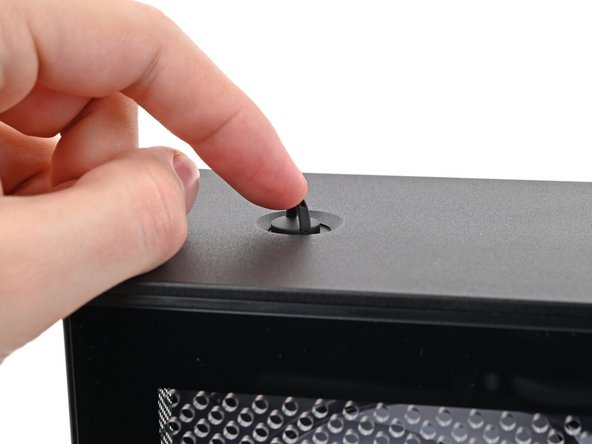
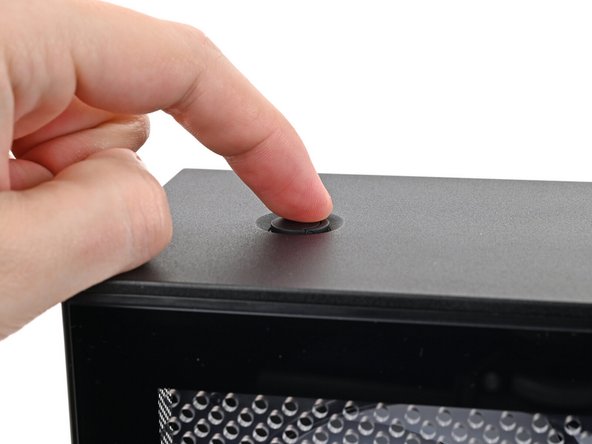
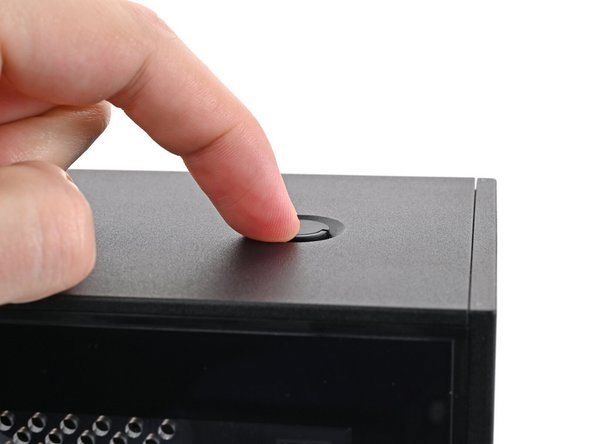
Use your finger to close the two D-rings on the top panel screws.
-




You finished fixing your Framework Desktop!
Take your e-waste to an R2 or e-Stewards certified recycler.
If you need help, contact Framework support.
You finished fixing your Framework Desktop!
Take your e-waste to an R2 or e-Stewards certified recycler.
If you need help, contact Framework support.

