Public Release - 1.0

Minor Versionm

by Iroh

Introduction

Did you lose a screw in your Framework Laptop 12? Fear not! Follow this guide to replace your missing screws with the Framework Laptop 12 Fastener Kit.

The Fastener Kit only replaces the non-captive screws in your laptop.

Use the links below to jump to the part and find which screw to use:

Parts

No parts specified.

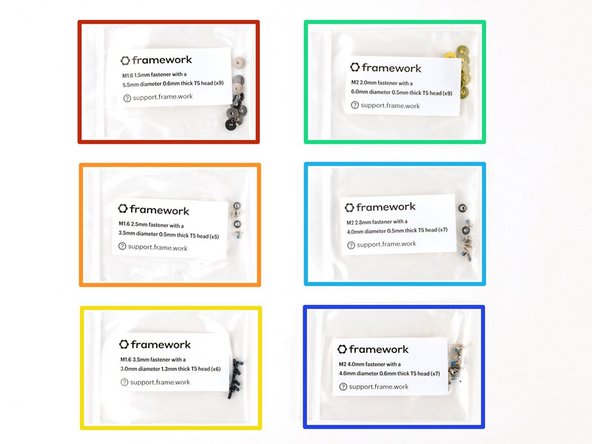
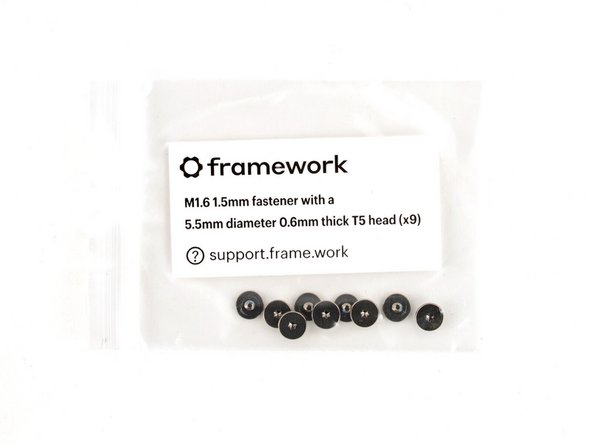
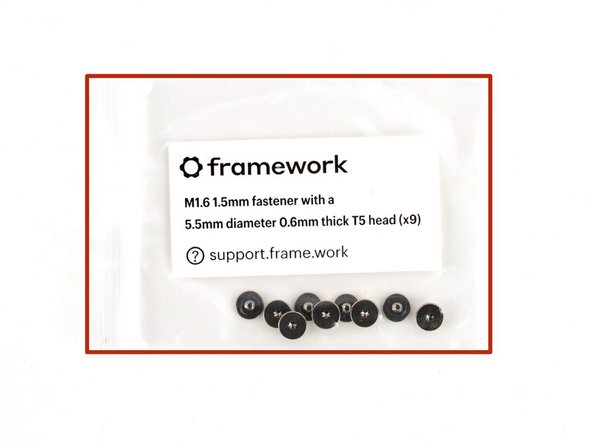
  1. The Fastener Kit contains the following: Nine grey screws labeled "M1.6 1.5mm fastener with a 5.5mm diameter 0.6mm thick T5 head"
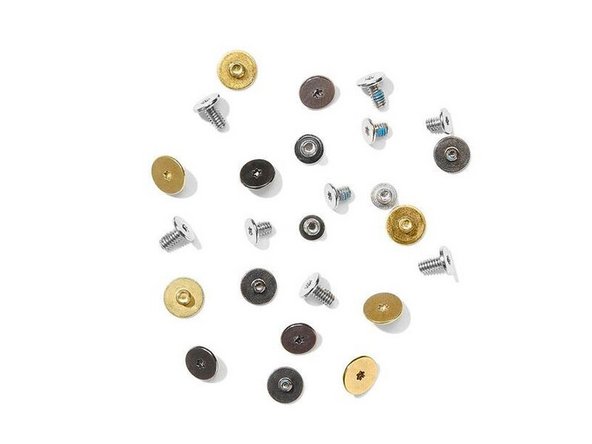
    • The Fastener Kit contains the following:

    • Nine grey screws labeled "M1.6 1.5mm fastener with a 5.5mm diameter 0.6mm thick T5 head"

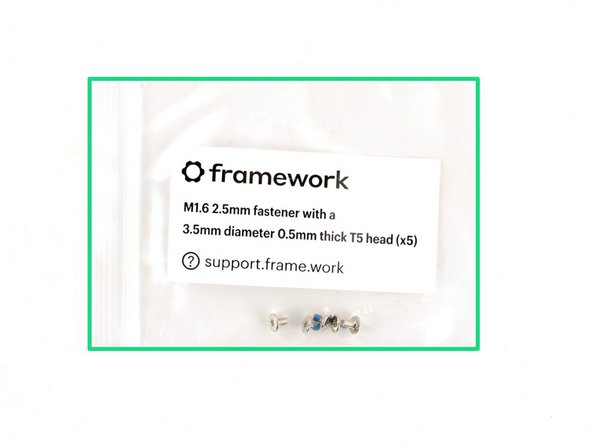
    • Five silver screws labeled "M1.6 2.5mm fastener with a 3.5mm diameter 0.5mm thick T5 head"

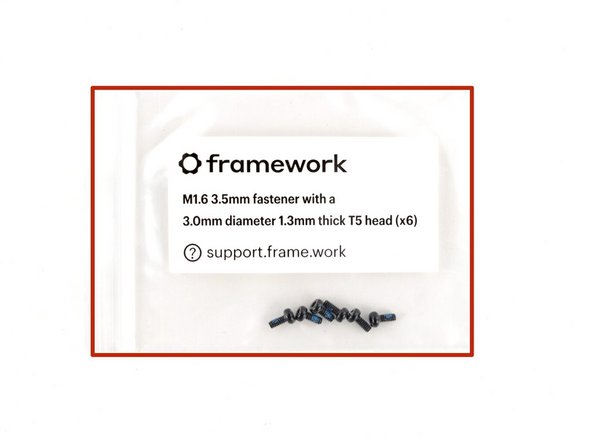
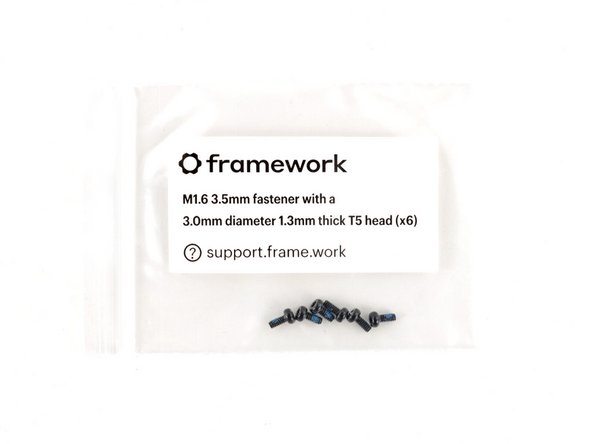
    • Six black screws labeled "M1.6 3.5mm fastener with a 3.0mm diameter 1.3mm thick T5 head"

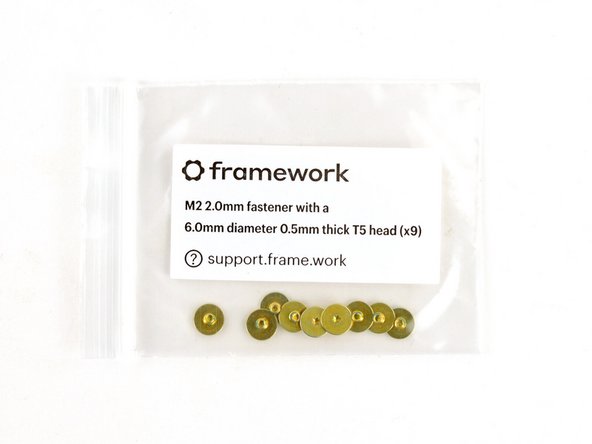
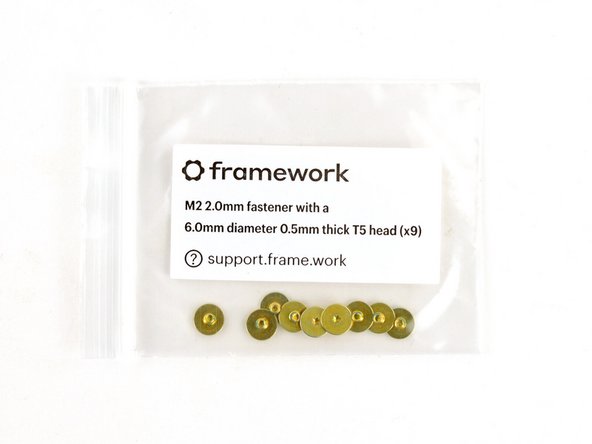
    • Nine gold screws labeled "M2 2.0mm fastener with a 6.0mm diameter 0.5mm thick T5 head"

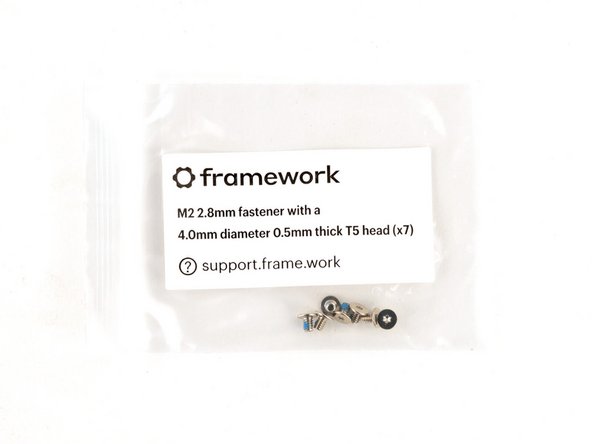
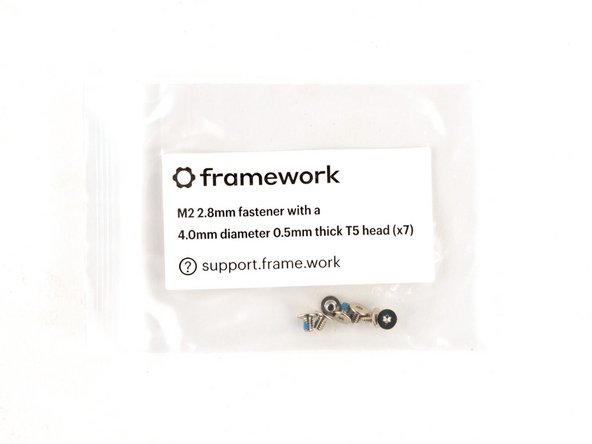
    • Seven silver screws labeled "M2 2.8mm fastener with a 4.0mm diameter 0.5mm thick T5 head"

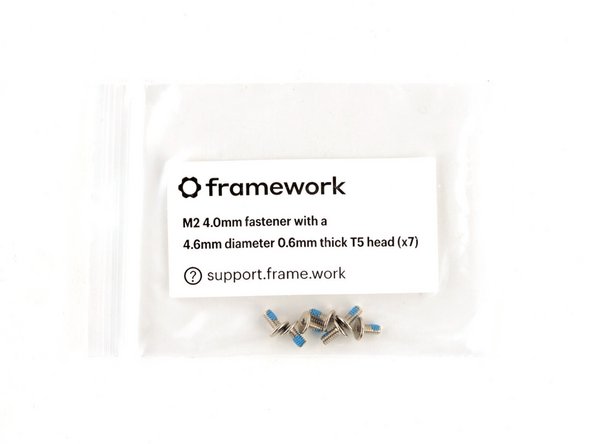
    • Seven silver screws labeled "M1.6 4.0mm fastener with a 4.6mm diameter 0.6mm thick T5 head"

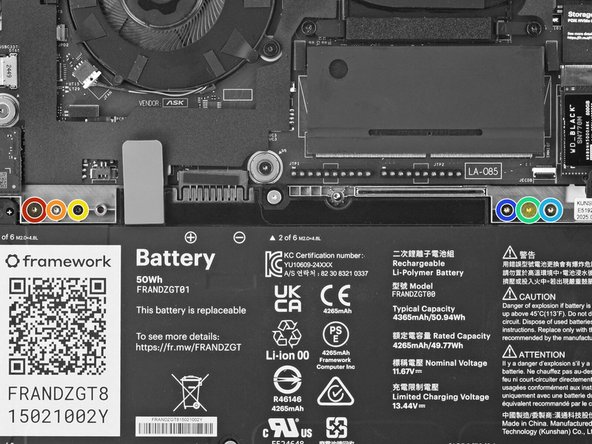
    • Your Framework Laptop comes with a spare screw of each size, attached to the chassis above the battery. You can use the Fastener Kit to replenish any screws you used there.

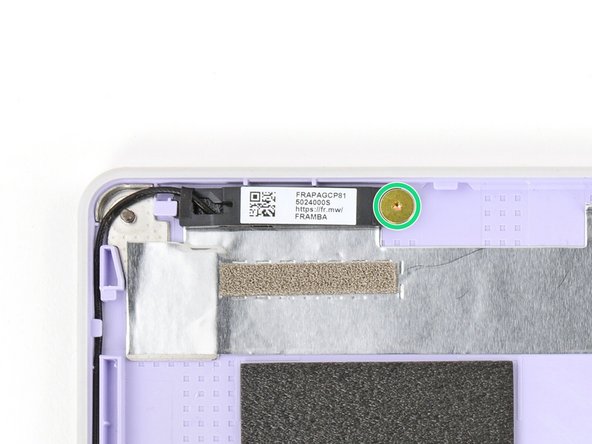
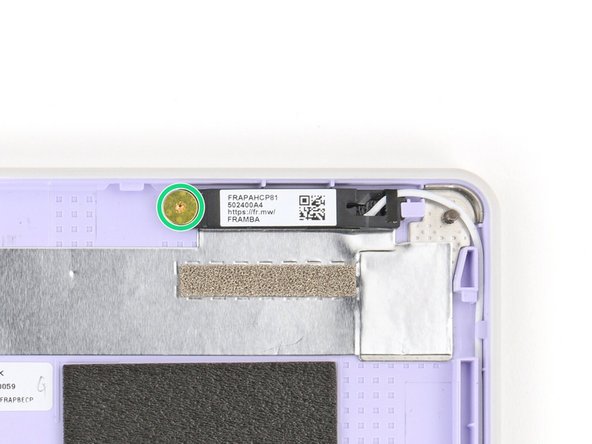
  2. Use the gold screws labeled "M2 2.0mm fastener with a 6.0mm diameter 0.5mm thick T5 head" to secure the antennas. Use the gold screws labeled "M2 2.0mm fastener with a 6.0mm diameter 0.5mm thick T5 head" to secure the antennas. Use the gold screws labeled "M2 2.0mm fastener with a 6.0mm diameter 0.5mm thick T5 head" to secure the antennas.
    • Use the gold screws labeled "M2 2.0mm fastener with a 6.0mm diameter 0.5mm thick T5 head" to secure the antennas.

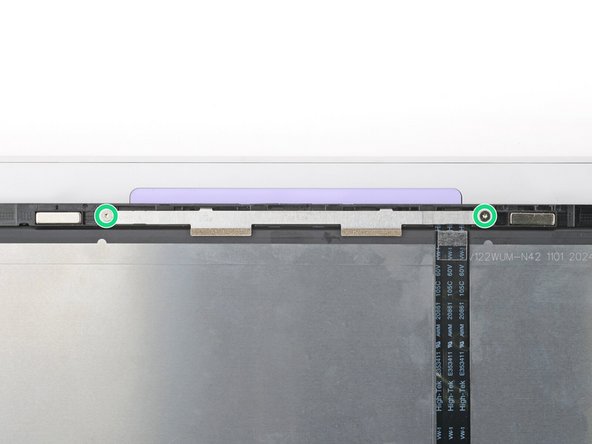
  3. Use the silver screws labeled "M2 2.8mm fastener with a 4.0mm diameter 0.5mm thick T5 head" to secure the display. Tighten the screws until they're snug. Don't over-tighten them, or you may break the screw tabs.
    • Use the silver screws labeled "M2 2.8mm fastener with a 4.0mm diameter 0.5mm thick T5 head" to secure the display.

    • Tighten the screws until they're snug. Don't over-tighten them, or you may break the screw tabs.

  4. Use the black screws labeled "M1.6 3.5mm fastener with a 3.0mm diameter 1.3mm thick T5 head" to secure the Expansion Card latches. Use the silver screws labeled "M1.6 2.5mm fastener with a 3.5mm diameter 0.5mm thick T5 head" to replace the Expansion Card lock screws. Use the silver screws labeled "M1.6 2.5mm fastener with a 3.5mm diameter 0.5mm thick T5 head" to replace the Expansion Card lock screws.
    • Use the black screws labeled "M1.6 3.5mm fastener with a 3.0mm diameter 1.3mm thick T5 head" to secure the Expansion Card latches.

    • Use the silver screws labeled "M1.6 2.5mm fastener with a 3.5mm diameter 0.5mm thick T5 head" to replace the Expansion Card lock screws.

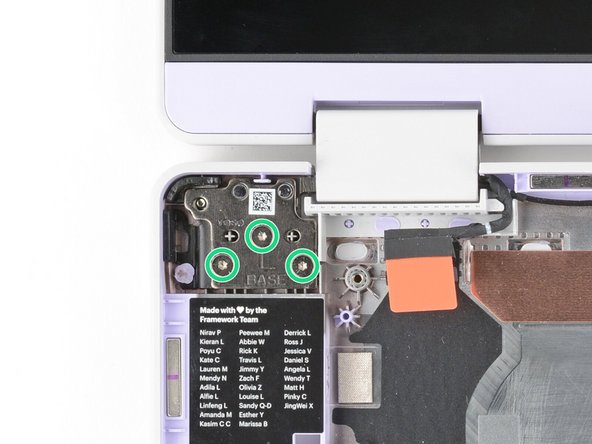
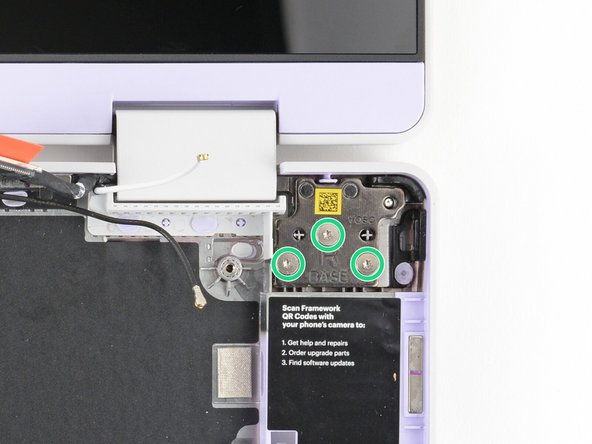
  5. Use the silver screws labeled "M2 4.0mm fastener with a 4.6mm diameter 0.6mm thick T5 head" to secure the hinges to the Bottom Cover. Use the silver screws labeled "M2 4.0mm fastener with a 4.6mm diameter 0.6mm thick T5 head" to secure the hinges to the Bottom Cover. Use the silver screws labeled "M2 4.0mm fastener with a 4.6mm diameter 0.6mm thick T5 head" to secure the hinges to the Bottom Cover.
    • Use the silver screws labeled "M2 4.0mm fastener with a 4.6mm diameter 0.6mm thick T5 head" to secure the hinges to the Bottom Cover.

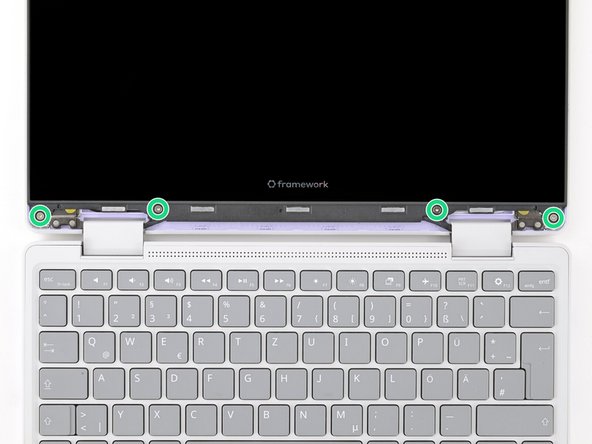
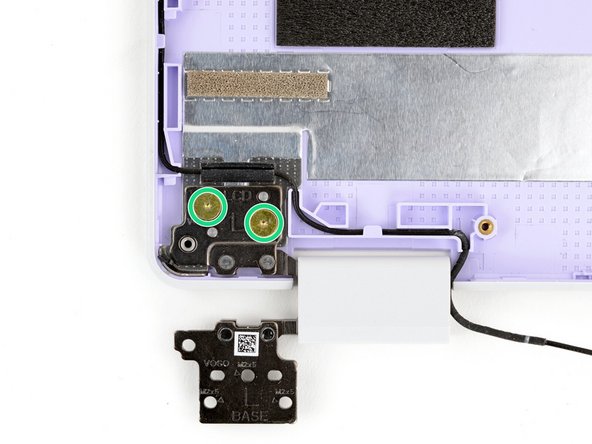
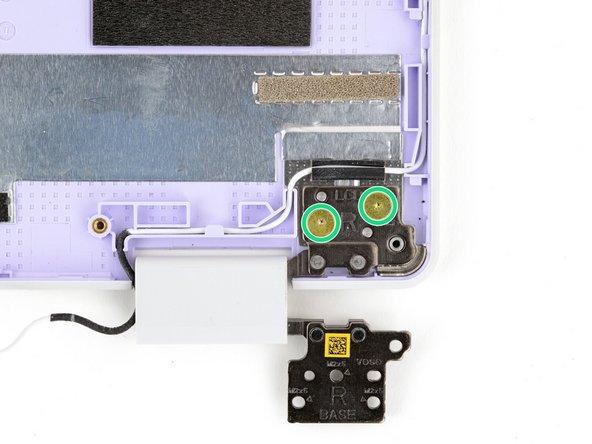
  6. Use the gold screws labeled "M2 2.0mm fastener with a 6.0mm diameter 0.5mm thick T5 head" to secure the hinges to the Top Cover. Use the gold screws labeled "M2 2.0mm fastener with a 6.0mm diameter 0.5mm thick T5 head" to secure the hinges to the Top Cover. Use the gold screws labeled "M2 2.0mm fastener with a 6.0mm diameter 0.5mm thick T5 head" to secure the hinges to the Top Cover.
    • Use the gold screws labeled "M2 2.0mm fastener with a 6.0mm diameter 0.5mm thick T5 head" to secure the hinges to the Top Cover.

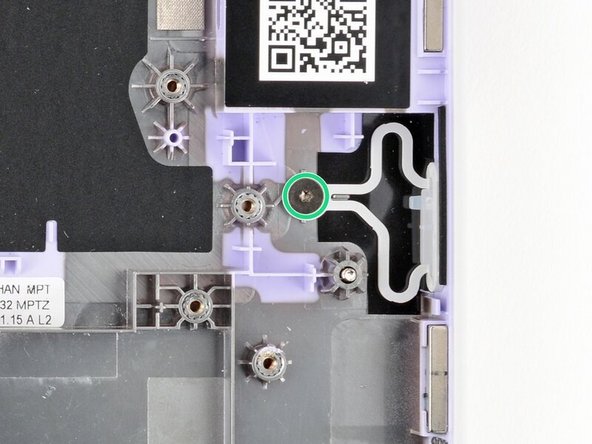
  7. Use the grey screw labeled "M1.6 1.5mm fastener with a 5.5mm diameter 0.6mm thick T5 head" to secure the Power Button. Use the grey screw labeled "M1.6 1.5mm fastener with a 5.5mm diameter 0.6mm thick T5 head" to secure the Power Button.
    • Use the grey screw labeled "M1.6 1.5mm fastener with a 5.5mm diameter 0.6mm thick T5 head" to secure the Power Button.

  8. Use the black screw labeled "M1.6 3.5mm fastener with a 3.0mm diameter 1.3mm thick T5 head" to secure the SSD clip. Use the black screw labeled "M1.6 3.5mm fastener with a 3.0mm diameter 1.3mm thick T5 head" to secure the SSD clip.
    • Use the black screw labeled "M1.6 3.5mm fastener with a 3.0mm diameter 1.3mm thick T5 head" to secure the SSD clip.

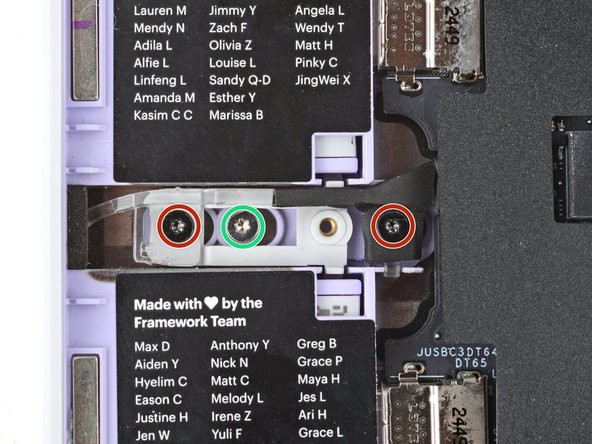
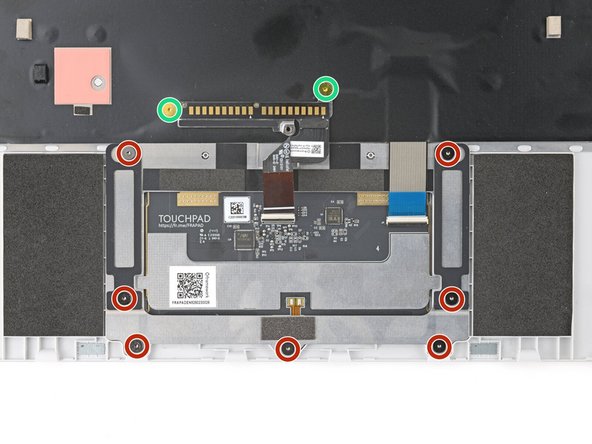
  9. Use the grey screws labeled "M1.6 1.5mm fastener with a 5.5mm diameter 0.6mm thick T5 head" to secure the Touchpad. Use the gold screws labeled "M2 2.0mm fastener with a 6.0mm diameter 0.5mm thick T5 head" to secure the Touchpad pogo connector. Use the gold screws labeled "M2 2.0mm fastener with a 6.0mm diameter 0.5mm thick T5 head" to secure the Touchpad pogo connector.
    • Use the grey screws labeled "M1.6 1.5mm fastener with a 5.5mm diameter 0.6mm thick T5 head" to secure the Touchpad.

    • Use the gold screws labeled "M2 2.0mm fastener with a 6.0mm diameter 0.5mm thick T5 head" to secure the Touchpad pogo connector.

  10. Use the silver screws labeled "M2 2.8mm fastener with a 4.0mm diameter 0.5mm thick T5 head" to secure the webcam. Use the silver screws labeled "M2 2.8mm fastener with a 4.0mm diameter 0.5mm thick T5 head" to secure the webcam.
    • Use the silver screws labeled "M2 2.8mm fastener with a 4.0mm diameter 0.5mm thick T5 head" to secure the webcam.

Conclusion

If you need help, contact Framework support.

Iroh

Member since: 6/7/24

79 Guides authored

Team

Framework Member of Framework

10 Members

185 Guides authored

0 Comments

Add Comment


View Statistics:

Past 24 Hours: 1

Past 7 Days: 14

Past 30 Days: 14

All Time: 16