Introduction
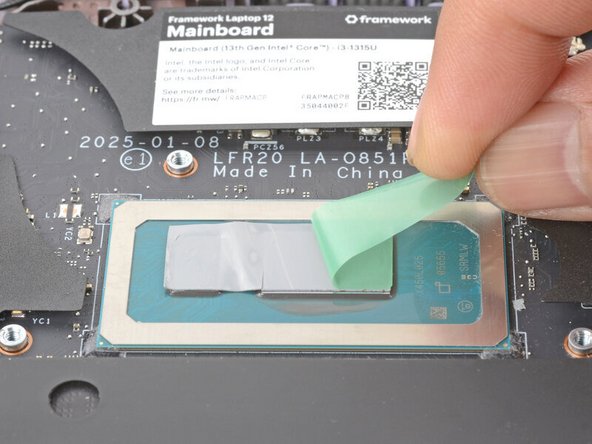
Follow this guide to replace the thermal pad (aka thermal compound, thermal grease, or TIM—Thermal Interface Material) in your Framework Laptop 12.
If your laptop is a few years old and is running uncharacteristically hot, the thermal compound may no longer be transferring heat effectively. Replacing it may resolve the problem.
The Framework Laptop 12 comes with Honeywell PTM7958 Size B installed from the factory—replacements can be purchased from Framework. You can also replace it with a high quality thermal paste. This guide will show how to install either paste or pad.
You'll encounter some component terms in this guide:
- The Input Cover is the part that contains the keyboard and Touchpad.
Tools

Parts
No parts specified.
-
-
Before you begin repairs, unplug your laptop and shut it down from the operating system. This ensures that the laptop isn't in standby/suspend mode.
-
The indicator LEDs along the edges should be unlit. The laptop should be silent.
-
If you accidentally turn on the laptop during repair, hold the power button down for 10 seconds to shut it down.
-
Make sure your Framework Screwdriver has the T5 Torx bit (labeled as T-5) facing outwards. If it's not, pull the bit out and flip it.
-
-
-
Set your Framework Laptop face-down on a clean work surface.
-
-
-
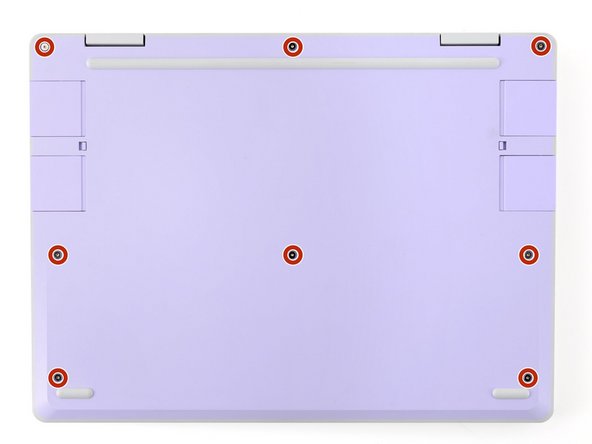
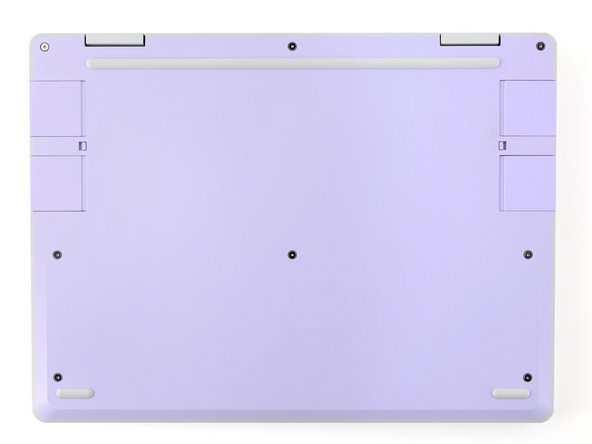
Use your Framework Screwdriver to fully loosen the eight captive T5 Torx screws on the bottom of your laptop.
-
Most screws in your Framework Laptop (including these) are captive—they're designed to stay in place after you loosen them.
-
Your laptop comes with a spare set of screws in the frame above the battery. Be careful—the replacement screws aren't captive.
-
-
-
Flip your laptop over so it's face-up on your work surface.
-
-
-
Open the laptop lid so that both the screen and the base lie flat on your work surface.
-
-
-
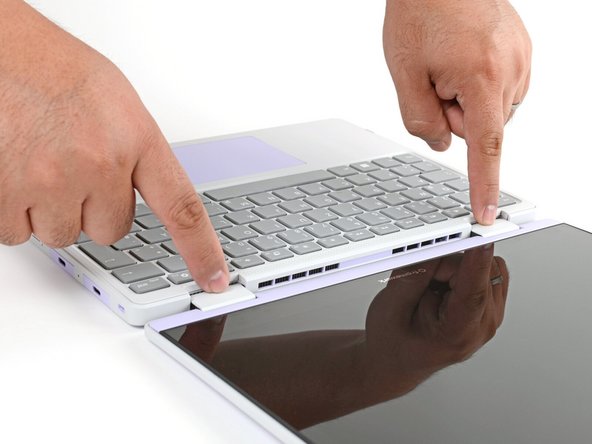
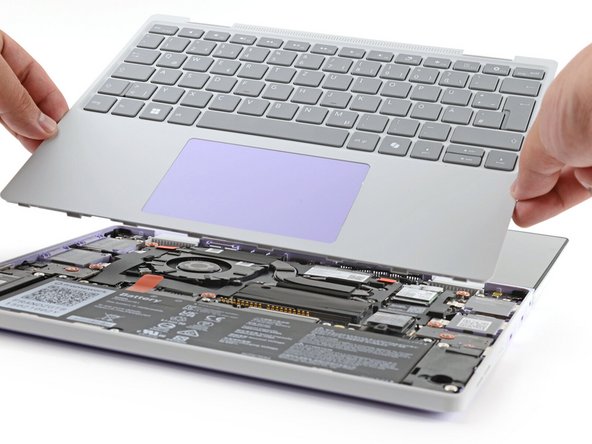
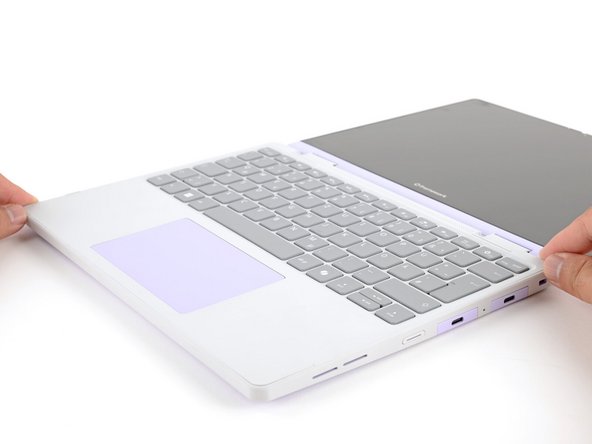
Use your fingers to grip the Input Cover in the hinge cutouts.
-
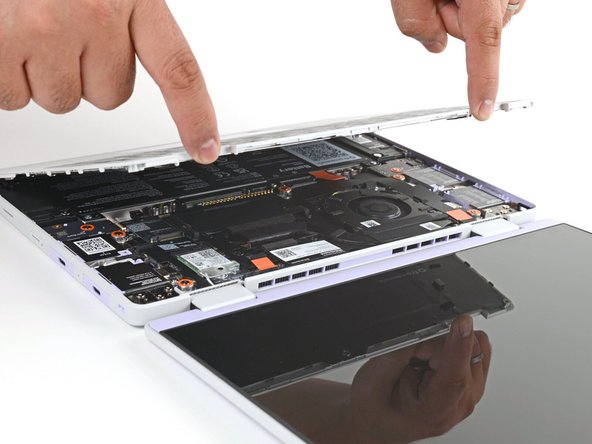
Lift upwards to swing the Input Cover up from the base of the laptop.
-
There are magnets holding the Input Cover down, so you'll feel some resistance. If it feels like a lot of force is required, check that you've fully loosened all the screws on the bottom of your laptop.
-
Remove the Input Cover.
-
-
-
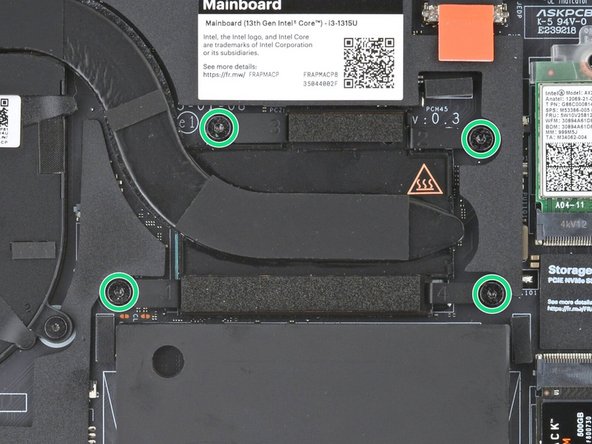
Use your Framework Screwdriver to loosen the four captive Torx T5 screws securing the Heatsink.
-
-
-
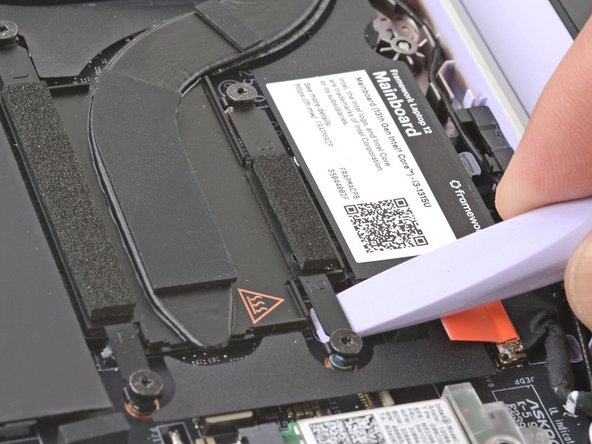
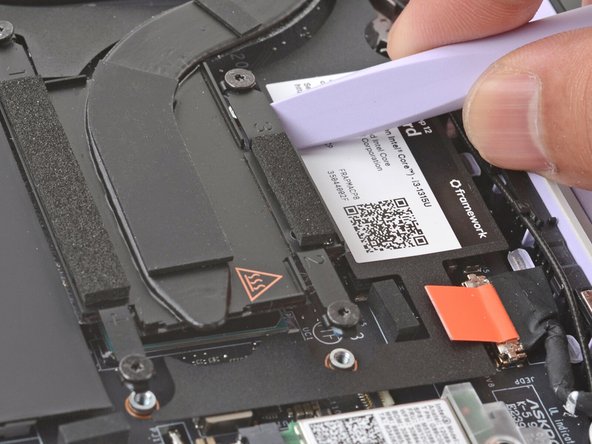
Slide the flat end of your Framework Screwdriver under the Heatsink arm labeled "2".
-
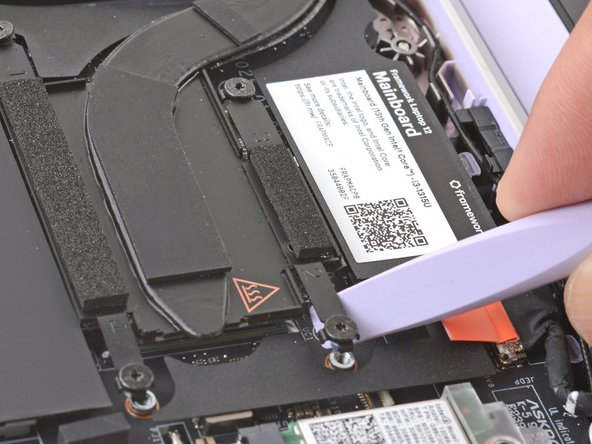
Twist the Framework Screwdriver to lift the Heatsink arm and loosen the Heatsink.
-
You'll feel some resistance from the thermal compound holding the Heatsink in place.
-
If the Heatsink won't budge, make sure you've fully loosened the four screws securing the Heatsink.
-
Repeat the procedure with the Heatsink arm labeled "3".
-
-
-
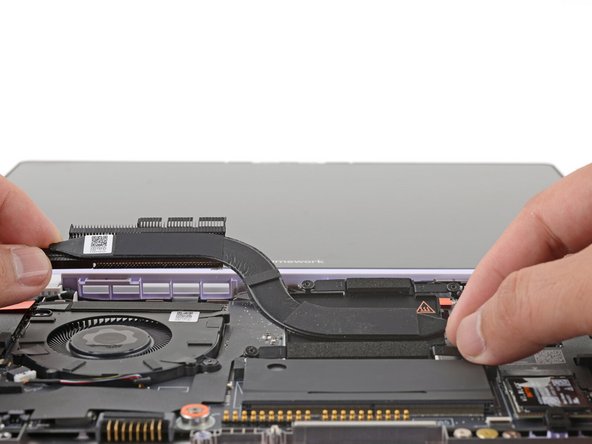
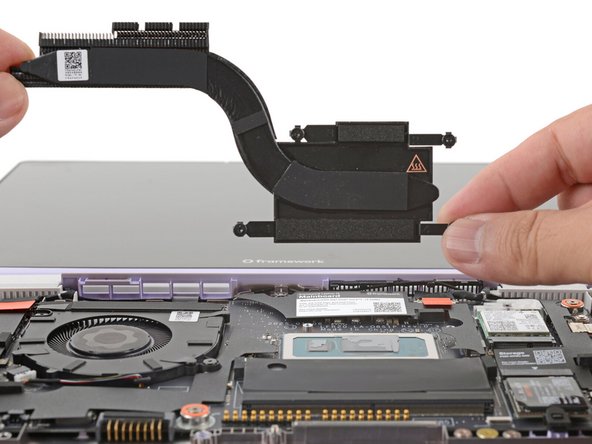
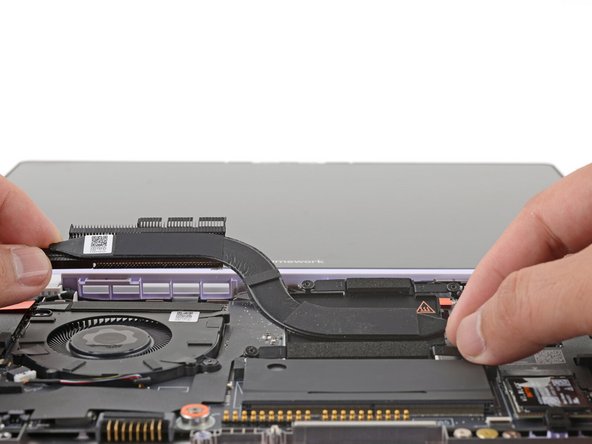
Lift and remove the Heatsink.
-
-
-
Congratulations on completing disassembly! The remaining steps will show how to reassemble your Framework Laptop.
-
-
-
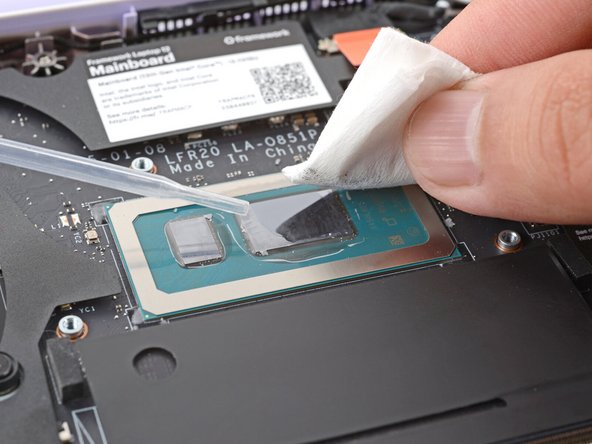
Use a few drops of high concentration (>90%) isopropyl alcohol and a lint-free cloth to wipe away the remaining residue.
-
-
-
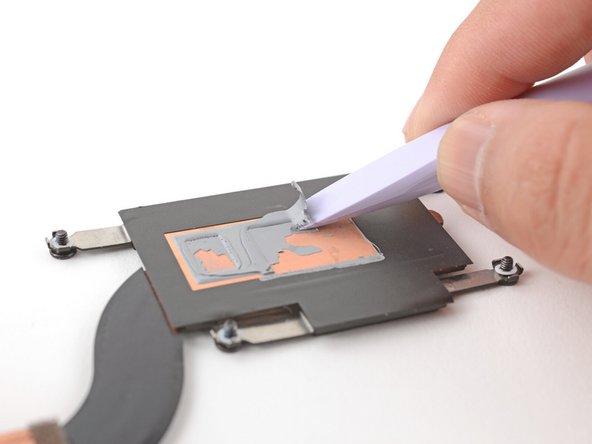
If you're reusing the heatsink:
-
Use the flat end of your Framework Screwdriver to scrape and remove the thermal compound residue from the Heatsink.
-
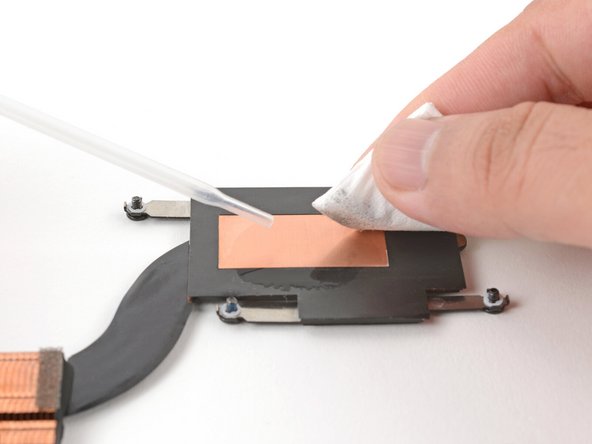
Use a few drops of high concentration (>90%) isopropyl alcohol and a lint-free cloth to wipe away the remaining residue.
-
-
-
The next two steps show how to install a thermal pad. If you're using thermal paste instead, skip down two steps.
-
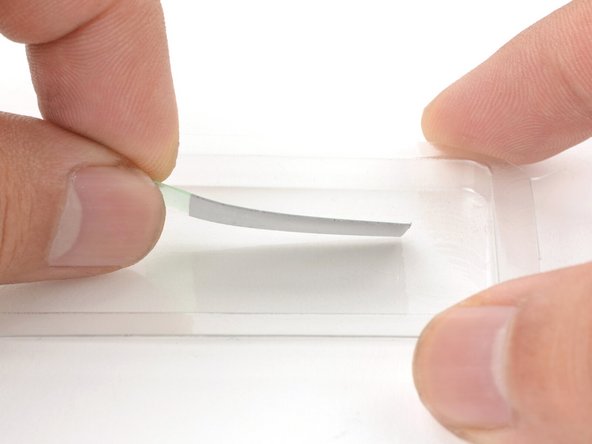
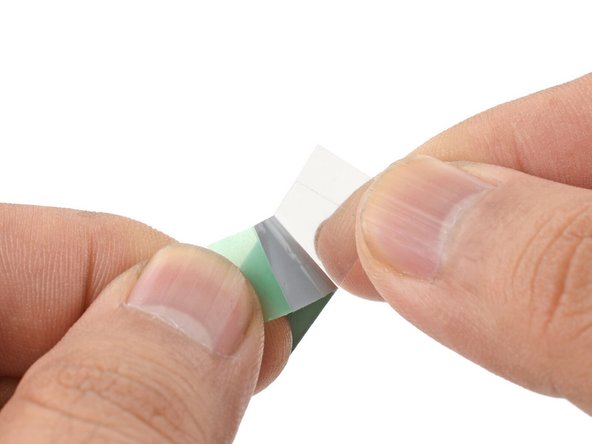
The thermal pad is covered with liners on both sides.
-
Use your fingers to carefully remove the thermal pad and liners from its container.
-
Peel the stiffer, clear liner away from the thermal pad.
-
If you have trouble handling your thermal pad, place it in your fridge for a few minutes to make it more rigid.
-
-
-
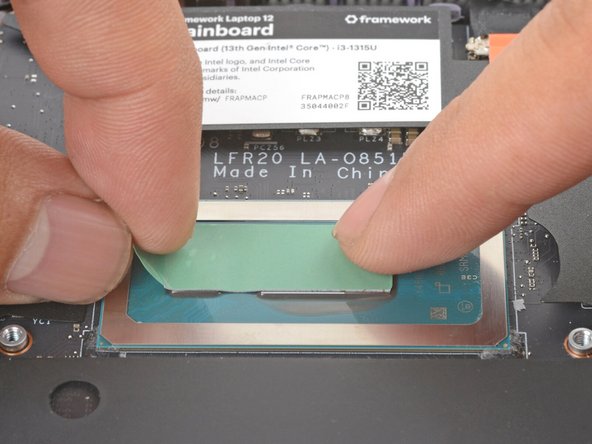
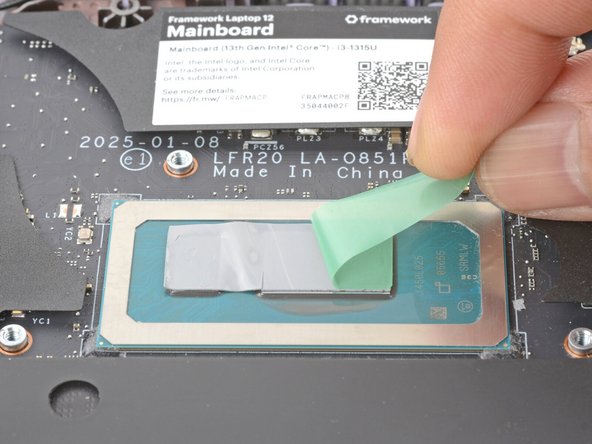
Place the thermal pad over the processor, making sure it covers both raised blocks.
-
Use your fingers to press the thermal pad onto the processor blocks.
-
Peel the colored liner away from the thermal pad.
-
Skip the next step.
-
-
-
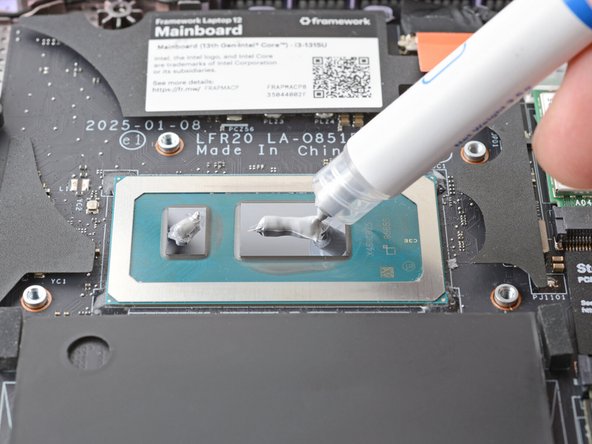
This step shows how to install thermal paste.
-
Apply a small bead of thermal paste to the small processor rectangle.
-
Apply a small line of thermal paste to the larger processor rectangle.
-
Thermal paste is non-conductive, so don't worry if it spills over the rectangles.
-
-
-
Carefully align and lay the Heatsink over the processor.
-
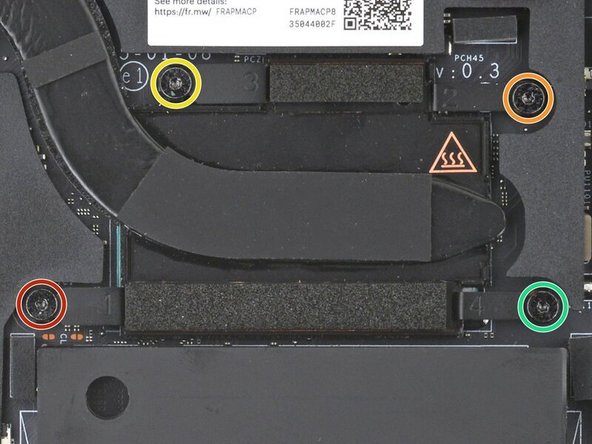
Use your Framework Screwdriver to gradually tighten the Heatsink screws in the marked order until they're snug:
-
First screw
-
Second screw
-
Third screw
-
Fourth screw, then back to the first
-
This helps compress the thermal compound evenly under the Heatsink and apply even pressure over the processor.
-
-
-
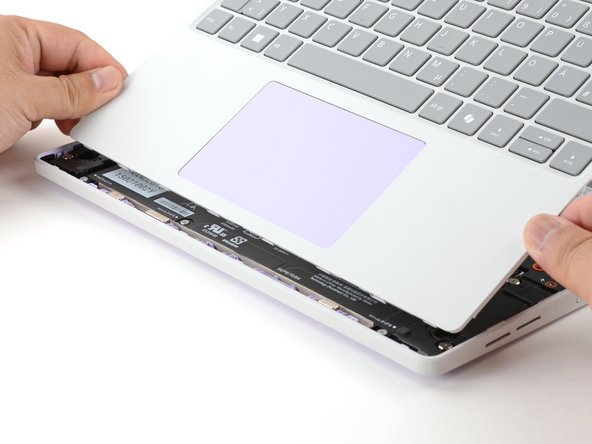
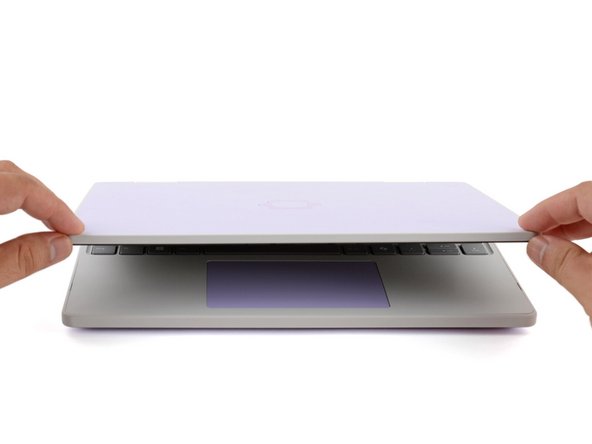
Angle the bottom edge of the Input Cover towards the base of the laptop.
-
Align and insert the bottom edge of the Input Cover into the base of the laptop.
-
Make sure the slots along the bottom edge of the Input Cover slide into the tabs in the base.
-
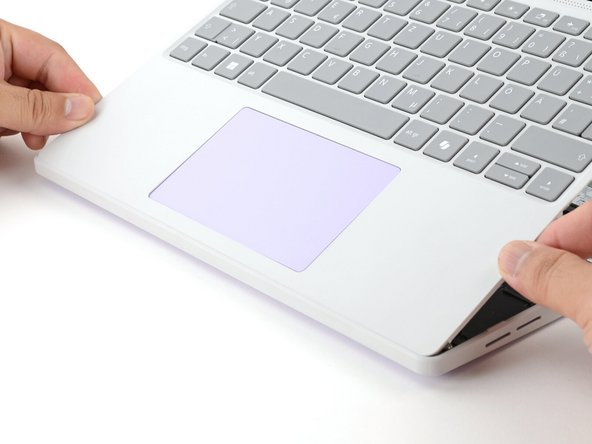
Lower the Input Cover's top edge onto the laptop until the magnets snap it in place.
-
Make sure the Input Cover sits neatly within the laptop frame and no corners are popping up.
-
-
-
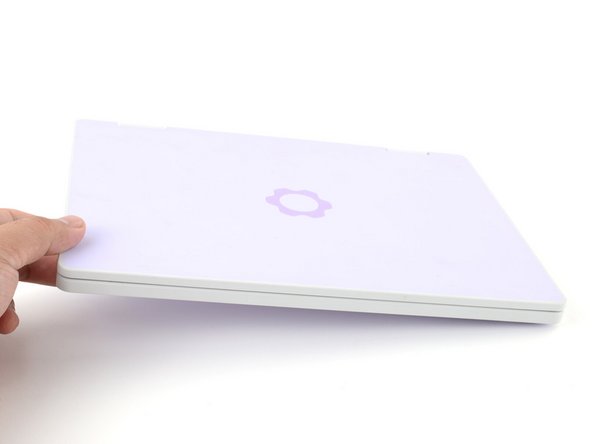
Close the laptop lid.
-
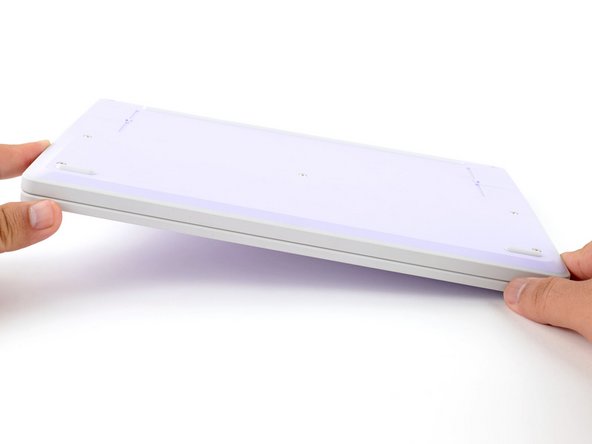
Flip your laptop face-down on a clean work surface.
-
-
-
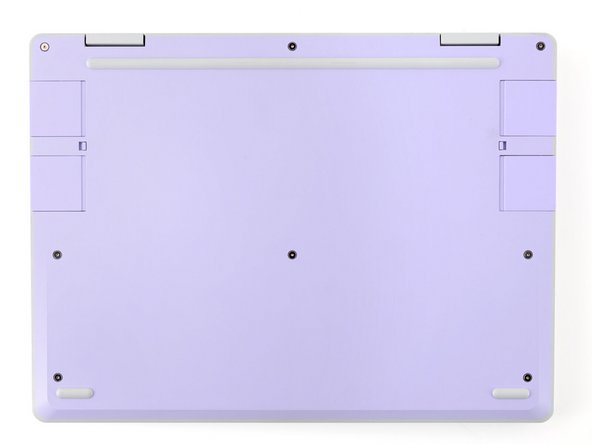
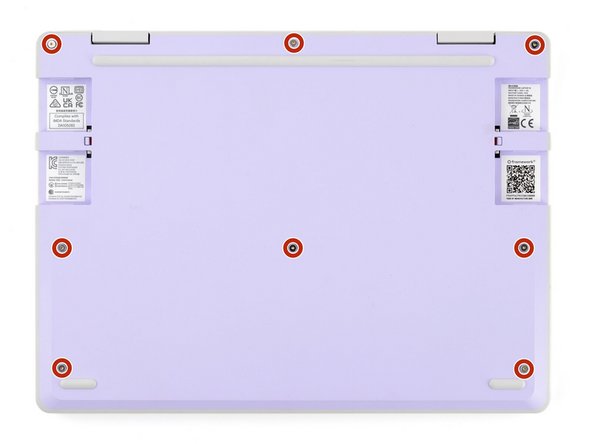
Use your Framework Screwdriver to tighten the eight captive T5 Torx screws on the bottom of your laptop.
-
Tighten the screws until they're snug. Don't over-tighten them, or you may strip the screws.
-


You finished fixing your Framework Laptop!
Take your e-waste to an R2 or e-Stewards certified recycler.
If you need help, contact Framework support.
You finished fixing your Framework Laptop!
Take your e-waste to an R2 or e-Stewards certified recycler.
If you need help, contact Framework support.

