
Introduction
Once you have your Framework Laptop 13 Pro set up following the Quick Start Guide, you’re ready to install your preferred OS. With the latest release of Arch Linux, everything works pretty smoothly. You can check our Linux page for additional Linux compatibility notes.
NOTE: This is a Compatible Community Supported Linux Distribution. Learn more here.
Tools
No tools specified.
Parts
-
-
First, download Arch Linux from Arch's website. Arch Linux has a detailed installation guide that you can follow. We'll go through the steps in this Guide assuming you have a simple installation scenario of a fresh install on a blank drive.
-
Download balenaEtcher as a tool to create the USB installer from the ISO. balenaEtcher is available for MacOS. Install it.
-
Launch balenaEtcher. Insert your USB drive (8GB or larger). Click on "Flash from file" and select the Arch Linux iso that you downloaded. Click on "Select target" and choose your USB drive. Click "Flash" and wait a minute or two for it to complete.
-
Once the USB drive creation is complete, you can close balenaEtcher and eject the USB drive from your OS.
-
-
-
First, download Arch Linux from Arch's website. Arch Linux has a detailed installation guide that you can follow. We'll go through the steps in this Guide assuming you have a simple installation scenario of a fresh install on a blank drive.
-
Download Rufus as a tool to create the USB installer from the ISO - select the top download option from the link provided. Rufus is available for Windows. Install it.
-
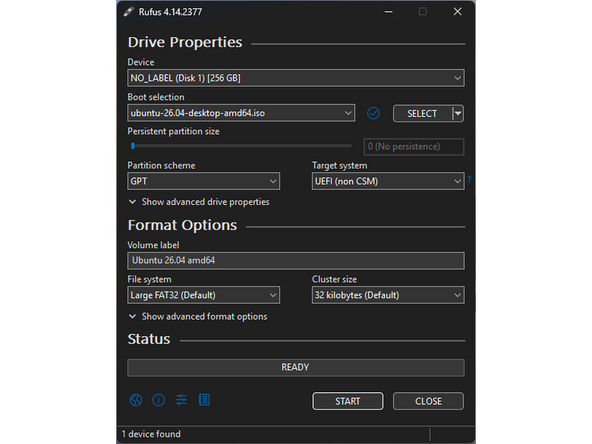
Open Rufus, from the Device drop-down, select the USB flash drive stick.
-
In order to use devices like external hard drives, external solid state drives, or the Framework Storage Expansion Card to create a live USB, List USB Hard Drives must be enabled under Show advanced drive properties.
-
Use the Select Button next to Boot selection to choose the downloaded Arch Linux ISO.
-
Set Partition scheme to GPT to ensure the live USB is properly recognized at boot.
-
Click Start. A window will pop up to prompt for a choice between dd image mode and ISOHybrid image mode. Select ISOHybrid image mode then OK.
-
-
-
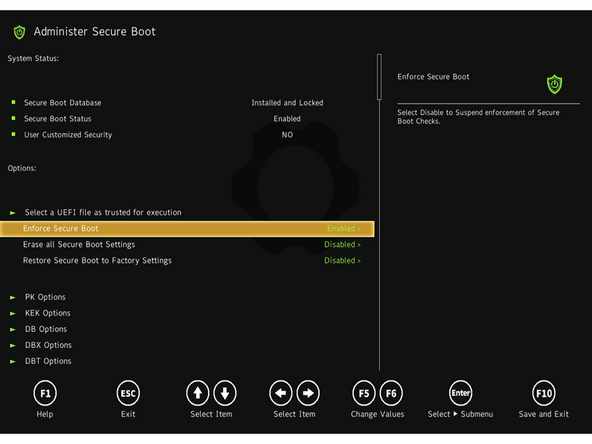
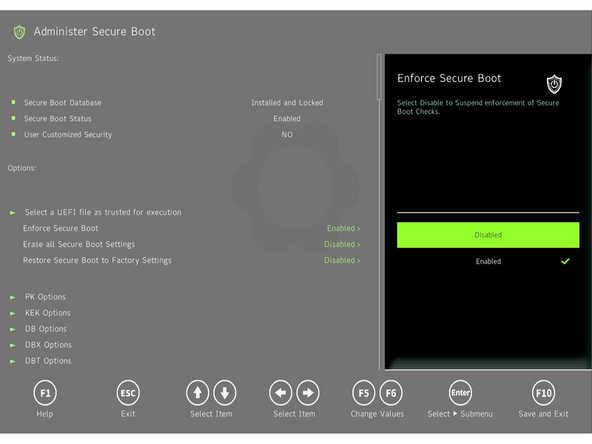
Enforce Secure Boot must be Disabled: While Arch Linux can be configured to support Secure Boot, the Live ISO does not ship with a signed bootloader by default. Information about Secure Boot on Framework Computers can be found here.
-
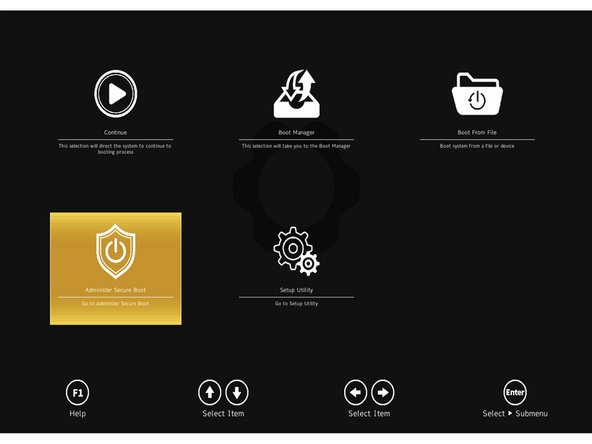
To disable Secure Boot, repeatedly tap F2 after turning on the computer to enter the BIOS Menu. Then use the arrow keys to select "Administer Secure Boot" then use the arrow keys to change "Enforce Secure Boot" to "Disabled". Press F10 to save the changes and reboot.
-
Information about implementing Secure Boot with Arch Linux can be found on the Arch Wiki.
-
-
-
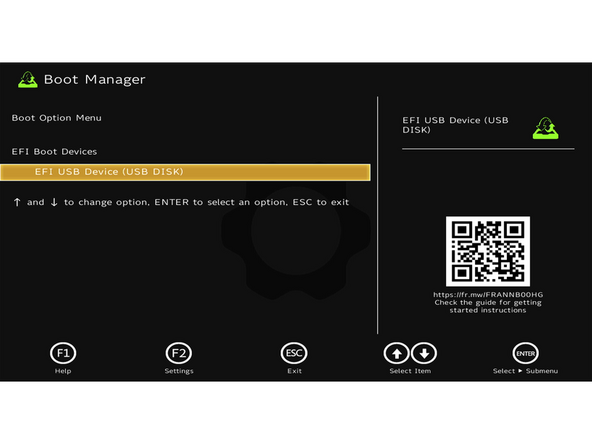
Insert the USB drive into the powered off computer, and then power on. If an existing OS is installed on the Storage drive in your laptop, immediately after the power light turns on, repeatedly tap the F12 key.
-
If there is no internal storage drive installed or it is blank, the laptop will boot to the USB drive directly.
-
Hit Enter again to boot into and install Arch Linux.
-
This is a distribution of Linux that ships in an extremely minimal state. Please utilize the Arch Wiki to for more detailed information on how to install it.
-
This guide follows a fast track method for installation using archinstall designed to make the process more user friendly.
-
-
-
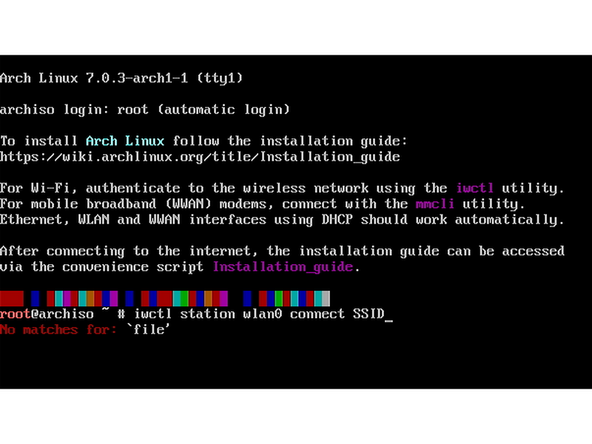
Once booted into a live environment, a command line is presented automatically logged in with the root account to provide full admin access.
-
Having root access means that anything targeting the internal drive or other drives connected to the computer can result of loss of data. If possible, back up any important data before continuing with this install process.
-
Start by connecting to a network. Wired networks over the Ethernet expansion card will automatically configure. For wireless networks use the command
iwctl station wlan0 connect SSIDreplacingSSIDwith the name of the desired wireless network. -
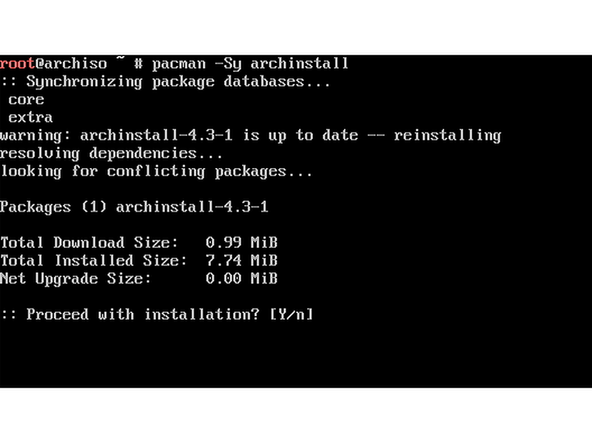
Once connected to the internet, install the latest version of the
archinstallscript by runningpacman -Sy archinstallthen enteringYwhen prompted. -
When this finishes, start the
archinstallscript. The true Arch Linux installer starts here. -
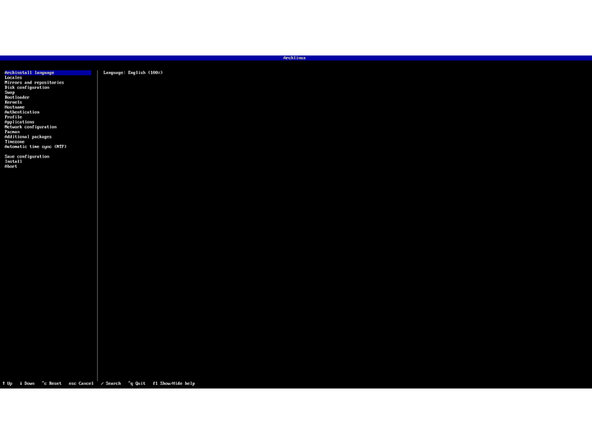
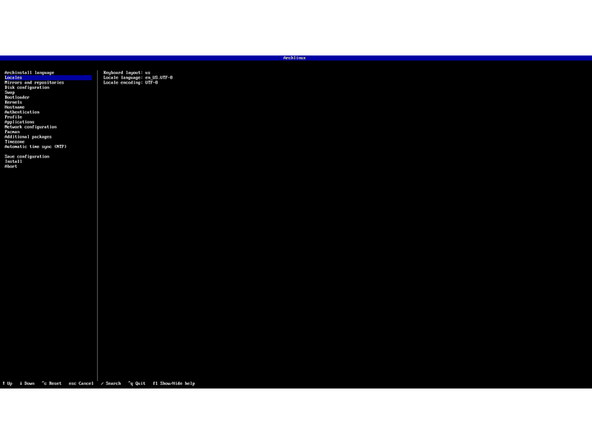
The starting point for
archinstallis a list of stages, with the first stage being to select a language for the installer. The installer is primarily navigated using the arrow keys, enter key, and space bar.
-
-
-
After choosing a language for the installer, use the arrow keys and enter key to select Locales. If the default options shown are acceptable, this can be skipped.
-
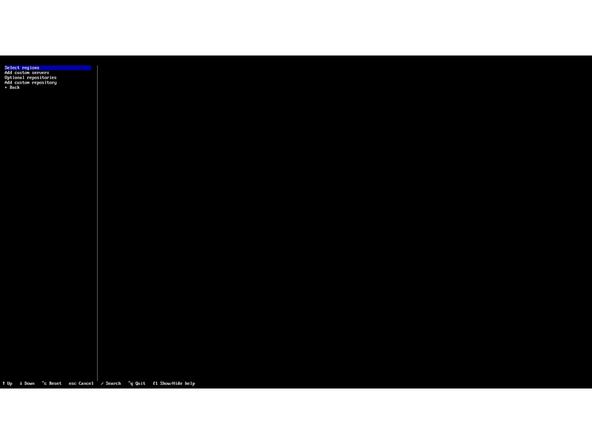
Now use the keyboard to select the Mirrors and Repositories menu.
-
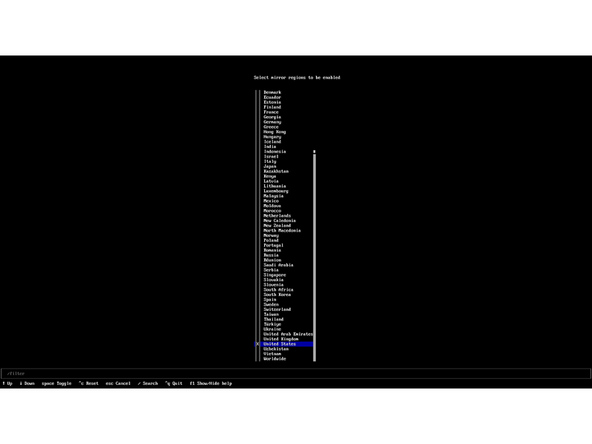
Choose "Select regions" and use the arrow keys to select the nearest geographic region to get the best performance for system updates.
-
Choose "Optional repositories" if the
multilibrepository is needed to provide libraries for packages such as Steam.
-
-
-
Select "Disk configuration" to bring up a screen showing just options for "Partitioning" and "Back". Choose "Partitioning".
-
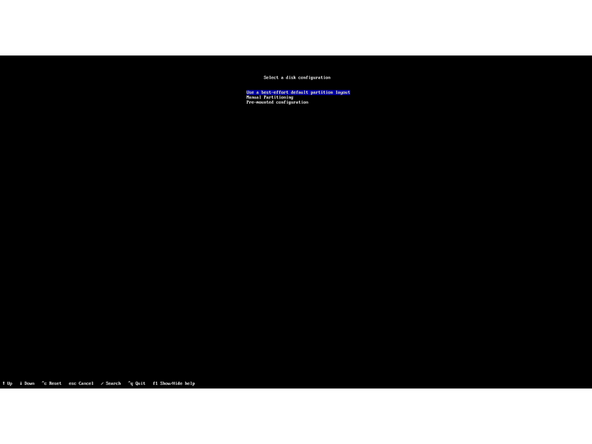
Select "Use a best-effort partitioning layout" to enter the disk selection menu.
-
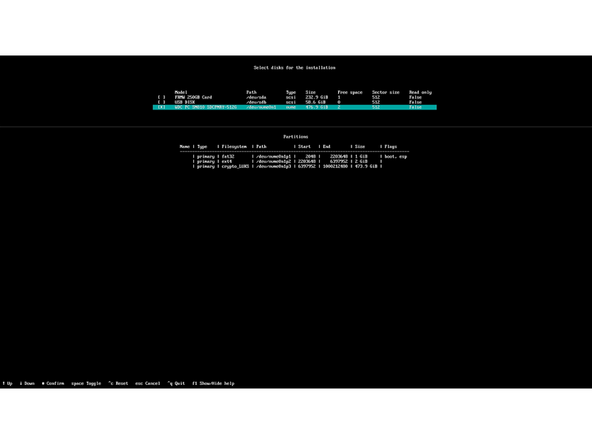
Select a disk for install by using the space bar to mark that disk with an
Xwhile its line is highlighted. Typically the disk should be the one with the path/dev/nvme0n1. -
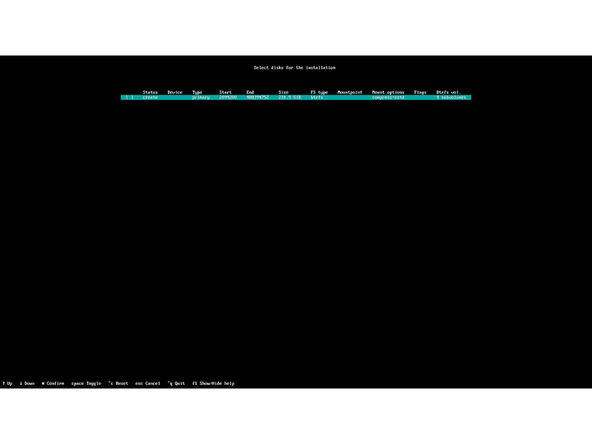
On the "Select main filesystem" screen, select the preferred filesystem. Users who do not know the differences between filesystems are probably safest choosing
ext4orxfsas these are generally considered time-tested. -
btrfsincludes additional prompts for choosing whether to use features like subvolumes, compression, and snapshots. More information about these features can be found on the Arch Wiki. -
Encryption can be enabled by entering the Disk encryption submenu, choosing LUKS, then using the space bar to select the main partition made earlier for encryption.
-
Back out of "Disk configuration" when finished and enter the "Swap" menu. Here select Yes to enable zram, which uses compressed sections of system memory in place of a swap file or partition. Then select the default option of
zstdfor compression.
-
-
-
Select the "Bootloader" menu, then again the "Bootloader" submenu. For maximum compatibility and ease of maintenance later, select GRUB or Limine as a bootloader.
-
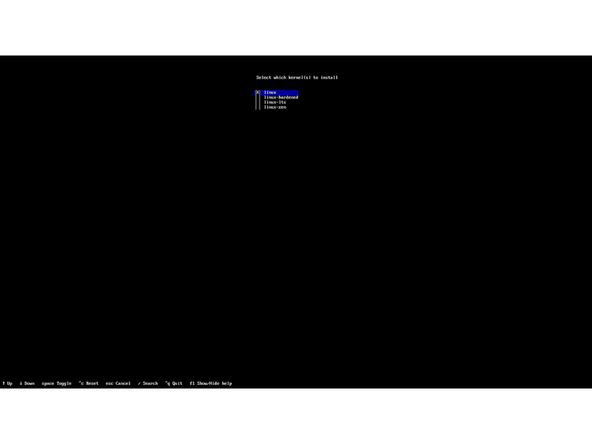
Back out of the "Bootloader" menu and move on to the "Kernels" menu. For simplicity's sake select Linux here.
-
Back out of the "Kernels" menu and enter the Hostname menu. This is where the name the computer uses to identify itself on the network is set. It is usually safest to limit this to alphanumeric characters.
-
After setting hostname, enter the "Authentication" menu to create the first user.
-
Root password can be skipped, which disables the administrator account. The first user created will be given administrator privileges.
-
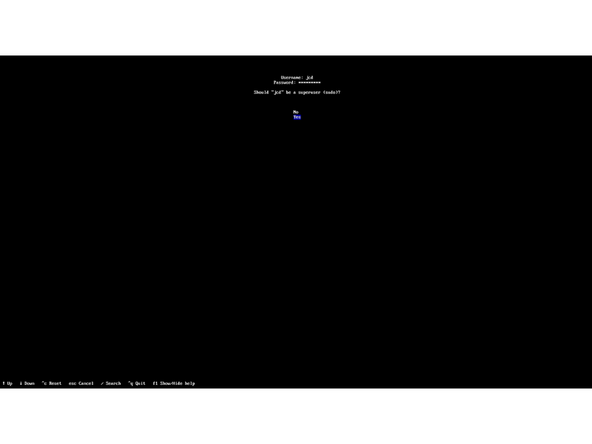
Select "User account", then enter a username and password. After confirming the password, choose yes when asked if the new user should be a superuser. Then select "Confirm and exit".
-
-
-
Back out of "Authentication" and enter the "Profile" menu then the "Type" submenu. Select the "Desktop" profile. This will open a selection for desktops. Choose according to preference.
-
KDE, Gnome, and Cosmic will most likely be the most comfortable choices for users new to Linux.
-
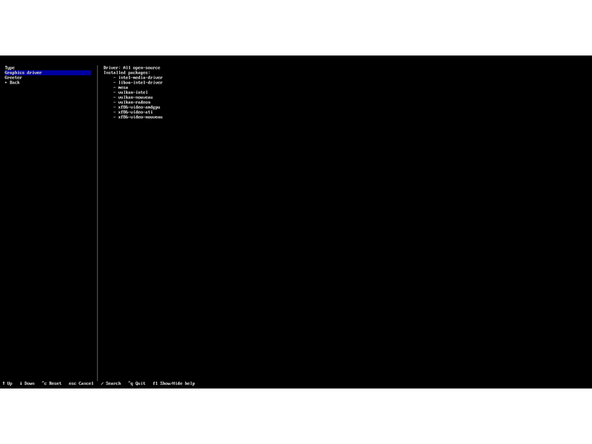
Enter the "Graphics driver" submenu. The default of "All open-source" is safe and makes it easier to transfer the drive between computers.
-
Select a greeter if one was not already selected by the desktop selection. This is a matter of user preference.
-
Back out of "Profile" and enter the "Applications" to set up some essential apps and services including Bluetooth and Additional Fonts.
-
The recommended option for Audio is
pipewire, and the recommended option for Power Management istuned. It is also helpful to install all of the additional fonts. -
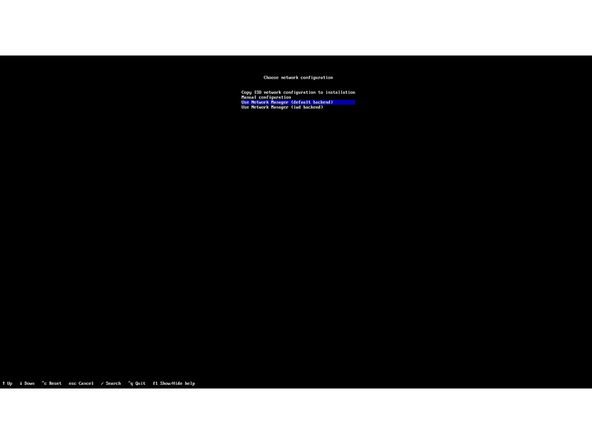
Back out of "Applications" and enter the "Network configuration" menu. Select "Use Network Manager (default backend)" for the simplest configuration.
-
-
-
Back out of "Network Configuration". The "Pacman" section can be skipped as it only has a toggle for colorizing terminal text on compatible terminals and displays.
-
The "Additional Packages" section allows the user to install any additional packages that are not included in the selections made up to this point. It is optional and any packages that can be added in this section can also be added post-install.
-
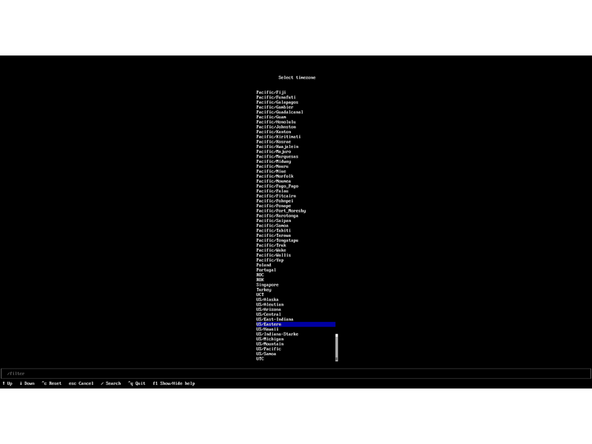
Enter the "Timezone" to select the timezone for displayed time on the system. "Automatic time sync (NTP)" can be skipped as it is already enabled by default.
-
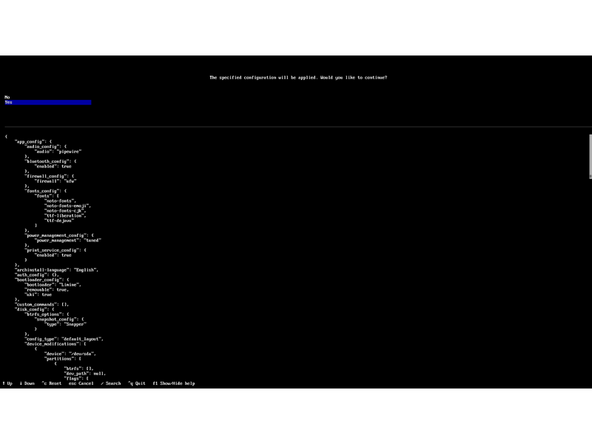
Select "Install" then confirm by selecting "Yes". Installation time will depend heavily on the internet speed.
-
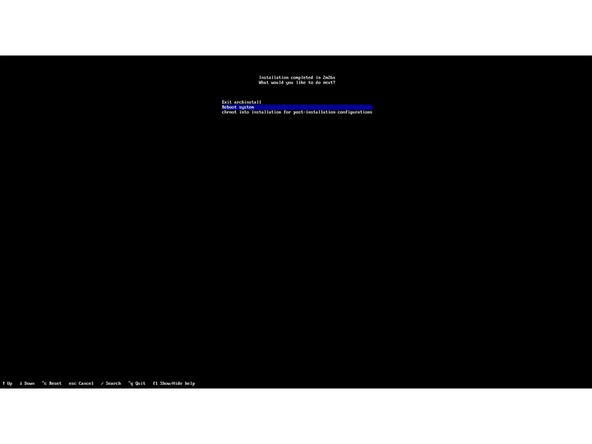
Select "Reboot system" when the install is completed.
-
-
-
Arch Linux allows for many different choices of desktop environment or window manager, so this guide will focus on the command line method for enrolling fingerprints.
-
Install the package
fprintdfor managing fingerprints if it is not already installed. This can be done by opening a terminal and runningsudo pacman -S fprintd. -
With
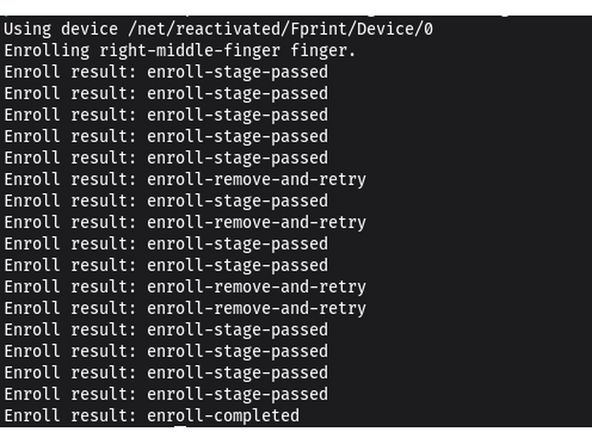
fprintdinstalled, fingerprints can be enrolled by running the command ``fprintd-enroll` which defaults to enrolling the right index finger. -
Other fingers can be chosen by adding
-fafter thefprintd-enrollcommand. Fingers are named in all lower case with dashes used in place of spaces. For examplefprintd-enroll -f right-middle-finger. -
After running this command tap and lift the finger repeatedly until enrollment is complete.
-
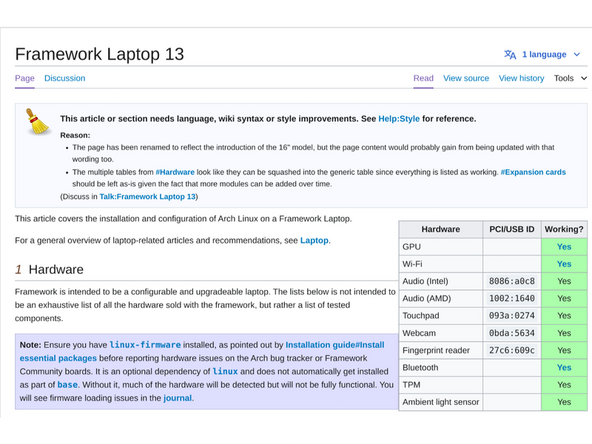
Further information on the
fprintcan be found on the Arch Wiki. -
If you're experiencing issues getting your fingerprint reader working, please follow our help guide to get your reader working for you on Fedora.
-
-
-
The Arch Wiki configuration knowledge base from the Arch Community.
-
-
-
How to check the BIOS version. Go to and click upper left corner where you see the horizontal line, search terminal and launch it. Please follow the step below:
-
sudo pacman -S lshw dmidecode --noconfirm && clear && sudo dmidecode | grep -A3 'Vendor:\|Product:' && sudo lshw -C cpu | grep -A3 'product:\|vendor:'
-
The output will tell you which Framework Laptop 13 Pro you have and also which BIOS version you're using.
-
If you have Intel Core Ultra Series 3, you can check (Coming soon) for the latest firmware.
-
IMPORTANT: Per the instructions above, we do NOT recommend updating BIOS and firmware using various GUIs. We recommend using fwupdmgr as provided in the step above. Using GUIs can potentially create issues that would not be present using fwupdmgr directly.
-
-
-
If you need additional help, feel free to visit our active support community.
-





Enjoy using Arch on your Framework Laptop 13 Pro! If you have any questions or run into any issues, we recommend bringing them to the Community in the Linux Arch topic. Members of the Framework team participate in discussions there.
Enjoy using Arch on your Framework Laptop 13 Pro! If you have any questions or run into any issues, we recommend bringing them to the Community in the Linux Arch topic. Members of the Framework team participate in discussions there.

